> ## Documentation Index
> Fetch the complete documentation index at: https://docs.chief.bot/llms.txt
> Use this file to discover all available pages before exploring further.
# Interface preferences (Enter-key, sidebar, advanced mode)
> Most interface preferences are in Settings → General.
## Where interface preferences live
Most interface preferences are in **Settings → General**. The Enter-key behavior is set in the [prompt bar's](/help/the-prompt-bar-scope/the-prompt-bar-a-tour-of-your-chat-controls) **Customize** menu, next to where you type.
## Preferences in Settings → General
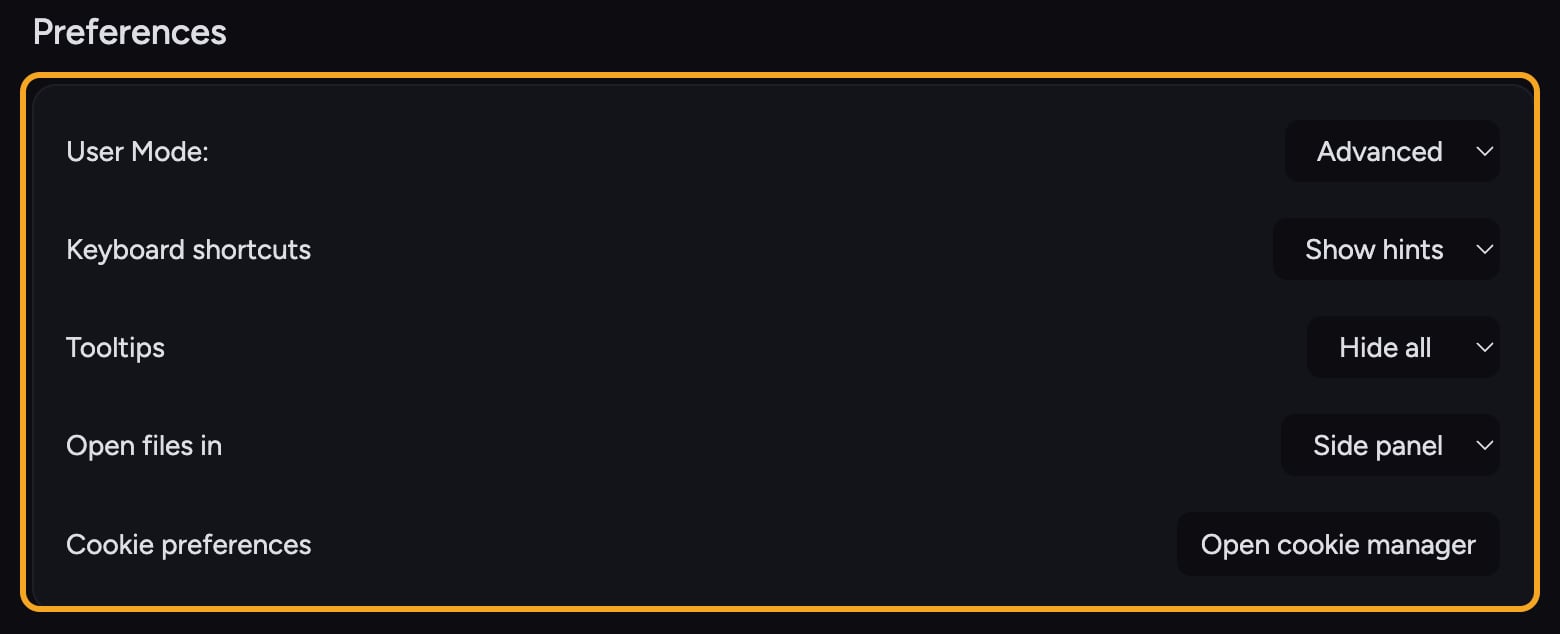 1. Click your **avatar** in the top corner, then click **Settings**.
2. Stay on the **General** tab. In the **Preferences** card you will find these dropdowns:
* **User Mode** — switch between **Regular** and **Advanced**. Advanced [unlocks power-user controls](/help/account-settings/regular-vs-advanced-mode).
* **[Keyboard shortcuts](/help/getting-started/keyboard-shortcuts-the-command-palette-k-hint-mode)** — **Show hints**, **Hide hints**, or **Disable** the on-screen shortcut hints.
* **Tooltips** — **Show all** or **Hide all** in-app help tooltips.
* **Open files in** — choose **Side panel** ([files](/help/your-knowledge-library/viewing-asset-details-file-processing-status) open beside your chat) or **Full page** (files take the whole view). This is the sidebar setting.
* **Cookie preferences** — click **Open cookie manager** to review [consent choices](/help/security-privacy/compliance-overview-dpa-privacy-policy-terms).
## Set the Enter-key behavior
This controls what the **Return** key does while you are typing a prompt.
1. In the chat view, open the **Customize** menu on the prompt bar.
2. Click the **Return** (Enter key) row.
3. Choose **Sends chat** or **New line**.
💡 **Pro-Tip:** Whichever you pick, **Shift + Return** always does the opposite. If Return sends the chat, Shift + Return adds a new line — and the other way around.
## FAQ
Open the prompt bar's Customize menu, pick the **Return** row, and set it to **New line**. Then use **Shift + Return** to send when you are ready.
Interface preferences like Enter-key behavior and Open files in are stored in your browser. Clearing site data or switching browsers resets them to defaults. Set them again on the new browser.
It is in **Settings → General** in the Preferences card. Make sure you are on the General tab and signed in.
1. Click your **avatar** in the top corner, then click **Settings**.
2. Stay on the **General** tab. In the **Preferences** card you will find these dropdowns:
* **User Mode** — switch between **Regular** and **Advanced**. Advanced [unlocks power-user controls](/help/account-settings/regular-vs-advanced-mode).
* **[Keyboard shortcuts](/help/getting-started/keyboard-shortcuts-the-command-palette-k-hint-mode)** — **Show hints**, **Hide hints**, or **Disable** the on-screen shortcut hints.
* **Tooltips** — **Show all** or **Hide all** in-app help tooltips.
* **Open files in** — choose **Side panel** ([files](/help/your-knowledge-library/viewing-asset-details-file-processing-status) open beside your chat) or **Full page** (files take the whole view). This is the sidebar setting.
* **Cookie preferences** — click **Open cookie manager** to review [consent choices](/help/security-privacy/compliance-overview-dpa-privacy-policy-terms).
## Set the Enter-key behavior
This controls what the **Return** key does while you are typing a prompt.
1. In the chat view, open the **Customize** menu on the prompt bar.
2. Click the **Return** (Enter key) row.
3. Choose **Sends chat** or **New line**.
💡 **Pro-Tip:** Whichever you pick, **Shift + Return** always does the opposite. If Return sends the chat, Shift + Return adds a new line — and the other way around.
## FAQ
Open the prompt bar's Customize menu, pick the **Return** row, and set it to **New line**. Then use **Shift + Return** to send when you are ready.
Interface preferences like Enter-key behavior and Open files in are stored in your browser. Clearing site data or switching browsers resets them to defaults. Set them again on the new browser.
It is in **Settings → General** in the Preferences card. Make sure you are on the General tab and signed in.