> ## Documentation Index
> Fetch the complete documentation index at: https://docs.chief.bot/llms.txt
> Use this file to discover all available pages before exploring further.
# Notification preferences
> Chief can notify you when a prompt finishes, so you can step away from a long answer and come back when it is done.
## Choose when Chief notifies you
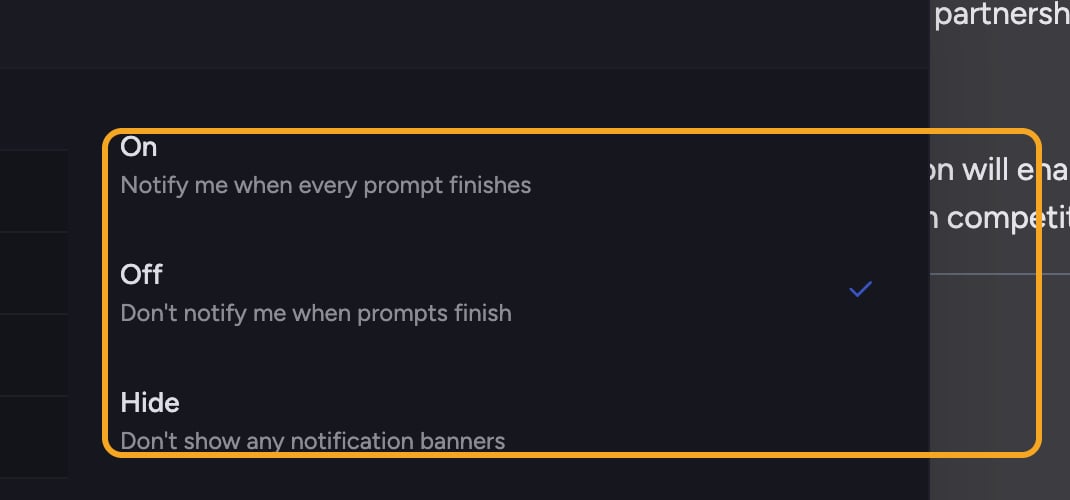 Chief can notify you when a prompt finishes, so you can [step away from a long answer](/help/chatting-with-chief/running-chats-in-the-background-browser-notifications) and come back when it is done. You control this from the prompt bar.
1. In the chat view, find the **Customize** menu on the [prompt bar](/help/the-prompt-bar-scope/the-prompt-bar-a-tour-of-your-chat-controls) (the controls below where you type).
2. Open it and click **Manage notifications** (the bell row).
3. Pick one of the three options:
* **On** — Chief notifies you when every prompt finishes.
* **Off** — Chief does not notify you when prompts finish.
* **Hide** — Chief does not show any notification banners.
## Allow browser notifications
When notifications are set to **On**, Chief uses your browser's notification permission to alert you even when the tab is in the background. If you have not allowed notifications yet, Chief shows a prompt to **allow notifications**; click it and accept the browser permission. For results emailed to you by an Action, see [Managing email notifications](/help/actions-automation/managing-email-notifications).
⚠️ **Important:** If notifications are blocked, Chief cannot pop an alert. Re-enable them in your browser's site permissions (the lock icon in the address bar), then return to Chief and try again.
## FAQ
Your browser has most likely blocked notifications for the site. Open the lock icon in the address bar, set notifications to Allow, reload Chief, and try again. Private or incognito windows often block them entirely.
**Off** stops Chief from notifying you when prompts finish but still allows other in-app banners. **Hide** suppresses notification banners entirely.
[Some browsers and contexts](/help/troubleshooting/performance-speed-tips) do not support web notifications. Use a normal (not private) window on a secure HTTPS connection. If it is still unsupported, you will see a message saying so.
Chief can notify you when a prompt finishes, so you can [step away from a long answer](/help/chatting-with-chief/running-chats-in-the-background-browser-notifications) and come back when it is done. You control this from the prompt bar.
1. In the chat view, find the **Customize** menu on the [prompt bar](/help/the-prompt-bar-scope/the-prompt-bar-a-tour-of-your-chat-controls) (the controls below where you type).
2. Open it and click **Manage notifications** (the bell row).
3. Pick one of the three options:
* **On** — Chief notifies you when every prompt finishes.
* **Off** — Chief does not notify you when prompts finish.
* **Hide** — Chief does not show any notification banners.
## Allow browser notifications
When notifications are set to **On**, Chief uses your browser's notification permission to alert you even when the tab is in the background. If you have not allowed notifications yet, Chief shows a prompt to **allow notifications**; click it and accept the browser permission. For results emailed to you by an Action, see [Managing email notifications](/help/actions-automation/managing-email-notifications).
⚠️ **Important:** If notifications are blocked, Chief cannot pop an alert. Re-enable them in your browser's site permissions (the lock icon in the address bar), then return to Chief and try again.
## FAQ
Your browser has most likely blocked notifications for the site. Open the lock icon in the address bar, set notifications to Allow, reload Chief, and try again. Private or incognito windows often block them entirely.
**Off** stops Chief from notifying you when prompts finish but still allows other in-app banners. **Hide** suppresses notification banners entirely.
[Some browsers and contexts](/help/troubleshooting/performance-speed-tips) do not support web notifications. Use a normal (not private) window on a secure HTTPS connection. If it is still unsupported, you will see a message saying so.