> ## Documentation Index
> Fetch the complete documentation index at: https://docs.chief.bot/llms.txt
> Use this file to discover all available pages before exploring further.
# Auto-approving Actions & granting permissions
> By default, when an Action wants to take a real-world step — send an email, change a calendar event — Chief pauses and asks you to approve it first.
## Run without asking
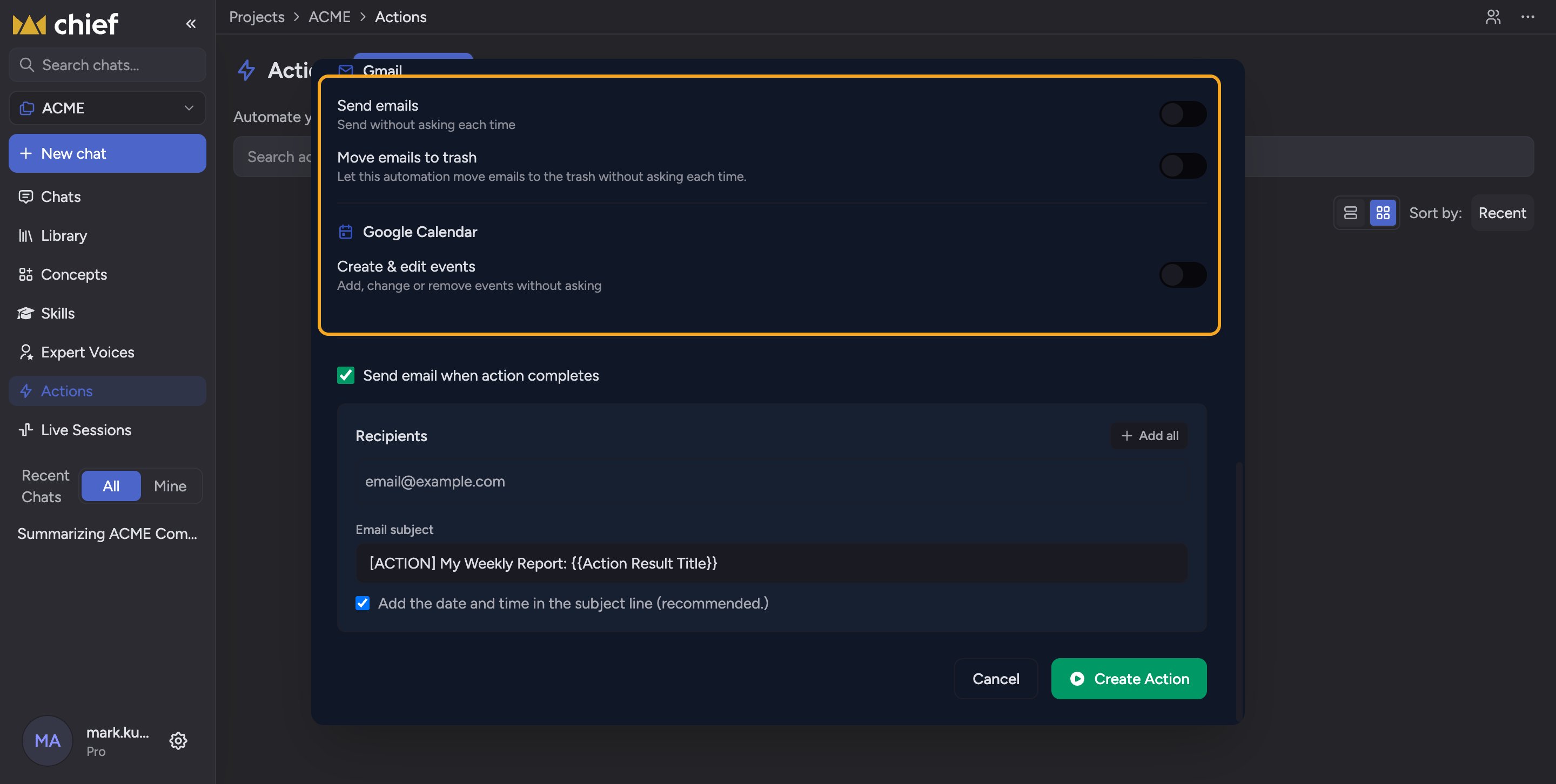 By default, when [an Action](/help/actions-automation/what-are-actions) wants to take a [real-world step](/help/integrations/integrations-overview) — send an email, change a calendar event — Chief pauses and asks you to approve it first. The **Run without asking** section lets you pre-approve specific operations so the Action can complete them on its own.
## Granting permissions
In the create or edit dialog, find **Run without asking**. Each connected tool shows toggles for the operations you can pre-approve:
* **[Gmail](/help/integrations/gmail-read-search-draft-send-label-archive) → Send emails** — send without asking each time.
* **Gmail → Move emails to trash** — let the Action trash emails without asking.
* **[Google Calendar](/help/integrations/google-calendar-read-create-rsvp) → Create & edit events** — add, change, or remove events without asking.
Flip a toggle on to grant that permission; leave it off to keep being asked. Anything you don't pre-approve still goes through the confirmation step.
## Connecting a tool first
If a tool isn't connected yet, its toggles are replaced by a **Connect to enable** button. Click it to [connect the integration](/help/integrations/managing-integration-permissions-connection-status) (for example your Google account), then return and set the toggles.
⚠️ **Important:** Auto-approval means the Action takes these steps automatically on every run, with no chance to review. Only enable it for operations you fully trust — sending email and editing calendars affect people outside Chief.
## FAQ
The underlying tool isn't connected for your account. Click **Connect to enable**, finish connecting the integration, then come back to set the toggle.
The Action still runs, but each real-world step waits for your approval. You'll see [a confirmation card you can Approve or Reject](/help/actions-automation/confirming-an-action-before-it-runs).
Yes. Open the Action's editor and toggle the operation back off. Future runs will ask for confirmation again.
By default, when [an Action](/help/actions-automation/what-are-actions) wants to take a [real-world step](/help/integrations/integrations-overview) — send an email, change a calendar event — Chief pauses and asks you to approve it first. The **Run without asking** section lets you pre-approve specific operations so the Action can complete them on its own.
## Granting permissions
In the create or edit dialog, find **Run without asking**. Each connected tool shows toggles for the operations you can pre-approve:
* **[Gmail](/help/integrations/gmail-read-search-draft-send-label-archive) → Send emails** — send without asking each time.
* **Gmail → Move emails to trash** — let the Action trash emails without asking.
* **[Google Calendar](/help/integrations/google-calendar-read-create-rsvp) → Create & edit events** — add, change, or remove events without asking.
Flip a toggle on to grant that permission; leave it off to keep being asked. Anything you don't pre-approve still goes through the confirmation step.
## Connecting a tool first
If a tool isn't connected yet, its toggles are replaced by a **Connect to enable** button. Click it to [connect the integration](/help/integrations/managing-integration-permissions-connection-status) (for example your Google account), then return and set the toggles.
⚠️ **Important:** Auto-approval means the Action takes these steps automatically on every run, with no chance to review. Only enable it for operations you fully trust — sending email and editing calendars affect people outside Chief.
## FAQ
The underlying tool isn't connected for your account. Click **Connect to enable**, finish connecting the integration, then come back to set the toggle.
The Action still runs, but each real-world step waits for your approval. You'll see [a confirmation card you can Approve or Reject](/help/actions-automation/confirming-an-action-before-it-runs).
Yes. Open the Action's editor and toggle the operation back off. Future runs will ask for confirmation again.