> ## Documentation Index
> Fetch the complete documentation index at: https://docs.chief.bot/llms.txt
> Use this file to discover all available pages before exploring further.
# Choosing an Action trigger
> Choose when an Action runs: on a schedule, when new data arrives, or through the guided calendar-meeting workflow.
## Choose when an Action runs
An [Action](/help/actions-automation/what-are-actions) can run on a schedule, react to new source data, or use a guided calendar workflow to create a Notion page for each newly scheduled meeting. Pick the path that matches the event you want Chief to respond to.
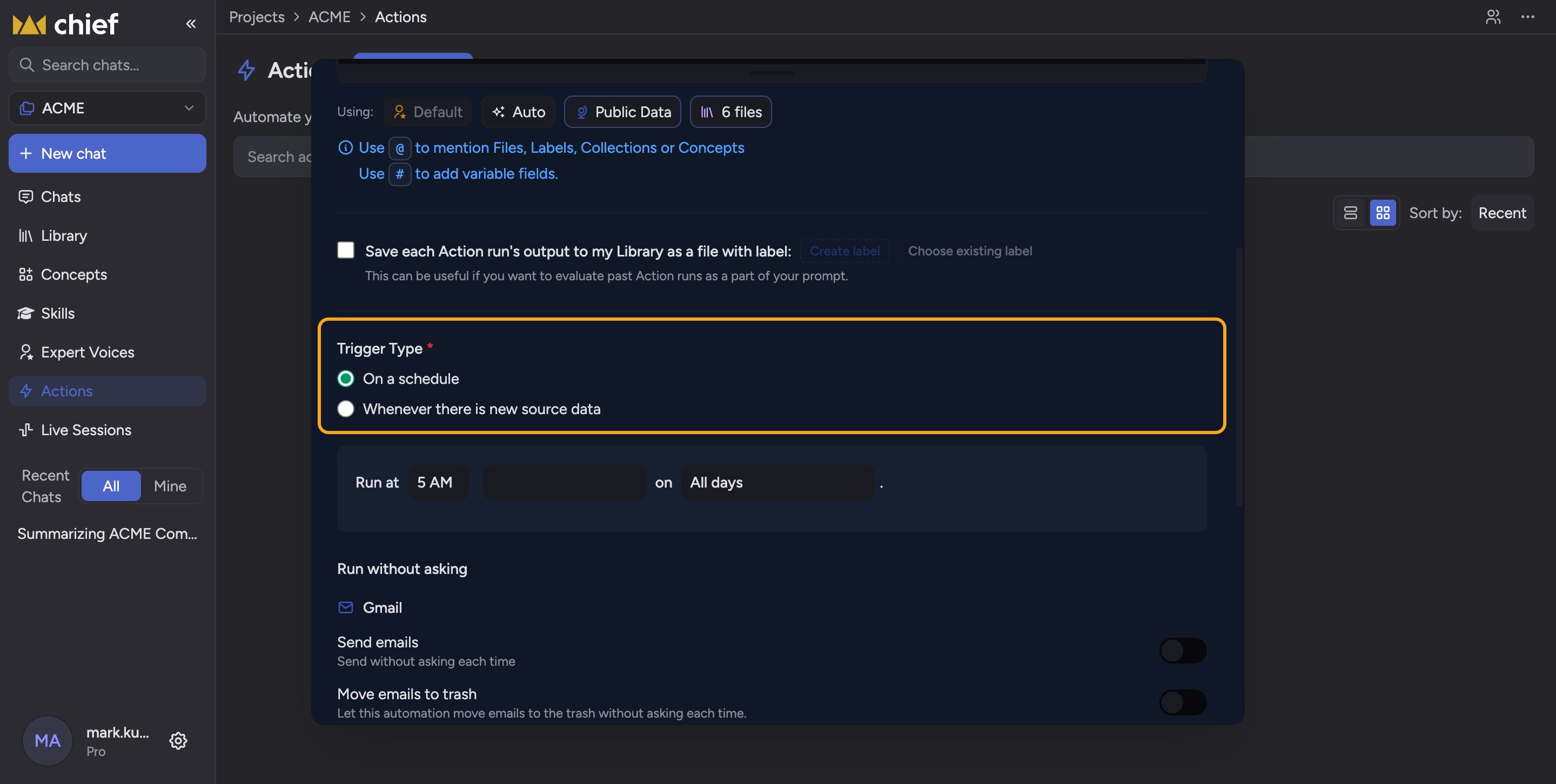 The standard [create and edit dialog](/help/actions-automation/creating-your-first-action) offers two choices under **Trigger Type**: **On a schedule** and **Whenever there is new source data**. The calendar-meeting workflow starts from a separate banner on the **Actions** page.
## On a schedule
Select **On a schedule** when you want the Action to run at [a fixed time](/help/actions-automation/scheduling-actions-days-dates-times) — daily, on specific weekdays, or one day each month. Chief runs the prompt at that time regardless of whether anything changed in the Project. This is the right choice for standing reports and digests: "every Monday at 8 AM," "the 1st of each month."
## Whenever there is new source data
Select **Whenever there is new source data** when you want the Action to react to [files being added](/help/your-knowledge-library/uploading-files-supported-file-types), rather than to the clock. When you pick this, a **Trigger Options** box appears with two choices:
* **Run only on the new asset** — the run processes just the file that was added.
* **Run on all matching assets** — the run re-processes everything [in scope](/help/the-prompt-bar-scope/setting-the-scope-of-a-chat-using-files-labels-collections-concepts) each time new data arrives.
This is the right choice for alerts and incremental processing: "whenever a new transcript is added, summarize it," or "whenever a new contract lands, flag any unusual clauses."
ℹ️ **Good to know:** A new-data Action only fires when data is actually added. If nothing new arrives, there is no run — that is expected, not an error.
## When a new calendar meeting is scheduled
When Notion is enabled for the Project, the **Actions** page can show **Create Notion meeting pages from Google Calendar**. Select that banner's action to open a preconfigured workflow. Its trigger summary reads **New calendar meeting**.
This Action checks Google Calendar hourly and creates a Notion page for each newly scheduled meeting. Complete the prompted Google Calendar and Notion setup, review the prefilled Action, then save it. This calendar trigger is available through the guided banner rather than as a third radio button in the standard **Trigger Type** picker.
## FAQ
For a standard Action, yes. Open the Action's editor, change the **Trigger Type** choice, set the new options, and save. Create the calendar-meeting workflow from its banner on the **Actions** page.
Probably not. A new-data trigger only runs when new source data is added to the Project. If no files have been added, there is nothing to trigger it. Check the Project for recent uploads, and confirm the Action is [not paused](/help/actions-automation/pausing-resuming-deleting-actions).
"Run only on the new asset" looks at just the file that arrived; "Run on all matching assets" re-runs against the full scope each time. Use the first for per-file alerts and the second when each new file should refresh a whole summary.
The standard [create and edit dialog](/help/actions-automation/creating-your-first-action) offers two choices under **Trigger Type**: **On a schedule** and **Whenever there is new source data**. The calendar-meeting workflow starts from a separate banner on the **Actions** page.
## On a schedule
Select **On a schedule** when you want the Action to run at [a fixed time](/help/actions-automation/scheduling-actions-days-dates-times) — daily, on specific weekdays, or one day each month. Chief runs the prompt at that time regardless of whether anything changed in the Project. This is the right choice for standing reports and digests: "every Monday at 8 AM," "the 1st of each month."
## Whenever there is new source data
Select **Whenever there is new source data** when you want the Action to react to [files being added](/help/your-knowledge-library/uploading-files-supported-file-types), rather than to the clock. When you pick this, a **Trigger Options** box appears with two choices:
* **Run only on the new asset** — the run processes just the file that was added.
* **Run on all matching assets** — the run re-processes everything [in scope](/help/the-prompt-bar-scope/setting-the-scope-of-a-chat-using-files-labels-collections-concepts) each time new data arrives.
This is the right choice for alerts and incremental processing: "whenever a new transcript is added, summarize it," or "whenever a new contract lands, flag any unusual clauses."
ℹ️ **Good to know:** A new-data Action only fires when data is actually added. If nothing new arrives, there is no run — that is expected, not an error.
## When a new calendar meeting is scheduled
When Notion is enabled for the Project, the **Actions** page can show **Create Notion meeting pages from Google Calendar**. Select that banner's action to open a preconfigured workflow. Its trigger summary reads **New calendar meeting**.
This Action checks Google Calendar hourly and creates a Notion page for each newly scheduled meeting. Complete the prompted Google Calendar and Notion setup, review the prefilled Action, then save it. This calendar trigger is available through the guided banner rather than as a third radio button in the standard **Trigger Type** picker.
## FAQ
For a standard Action, yes. Open the Action's editor, change the **Trigger Type** choice, set the new options, and save. Create the calendar-meeting workflow from its banner on the **Actions** page.
Probably not. A new-data trigger only runs when new source data is added to the Project. If no files have been added, there is nothing to trigger it. Check the Project for recent uploads, and confirm the Action is [not paused](/help/actions-automation/pausing-resuming-deleting-actions).
"Run only on the new asset" looks at just the file that arrived; "Run on all matching assets" re-runs against the full scope each time. Use the first for per-file alerts and the second when each new file should refresh a whole summary.