> ## Documentation Index
> Fetch the complete documentation index at: https://docs.chief.bot/llms.txt
> Use this file to discover all available pages before exploring further.
# Confirming an Action before it runs
> When an Action proposes a real-world step that you haven't pre-approved — sending an email, creating or moving a calendar event, moving messages to Trash — Chief doesn't do it silently.
## Review before it acts
When [an Action](/help/actions-automation/what-are-actions) proposes a real-world step that you haven't pre-approved — sending an email, creating or moving a calendar event, moving messages to Trash — Chief doesn't do it silently. It surfaces a confirmation you must respond to.
## The "Action required" card
Pending steps appear in an **Action required** section, grouped by tool (for example [**Email**](/help/integrations/gmail-read-search-draft-send-label-archive) or [**Calendar**](/help/integrations/google-calendar-read-create-rsvp)), with a count of how many are waiting. Each card shows exactly what will happen — the email's recipients and subject, or the event's title, time, and attendees.
* Click **Approve** to let the step proceed. The card updates to a confirmed state (for example "Email sent" or "Calendar updated").
* Click **Reject** to cancel it. The card shows "Cancelled" and nothing is sent.
* Click **Edit** to adjust the details (such as the email body) before approving.
ℹ️ **Good to know:** The Action required section is pinned outside the run's collapsible timeline so its Approve and Reject buttons are always clickable — even while you're scrolling through the rest of the run.
## Skip the confirmation step
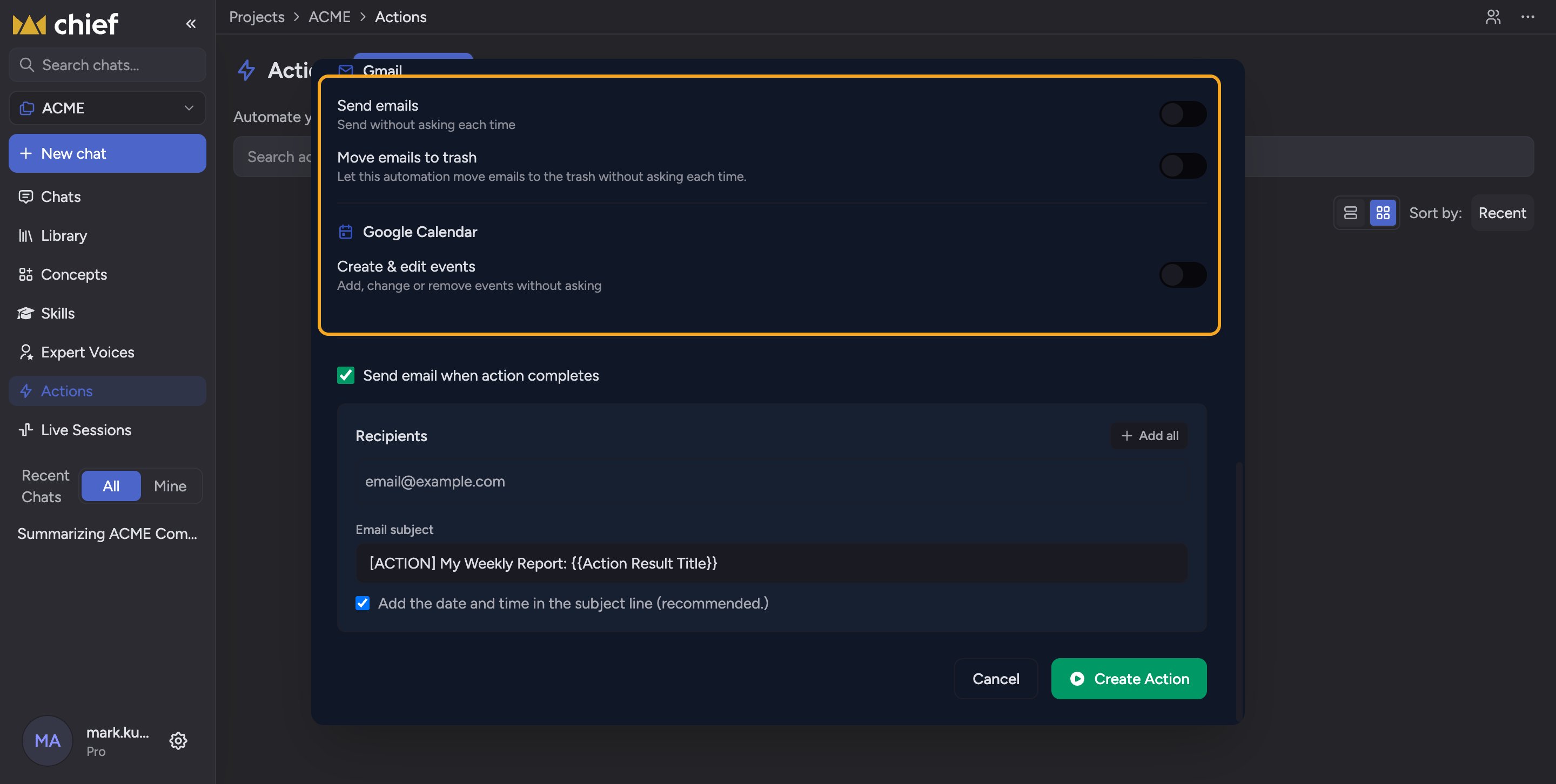 If you trust a step and don't want to confirm it every time, [pre-approve it in **Run without asking**](/help/actions-automation/auto-approving-actions-granting-permissions) when you create or edit the Action.
## FAQ
The step was already approved or rejected (possibly by someone else on the run, or in another tab). No further action is needed.
The step reached the tool but the tool reported an error (for example [the connected account lost access](/help/troubleshooting/an-integration-disconnected-or-wont-sync)). The card shows "Action failed. Please try again." Reconnect the tool and re-run, or send manually.
Yes — an unapproved step stays pending until you respond. If you want unattended runs to complete on their own, pre-approve those operations in Run without asking.
If you trust a step and don't want to confirm it every time, [pre-approve it in **Run without asking**](/help/actions-automation/auto-approving-actions-granting-permissions) when you create or edit the Action.
## FAQ
The step was already approved or rejected (possibly by someone else on the run, or in another tab). No further action is needed.
The step reached the tool but the tool reported an error (for example [the connected account lost access](/help/troubleshooting/an-integration-disconnected-or-wont-sync)). The card shows "Action failed. Please try again." Reconnect the tool and re-run, or send manually.
Yes — an unapproved step stays pending until you respond. If you want unattended runs to complete on their own, pre-approve those operations in Run without asking.