> ## Documentation Index
> Fetch the complete documentation index at: https://docs.chief.bot/llms.txt
> Use this file to discover all available pages before exploring further.
# Scheduling Actions (days, dates, times)
> When an Action's Trigger Type is set to On a schedule, a schedule box appears that reads as a sentence: Run at [time] [timezone] on [frequency].
## Build the schedule
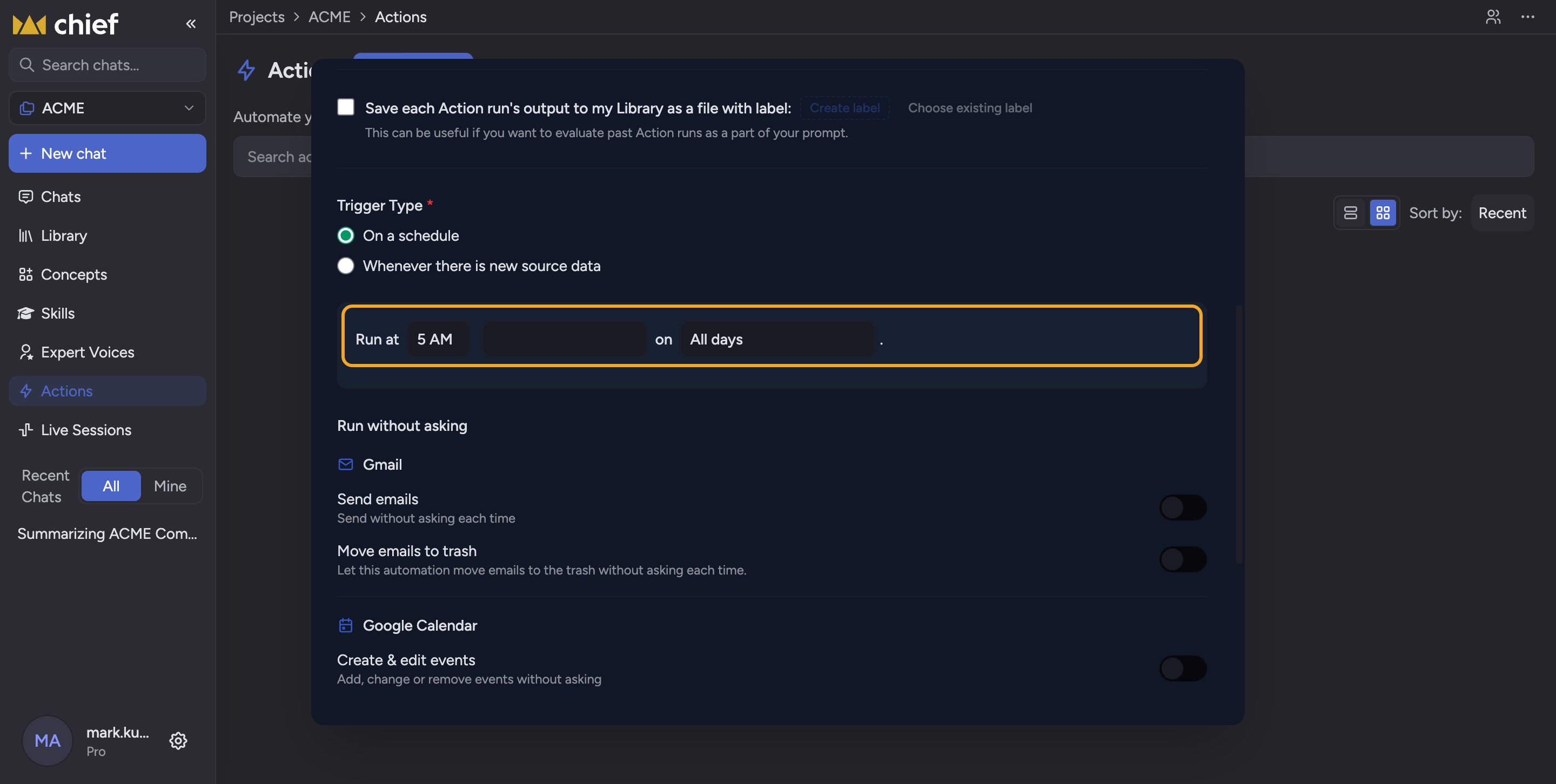 When an [Action's](/help/actions-automation/what-are-actions) [**Trigger Type**](/help/actions-automation/triggers-on-a-schedule-vs-on-new-data) is set to **On a schedule**, a schedule box appears that reads as a sentence: *Run at \[time] \[timezone] on \[frequency]*. Fill in each dropdown — part of [creating or editing the Action](/help/actions-automation/creating-your-first-action) — to define when the Action runs.
1. **Run at** — pick the hour from the first dropdown. Times are on the hour (for example 8 AM, 3 PM).
2. **Timezone** — pick from the second dropdown. It defaults to your detected timezone. The Action always fires at the chosen hour in this timezone.
3. **Frequency** — pick from the **on** dropdown: **All days**, **Specific days of the week**, or **One day each month**.
## Frequency options
* **All days** — runs every day at the chosen time. Nothing more to set.
* **Specific days of the week** — a row of weekday checkboxes (Sun–Sat) appears under **Select days**. Check one or more.
* **One day each month** — a **Which day each month?** dropdown appears. Pick a day from the 1st to the 31st, or **Last day**.
⚠️ **Important:** If you choose **Specific days of the week** you must check at least one day. Leaving all weekdays unchecked blocks saving with the message "Select at least one day of the week."
ℹ️ **Good to know:** Choosing **Last day** handles months of different lengths for you — it runs on the 28th, 30th, or 31st as appropriate, so you never miss a month-end.
## FAQ
The scheduler runs on the hour, once per matching day. For more frequent or sub-hour cadences, use a new-data trigger or [run the Action manually with Run Now](/help/actions-automation/viewing-run-history-running-manually).
Use **Last day** if you always want the final day of every month. A fixed day like the 31st is best for months that have it; choose Last day to stay safe across short months.
Check the timezone dropdown. The hour is interpreted in the selected timezone, so a mismatch (for example UTC vs. your local zone) shifts the run time. Set it to your zone and save.
When an [Action's](/help/actions-automation/what-are-actions) [**Trigger Type**](/help/actions-automation/triggers-on-a-schedule-vs-on-new-data) is set to **On a schedule**, a schedule box appears that reads as a sentence: *Run at \[time] \[timezone] on \[frequency]*. Fill in each dropdown — part of [creating or editing the Action](/help/actions-automation/creating-your-first-action) — to define when the Action runs.
1. **Run at** — pick the hour from the first dropdown. Times are on the hour (for example 8 AM, 3 PM).
2. **Timezone** — pick from the second dropdown. It defaults to your detected timezone. The Action always fires at the chosen hour in this timezone.
3. **Frequency** — pick from the **on** dropdown: **All days**, **Specific days of the week**, or **One day each month**.
## Frequency options
* **All days** — runs every day at the chosen time. Nothing more to set.
* **Specific days of the week** — a row of weekday checkboxes (Sun–Sat) appears under **Select days**. Check one or more.
* **One day each month** — a **Which day each month?** dropdown appears. Pick a day from the 1st to the 31st, or **Last day**.
⚠️ **Important:** If you choose **Specific days of the week** you must check at least one day. Leaving all weekdays unchecked blocks saving with the message "Select at least one day of the week."
ℹ️ **Good to know:** Choosing **Last day** handles months of different lengths for you — it runs on the 28th, 30th, or 31st as appropriate, so you never miss a month-end.
## FAQ
The scheduler runs on the hour, once per matching day. For more frequent or sub-hour cadences, use a new-data trigger or [run the Action manually with Run Now](/help/actions-automation/viewing-run-history-running-manually).
Use **Last day** if you always want the final day of every month. A fixed day like the 31st is best for months that have it; choose Last day to stay safe across short months.
Check the timezone dropdown. The hour is interpreted in the selected timezone, so a mismatch (for example UTC vs. your local zone) shifts the run time. Set it to your zone and save.