> ## Documentation Index
> Fetch the complete documentation index at: https://docs.chief.bot/llms.txt
> Use this file to discover all available pages before exploring further.
# Sending results by email
> Email is the way Actions deliver results to people.
## Deliver every run to an inbox
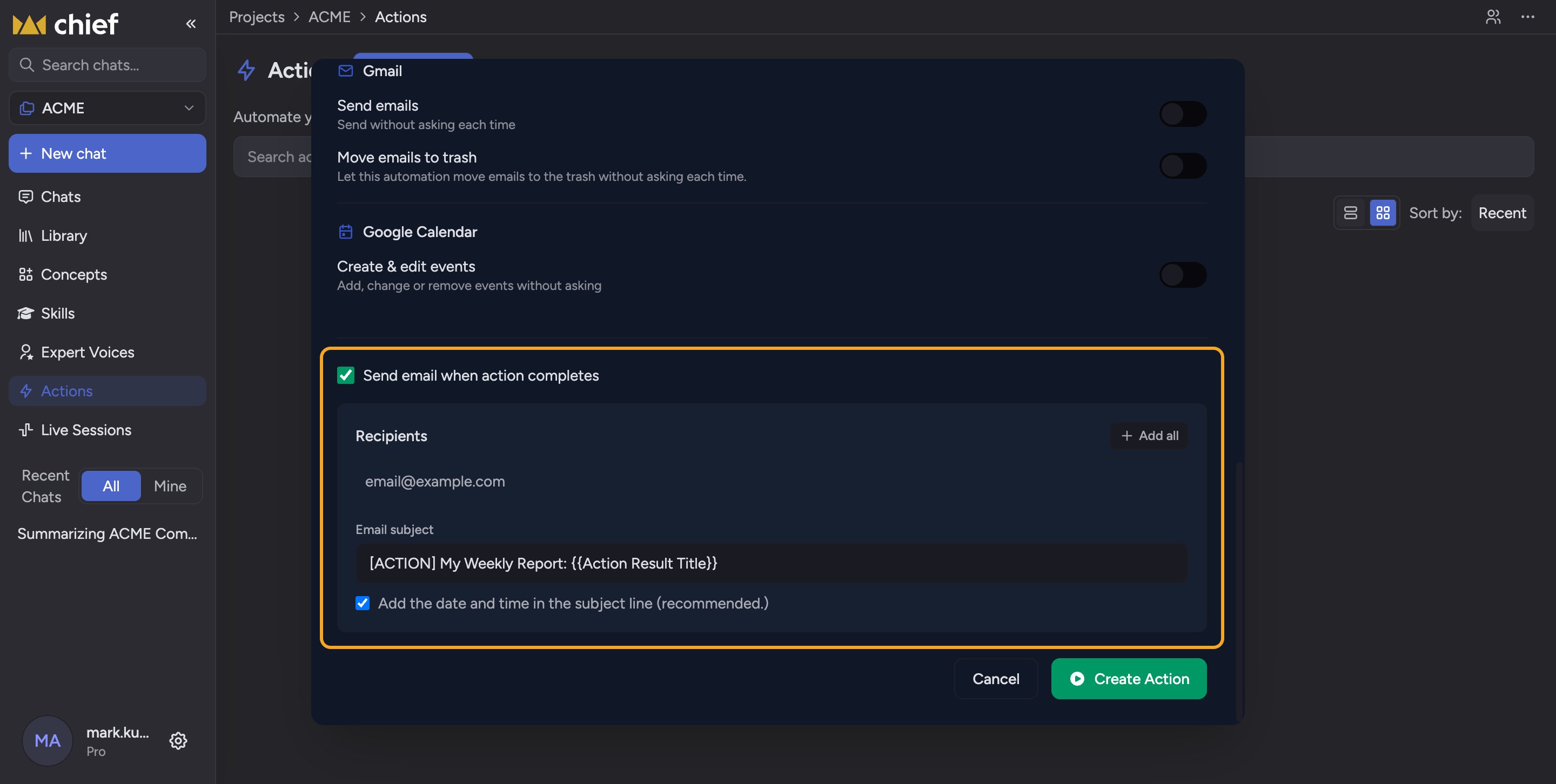 Email is the way [Actions](/help/actions-automation/what-are-actions) deliver results to people. When you turn it on, Chief emails the run's output to your recipients each time the Action completes.
1. In the create or edit dialog, check **Send email when action completes**. The email settings box appears.
2. In the **Recipients** box, type each email address and press Enter. Use **Add all** to add [everyone in the Project](/help/projects-sharing-teams/what-is-a-project) at once, or **Remove all** to clear the list. You can add up to 10 recipients.
3. In the **Email subject** field, type the subject line. To include each run's title, insert the token **\{\{Action Result Title}}** — click the suggested code chip to copy it.
4. Optionally check **Add the date and time in the subject line** so each email's subject is unique.
⚠️ **Important:** If **Send email when action completes** is checked, you must add at least one recipient. Otherwise saving is blocked with "At least one email recipient is required."
✅ **Tip:** Adding the date and time to the subject keeps recurring emails from collapsing into one thread in your inbox, so each run stands on its own.
## FAQ
Email is the supported delivery method today. You can also [save each run to your Library](/help/actions-automation/saving-action-output-to-your-library) as a file, or [connect a custom MCP server](/help/actions-automation/connecting-a-custom-mcp-server) as a destination.
They likely unsubscribed. Open the Action's editor and look at [**Recipient status**](/help/actions-automation/managing-email-notifications) under the recipients box: anyone marked **Unsubscribed** will not receive emails. If it is your own address, click **Resubscribe**.
The token must be typed exactly, including both pairs of braces. Copy it from the suggested chip rather than retyping to avoid typos.
Email is the way [Actions](/help/actions-automation/what-are-actions) deliver results to people. When you turn it on, Chief emails the run's output to your recipients each time the Action completes.
1. In the create or edit dialog, check **Send email when action completes**. The email settings box appears.
2. In the **Recipients** box, type each email address and press Enter. Use **Add all** to add [everyone in the Project](/help/projects-sharing-teams/what-is-a-project) at once, or **Remove all** to clear the list. You can add up to 10 recipients.
3. In the **Email subject** field, type the subject line. To include each run's title, insert the token **\{\{Action Result Title}}** — click the suggested code chip to copy it.
4. Optionally check **Add the date and time in the subject line** so each email's subject is unique.
⚠️ **Important:** If **Send email when action completes** is checked, you must add at least one recipient. Otherwise saving is blocked with "At least one email recipient is required."
✅ **Tip:** Adding the date and time to the subject keeps recurring emails from collapsing into one thread in your inbox, so each run stands on its own.
## FAQ
Email is the supported delivery method today. You can also [save each run to your Library](/help/actions-automation/saving-action-output-to-your-library) as a file, or [connect a custom MCP server](/help/actions-automation/connecting-a-custom-mcp-server) as a destination.
They likely unsubscribed. Open the Action's editor and look at [**Recipient status**](/help/actions-automation/managing-email-notifications) under the recipients box: anyone marked **Unsubscribed** will not receive emails. If it is your own address, click **Resubscribe**.
The token must be typed exactly, including both pairs of braces. Copy it from the suggested chip rather than retyping to avoid typos.