> ## Documentation Index
> Fetch the complete documentation index at: https://docs.chief.bot/llms.txt
> Use this file to discover all available pages before exploring further.
# What are Actions?
> An Action is a saved prompt that Chief runs for you automatically — on a schedule, or whenever new data lands in a Project.
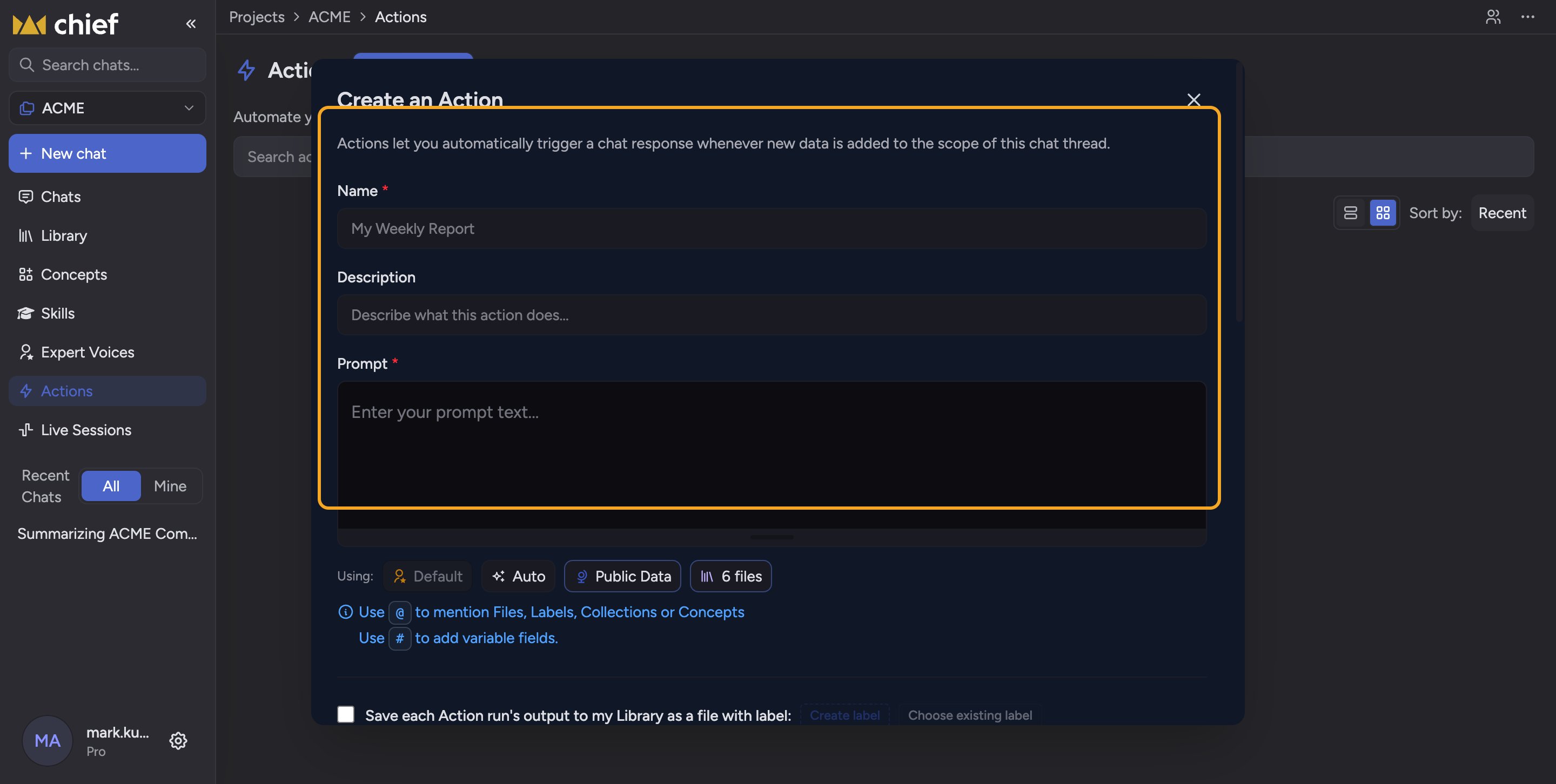 ## Put your recurring research on autopilot
An **Action** is a saved prompt that Chief runs for you automatically — on a schedule, or whenever new data lands in a Project. Instead of opening a chat every Monday to ask the same question, you set the question up once and let Chief deliver the answer [to your inbox](/help/actions-automation/sending-results-by-email) or [to your **Library**](/help/actions-automation/saving-action-output-to-your-library).
Think of an Action as a standing instruction: "every Monday at 8 AM, summarize last week's support tickets and email me the highlights." Chief runs the prompt against your Project's files, writes the result, and sends it — without you lifting a finger.
## A concrete example
Say your team drops new customer-call transcripts into a Project all week. You create an Action with the prompt "Summarize this week's new call transcripts into the top 5 themes and any churn risks." You set it to run **every Friday at 4 PM**, turn on **Send email when action completes**, and add your team as recipients. Every Friday afternoon, a fresh summary lands in everyone's inbox — built only from the files that are actually in the Project.
## How an Action works
* **Prompt** — what you want Chief to do, written exactly like a normal chat message (you can [mention specific Files, Labels, and Concepts](/help/the-prompt-bar-scope/mentioning-files-labels-collections-concepts)).
* **[Trigger](/help/actions-automation/triggers-on-a-schedule-vs-on-new-data)** — when it runs: **On a schedule** (a day and time) or **Whenever there is new source data**.
* **[Scope](/help/the-prompt-bar-scope/setting-the-scope-of-a-chat-using-files-labels-collections-concepts)** — which files power the run. By default it uses all files in the Project; you can narrow it.
* **Output** — where the result goes: emailed to recipients, saved to your **Library** with a Label, or both.
ℹ️ **Good to know:** Actions live inside [a Project](/help/projects-sharing-teams/what-is-a-project). Open a Project, then choose **Actions** in the top navigation to see, create, and manage them. You will not find an Actions tab outside of a Project.
## What Actions are good for
* Weekly or monthly reports built from a growing set of files.
* Alerts that fire only when new source data is added.
* Digests delivered to a whole team by email.
* A running archive of results saved to your Library for later comparison.
This is what makes Chief [proactive rather than reactive](/help/how-chief-works-magic-under-the-hood/proactive-intelligence-surfacing-signals-before-you-search) — the intelligence arrives without you asking for it.
## FAQ
Yes. A chat is a one-time conversation. An Action saves a prompt and re-runs it automatically on your chosen trigger, delivering the result each time.
A scheduled Action can produce an empty or skipped run if the files it depends on are missing — for example, if a File you mentioned in the prompt was deleted, or no new source data arrived for a new-data trigger. It can also fail if your workspace is [out of credits](/help/troubleshooting/im-out-of-credits-unexpectedly). [Check the run history](/help/actions-automation/viewing-run-history-running-manually) to see what happened.
Inside a Project, in the top navigation. The Actions tab only appears within a Project, not on your home screen.
## Put your recurring research on autopilot
An **Action** is a saved prompt that Chief runs for you automatically — on a schedule, or whenever new data lands in a Project. Instead of opening a chat every Monday to ask the same question, you set the question up once and let Chief deliver the answer [to your inbox](/help/actions-automation/sending-results-by-email) or [to your **Library**](/help/actions-automation/saving-action-output-to-your-library).
Think of an Action as a standing instruction: "every Monday at 8 AM, summarize last week's support tickets and email me the highlights." Chief runs the prompt against your Project's files, writes the result, and sends it — without you lifting a finger.
## A concrete example
Say your team drops new customer-call transcripts into a Project all week. You create an Action with the prompt "Summarize this week's new call transcripts into the top 5 themes and any churn risks." You set it to run **every Friday at 4 PM**, turn on **Send email when action completes**, and add your team as recipients. Every Friday afternoon, a fresh summary lands in everyone's inbox — built only from the files that are actually in the Project.
## How an Action works
* **Prompt** — what you want Chief to do, written exactly like a normal chat message (you can [mention specific Files, Labels, and Concepts](/help/the-prompt-bar-scope/mentioning-files-labels-collections-concepts)).
* **[Trigger](/help/actions-automation/triggers-on-a-schedule-vs-on-new-data)** — when it runs: **On a schedule** (a day and time) or **Whenever there is new source data**.
* **[Scope](/help/the-prompt-bar-scope/setting-the-scope-of-a-chat-using-files-labels-collections-concepts)** — which files power the run. By default it uses all files in the Project; you can narrow it.
* **Output** — where the result goes: emailed to recipients, saved to your **Library** with a Label, or both.
ℹ️ **Good to know:** Actions live inside [a Project](/help/projects-sharing-teams/what-is-a-project). Open a Project, then choose **Actions** in the top navigation to see, create, and manage them. You will not find an Actions tab outside of a Project.
## What Actions are good for
* Weekly or monthly reports built from a growing set of files.
* Alerts that fire only when new source data is added.
* Digests delivered to a whole team by email.
* A running archive of results saved to your Library for later comparison.
This is what makes Chief [proactive rather than reactive](/help/how-chief-works-magic-under-the-hood/proactive-intelligence-surfacing-signals-before-you-search) — the intelligence arrives without you asking for it.
## FAQ
Yes. A chat is a one-time conversation. An Action saves a prompt and re-runs it automatically on your chosen trigger, delivering the result each time.
A scheduled Action can produce an empty or skipped run if the files it depends on are missing — for example, if a File you mentioned in the prompt was deleted, or no new source data arrived for a new-data trigger. It can also fail if your workspace is [out of credits](/help/troubleshooting/im-out-of-credits-unexpectedly). [Check the run history](/help/actions-automation/viewing-run-history-running-manually) to see what happened.
Inside a Project, in the top navigation. The Actions tab only appears within a Project, not on your home screen.