> ## Documentation Index
> Fetch the complete documentation index at: https://docs.chief.bot/llms.txt
> Use this file to discover all available pages before exploring further.
# Calling on a specific agent in your prompt
> Most of the time Chief picks the right agents for you.
## Point Chief at the right kind of research
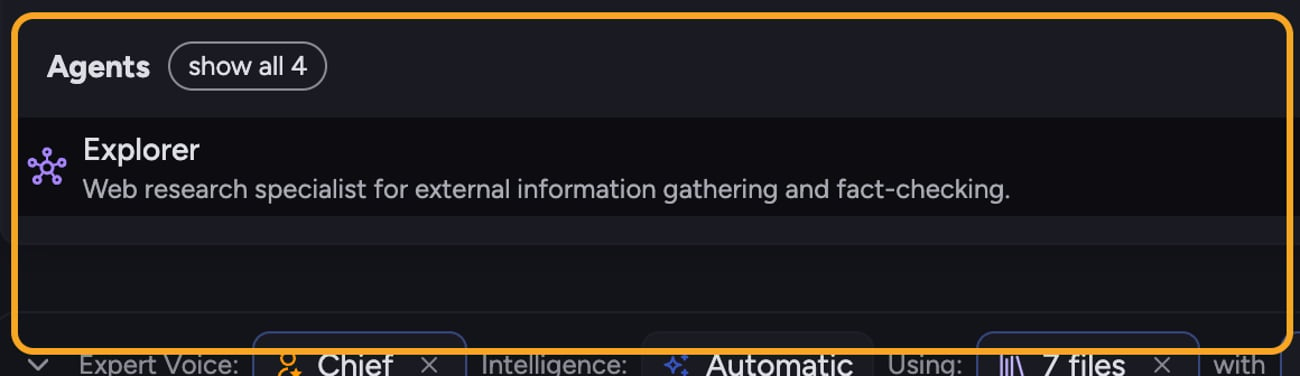
Most of the time Chief picks [the right agents](/help/answer-depth-chiefs-agents/meet-chiefs-agents-explorer-librarian-researcher-planner) for you. But when you already know whether you want answers from **outside** your organization or from **inside** your own documents, you can call an agent by name right in your prompt. Mention **@explorer** for external web research, or **@librarian** for your internal knowledge base.
## Call an agent in your prompt
 1. Click into the [**prompt bar**](/help/the-prompt-bar-scope/the-prompt-bar-a-tour-of-your-chat-controls).
2. [Type **@**](/help/the-prompt-bar-scope/mentioning-files-labels-collections-concepts) where you want to reference an agent.
3. Pick the agent from the menu that appears — **@explorer** (external/web) or **@librarian** (your documents).
4. Finish writing your prompt around the mention. For example: **@explorer find the latest funding rounds in our category**.
5. Send the prompt.
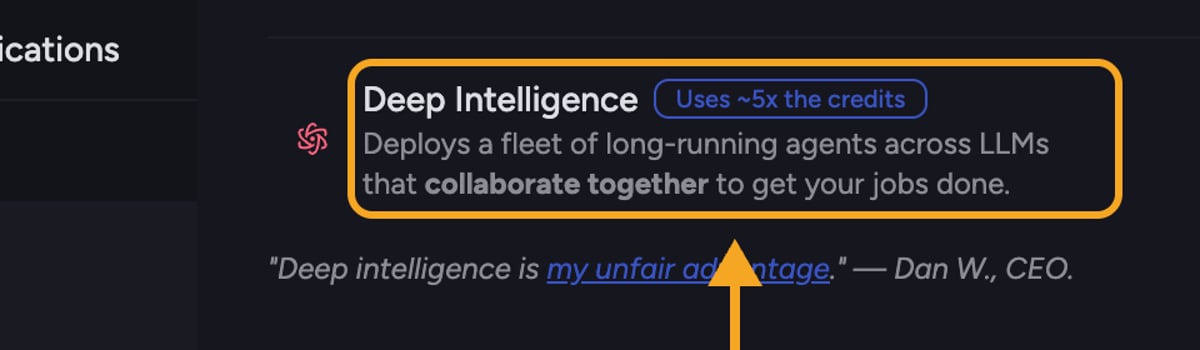
💡 **Good to Know:** The moment you add an agent mention, Chief's router switches that prompt to [**Deep Intelligence**](/help/answer-depth-chiefs-agents/deep-intelligence-research-mode) mode automatically — that's the mode the agents run in. You'll see the mode change in the prompt bar.
1. Click into the [**prompt bar**](/help/the-prompt-bar-scope/the-prompt-bar-a-tour-of-your-chat-controls).
2. [Type **@**](/help/the-prompt-bar-scope/mentioning-files-labels-collections-concepts) where you want to reference an agent.
3. Pick the agent from the menu that appears — **@explorer** (external/web) or **@librarian** (your documents).
4. Finish writing your prompt around the mention. For example: **@explorer find the latest funding rounds in our category**.
5. Send the prompt.
💡 **Good to Know:** The moment you add an agent mention, Chief's router switches that prompt to [**Deep Intelligence**](/help/answer-depth-chiefs-agents/deep-intelligence-research-mode) mode automatically — that's the mode the agents run in. You'll see the mode change in the prompt bar.
 ## When to call which agent
* **@explorer** — competitive intelligence, market context, current events, anything from the open web.
* **@librarian** — questions that should be answerable from your uploaded files, knowledge base, or transcripts.
## Removing an agent mention
If you decide you don't want the agent (or don't want to run in Deep Intelligence), delete the @mention from your prompt before sending. Chief will switch back to [a standard mode](/help/answer-depth-chiefs-agents/response-modes-automatic-fast-expert) such as Automatic.
## FAQ
The @ menu also lists other references (like [Expert Voices](/help/expert-voices/what-are-expert-voices)). Make sure you're selecting an agent (@explorer or @librarian) from the list. Researcher and Planner aren't summoned by name — Chief invokes those automatically.
Agent mentions run in Deep Intelligence, a paid-plan feature. To send on a free plan, click to remove the agent and switch to Automatic intelligence — or [upgrade to Pro](/help/plans-credits-billing/plans-overview-explore-pro-power-user-enterprise) to keep the agent.
You can reference an agent to steer your prompt. If your request really needs both internal and external sources, you often don't need to name both — describe the task and Chief coordinates the Explorer and Librarian (and the Researcher to synthesize them) for you.
## When to call which agent
* **@explorer** — competitive intelligence, market context, current events, anything from the open web.
* **@librarian** — questions that should be answerable from your uploaded files, knowledge base, or transcripts.
## Removing an agent mention
If you decide you don't want the agent (or don't want to run in Deep Intelligence), delete the @mention from your prompt before sending. Chief will switch back to [a standard mode](/help/answer-depth-chiefs-agents/response-modes-automatic-fast-expert) such as Automatic.
## FAQ
The @ menu also lists other references (like [Expert Voices](/help/expert-voices/what-are-expert-voices)). Make sure you're selecting an agent (@explorer or @librarian) from the list. Researcher and Planner aren't summoned by name — Chief invokes those automatically.
Agent mentions run in Deep Intelligence, a paid-plan feature. To send on a free plan, click to remove the agent and switch to Automatic intelligence — or [upgrade to Pro](/help/plans-credits-billing/plans-overview-explore-pro-power-user-enterprise) to keep the agent.
You can reference an agent to steer your prompt. If your request really needs both internal and external sources, you often don't need to name both — describe the task and Chief coordinates the Explorer and Librarian (and the Researcher to synthesize them) for you.