> ## Documentation Index
> Fetch the complete documentation index at: https://docs.chief.bot/llms.txt
> Use this file to discover all available pages before exploring further.
# Branching a chat to explore alternatives
> Branching lets you try a different version of a turn without throwing away the first one.
## Why branch a chat
Branching lets you try a different version of a turn without throwing away the first one. Re-ask a question a new way, explore a "what if," or compare two approaches side by side — each path is kept, so you can switch between them and keep the one that works.
## Create a branch by editing a message
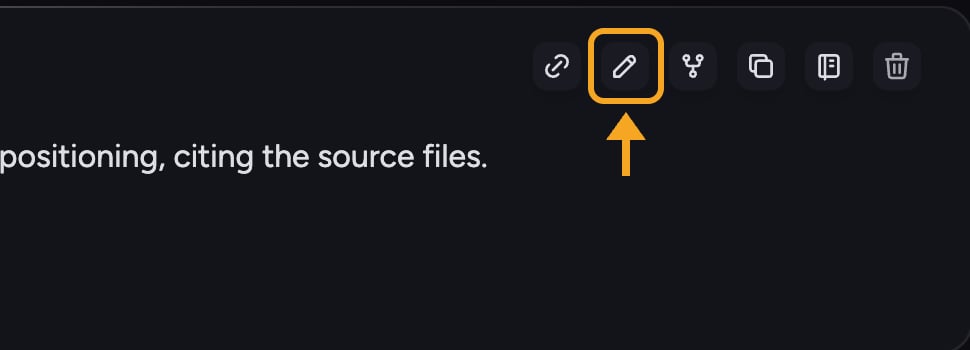 A branch is created when you [edit one of your earlier messages](/help/chatting-with-chief/editing-copying-downloading-messages): Chief keeps the original answer and generates a new one alongside it.
1. Find one of your earlier messages in the thread and **edit** it.
2. Change the wording, then send. Chief produces a fresh answer for the edited version while preserving the original.
3. The turn now has more than one branch — the original and your new version both live in the thread.
## Move between branches
A branch is created when you [edit one of your earlier messages](/help/chatting-with-chief/editing-copying-downloading-messages): Chief keeps the original answer and generates a new one alongside it.
1. Find one of your earlier messages in the thread and **edit** it.
2. Change the wording, then send. Chief produces a fresh answer for the edited version while preserving the original.
3. The turn now has more than one branch — the original and your new version both live in the thread.
## Move between branches
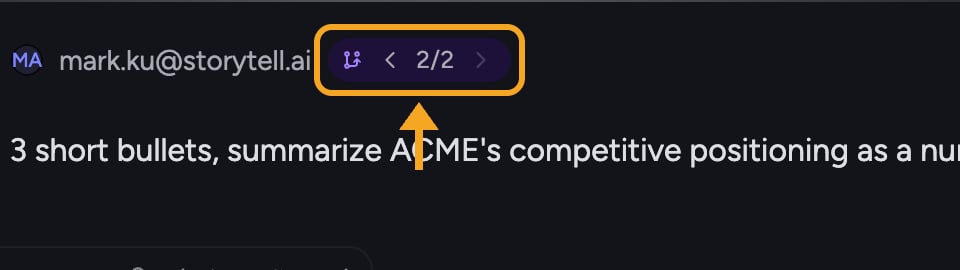 Where a turn has more than one version, a small **branch navigator** appears showing your position (for example, 2 of 3) with **previous** and **next** arrows. To switch versions:
1. Locate the branch navigator on the branched turn.
2. Click the **previous** (left) or **next** (right) arrow to step between versions.
3. The thread below updates to follow the branch you selected.
A divider labeled with the branch count (for example, "3 branches") marks where a turn splits, so you can see at a glance where the conversation forked.
ℹ️ **Good to Know:** In the prompt timeline, turns that contain alternatives are tagged **Has branches**, making it easy to find every fork in a long chat.
## FAQ
Branch switching is disabled while an answer is [still streaming](/help/chatting-with-chief/regenerating-or-stopping-a-response). Wait for the current response to finish, then use the previous and next arrows.
No. Editing a message creates a new branch alongside the original — both are kept. Use the branch navigator's arrows to move back to the first version any time.
A branch stays inside [the same chat](/help/chatting-with-chief/how-chats-work) and shares the context up to the point where it split, so you can compare alternatives in one place. A new chat starts fresh with no shared history.
Where a turn has more than one version, a small **branch navigator** appears showing your position (for example, 2 of 3) with **previous** and **next** arrows. To switch versions:
1. Locate the branch navigator on the branched turn.
2. Click the **previous** (left) or **next** (right) arrow to step between versions.
3. The thread below updates to follow the branch you selected.
A divider labeled with the branch count (for example, "3 branches") marks where a turn splits, so you can see at a glance where the conversation forked.
ℹ️ **Good to Know:** In the prompt timeline, turns that contain alternatives are tagged **Has branches**, making it easy to find every fork in a long chat.
## FAQ
Branch switching is disabled while an answer is [still streaming](/help/chatting-with-chief/regenerating-or-stopping-a-response). Wait for the current response to finish, then use the previous and next arrows.
No. Editing a message creates a new branch alongside the original — both are kept. Use the branch navigator's arrows to move back to the first version any time.
A branch stays inside [the same chat](/help/chatting-with-chief/how-chats-work) and shares the context up to the point where it split, so you can compare alternatives in one place. A new chat starts fresh with no shared history.