> ## Documentation Index
> Fetch the complete documentation index at: https://docs.chief.bot/llms.txt
> Use this file to discover all available pages before exploring further.
# Editing, copying & downloading messages
> Every prompt and answer in a chat thread has its own hover actions.
Every prompt and answer in a [chat thread](/help/chatting-with-chief/how-chats-work) has its own hover actions. Move your cursor over a message to reveal the action row.
## Edit a prompt you sent
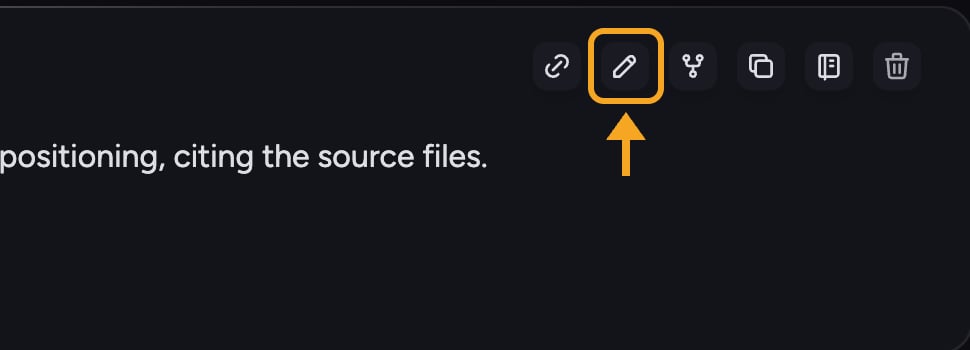 1. Hover over your prompt to show the action row.
2. Click the **Edit message** (pencil) button.
3. Change the text, then submit. On chats that support branching, this [starts a new branch](/help/chatting-with-chief/branching-a-chat-to-explore-alternatives) so your original prompt and answer are kept.
ℹ️ **Good to Know:** The **Edit message** button only appears on prompts you sent, on branching-enabled chats, and once the response has finished generating.
## Copy a message to your clipboard
1. Hover over your prompt to show the action row.
2. Click the **Edit message** (pencil) button.
3. Change the text, then submit. On chats that support branching, this [starts a new branch](/help/chatting-with-chief/branching-a-chat-to-explore-alternatives) so your original prompt and answer are kept.
ℹ️ **Good to Know:** The **Edit message** button only appears on prompts you sent, on branching-enabled chats, and once the response has finished generating.
## Copy a message to your clipboard
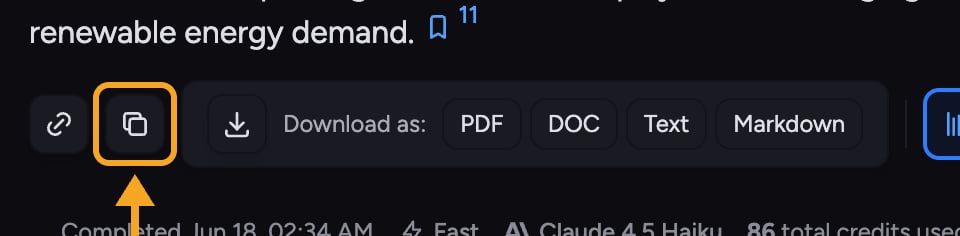 1. Hover over the prompt or answer you want to copy.
2. Click the **Copy** button (clipboard icon). The tooltip reads **Copy to Clipboard** for answers and **Copy prompt to clipboard** for prompts.
3. The icon flips to a checkmark and the tooltip shows **Copied!**
For a formatted answer, you can also use [**Copy as Markdown**](/help/creating-exporting/copying-responses-as-rich-text-or-markdown) to keep headings, bold text, and tables intact.
## Download an answer
1. Hover over the prompt or answer you want to copy.
2. Click the **Copy** button (clipboard icon). The tooltip reads **Copy to Clipboard** for answers and **Copy prompt to clipboard** for prompts.
3. The icon flips to a checkmark and the tooltip shows **Copied!**
For a formatted answer, you can also use [**Copy as Markdown**](/help/creating-exporting/copying-responses-as-rich-text-or-markdown) to keep headings, bold text, and tables intact.
## Download an answer
 1. Hover over the answer and click the **Download** button (down-arrow icon).
2. The button expands to show **Download as:** with format buttons.
3. Choose [**PDF**, **DOC**, **Text**, or **Markdown**](/help/creating-exporting/downloading-responses-pdf-docx-xlsx-csv-markdown-text-tables). If the answer contains a table, an **XLS** option also appears.
4. Your browser downloads the file. The filename is based on the answer's first heading or your prompt.
## FAQ
PDF export runs on Chief's servers and needs an active session. If you see a **Failed** label on the PDF button, reload the page so your session refreshes, then try again. **DOC**, **Text**, and **Markdown** are generated in your browser and will still work if PDF is having trouble.
The **XLS** button only appears when the answer actually contains one or more tables. If there's no table, there's nothing to put in a spreadsheet.
The plain **Copy to Clipboard** action copies text. Use **Copy as Markdown** when you want to preserve headings, bold, lists, and tables for pasting into another tool.
1. Hover over the answer and click the **Download** button (down-arrow icon).
2. The button expands to show **Download as:** with format buttons.
3. Choose [**PDF**, **DOC**, **Text**, or **Markdown**](/help/creating-exporting/downloading-responses-pdf-docx-xlsx-csv-markdown-text-tables). If the answer contains a table, an **XLS** option also appears.
4. Your browser downloads the file. The filename is based on the answer's first heading or your prompt.
## FAQ
PDF export runs on Chief's servers and needs an active session. If you see a **Failed** label on the PDF button, reload the page so your session refreshes, then try again. **DOC**, **Text**, and **Markdown** are generated in your browser and will still work if PDF is having trouble.
The **XLS** button only appears when the answer actually contains one or more tables. If there's no table, there's nothing to put in a spreadsheet.
The plain **Copy to Clipboard** action copies text. Use **Copy as Markdown** when you want to preserve headings, bold, lists, and tables for pasting into another tool.