> ## Documentation Index
> Fetch the complete documentation index at: https://docs.chief.bot/llms.txt
> Use this file to discover all available pages before exploring further.
# Regenerating or stopping a response
> While Chief is generating an answer, a Stop Generating button appears just above the prompt bar.
## Stop a response while Chief is writing
 While Chief is generating an answer, a **Stop Generating** button appears just above the [prompt bar](/help/the-prompt-bar-scope/the-prompt-bar-a-tour-of-your-chat-controls). Use it when the answer is going the wrong direction and you'd rather rewrite your prompt.
1. Watch for the **Stop Generating** button (with a stop icon) centered above the prompt bar while the response streams.
2. Click **Stop Generating**.
3. The label changes to **Stopping…** while Chief winds down, then the response stops where it was. Chief keeps everything it had written so far.
ℹ️ **Good to Know:** A stopped response is still saved to the chat thread. Chief also remembers the partial answer, so you can ask a [follow-up](/help/chatting-with-chief/following-up-continuing-the-conversation) that builds on it.
## Edit your prompt to get a different answer
While Chief is generating an answer, a **Stop Generating** button appears just above the [prompt bar](/help/the-prompt-bar-scope/the-prompt-bar-a-tour-of-your-chat-controls). Use it when the answer is going the wrong direction and you'd rather rewrite your prompt.
1. Watch for the **Stop Generating** button (with a stop icon) centered above the prompt bar while the response streams.
2. Click **Stop Generating**.
3. The label changes to **Stopping…** while Chief winds down, then the response stops where it was. Chief keeps everything it had written so far.
ℹ️ **Good to Know:** A stopped response is still saved to the chat thread. Chief also remembers the partial answer, so you can ask a [follow-up](/help/chatting-with-chief/following-up-continuing-the-conversation) that builds on it.
## Edit your prompt to get a different answer
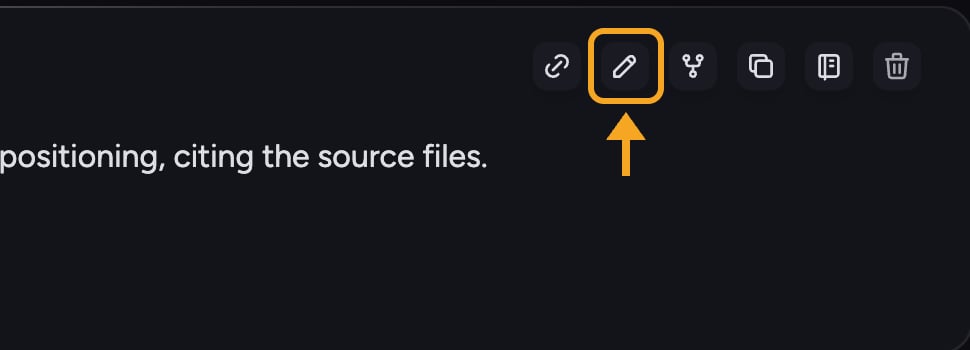 The most reliable way to "regenerate" is to revise the prompt that produced the answer. On chats that support branching, hover over your prompt and click the [**Edit message**](/help/chatting-with-chief/editing-copying-downloading-messages) (pencil) button. Editing [creates a new branch](/help/chatting-with-chief/branching-a-chat-to-explore-alternatives) from that point, so your original answer is preserved and you can switch back to it.
1. Hover over the prompt you want to change.
2. Click the **Edit message** (pencil) button in the action row that appears.
3. Change your wording, then submit. Chief generates a fresh response on a new branch.
## FAQ
The button switches to **Stopping…** while Chief finishes the in-flight chunk. Give it a moment — it can take a second or two to fully stop. If it stays on **Stopping…** for a long time, your connection may be unstable; check [the offline banner](/help/chatting-with-chief/working-offline-draft-preservation) at the top of the screen.
The inline **Edit message** button appears only on chats that support branching, only on prompts you sent, and only after the response has finished generating. If your chat doesn't support branching, send a new prompt with your revised wording instead.
You're only [billed](/help/plans-credits-billing/how-credits-work) for what Chief actually generated before you stopped, not for the full answer it would have written.
The most reliable way to "regenerate" is to revise the prompt that produced the answer. On chats that support branching, hover over your prompt and click the [**Edit message**](/help/chatting-with-chief/editing-copying-downloading-messages) (pencil) button. Editing [creates a new branch](/help/chatting-with-chief/branching-a-chat-to-explore-alternatives) from that point, so your original answer is preserved and you can switch back to it.
1. Hover over the prompt you want to change.
2. Click the **Edit message** (pencil) button in the action row that appears.
3. Change your wording, then submit. Chief generates a fresh response on a new branch.
## FAQ
The button switches to **Stopping…** while Chief finishes the in-flight chunk. Give it a moment — it can take a second or two to fully stop. If it stays on **Stopping…** for a long time, your connection may be unstable; check [the offline banner](/help/chatting-with-chief/working-offline-draft-preservation) at the top of the screen.
The inline **Edit message** button appears only on chats that support branching, only on prompts you sent, and only after the response has finished generating. If your chat doesn't support branching, send a new prompt with your revised wording instead.
You're only [billed](/help/plans-credits-billing/how-credits-work) for what Chief actually generated before you stopped, not for the full answer it would have written.