> ## Documentation Index
> Fetch the complete documentation index at: https://docs.chief.bot/llms.txt
> Use this file to discover all available pages before exploring further.
# Running chats in the background & browser notifications
> Some prompts take a while — deep research, big reports, long reasoning.
Some prompts take a while — [deep research](/help/answer-depth-chiefs-agents/deep-intelligence-research-mode), [big reports](/help/creating-exporting/generating-reports-documents), long reasoning. You don't have to sit and watch. Chief keeps working while you do other things and can ping you with a browser notification when the answer is ready.
## Leave a chat running
 While a response is generating, Chief shows a banner that says **You can safely leave this page while I work.** You can switch to another chat, open another tab, or move to [a different project](/help/projects-sharing-teams/switching-bookmarking-discovering-projects), and the response keeps generating.
When a chat you've left finishes, a banner appears letting you know — for example, **"…" has finished** — so you can jump back to it.
## Turn on browser notifications
While a response is generating, Chief shows a banner that says **You can safely leave this page while I work.** You can switch to another chat, open another tab, or move to [a different project](/help/projects-sharing-teams/switching-bookmarking-discovering-projects), and the response keeps generating.
When a chat you've left finishes, a banner appears letting you know — for example, **"…" has finished** — so you can jump back to it.
## Turn on browser notifications
 1. While a response is generating, find the streaming banner and click **Notify me**.
2. Your browser asks for permission to show notifications. Click **Allow**.
3. Chief confirms it'll let you know — **I'll notify you when this chat finishes.** When the answer is done, you get a browser notification like **I've answered your "…" prompt**.
## Manage how you're notified
1. While a response is generating, find the streaming banner and click **Notify me**.
2. Your browser asks for permission to show notifications. Click **Allow**.
3. Chief confirms it'll let you know — **I'll notify you when this chat finishes.** When the answer is done, you get a browser notification like **I've answered your "…" prompt**.
## Manage how you're notified
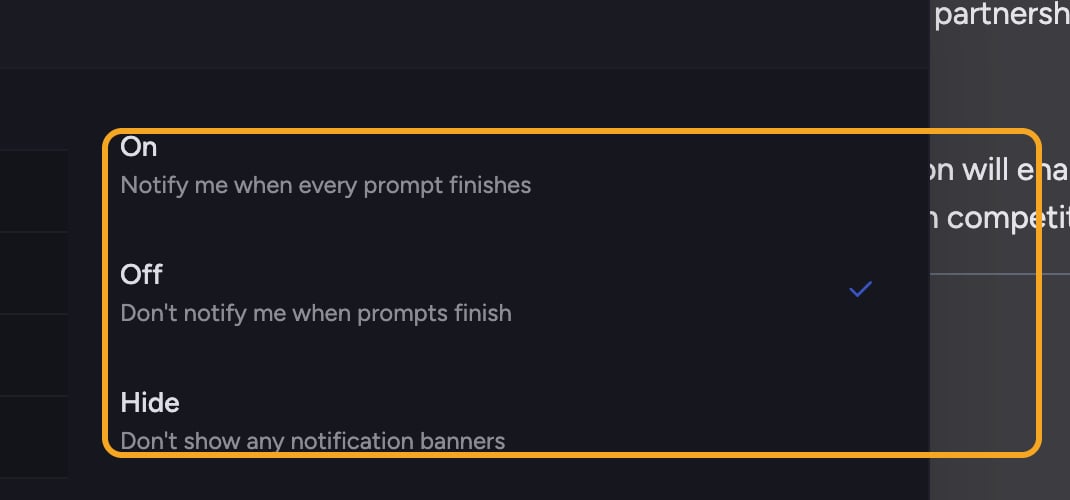 1. On the streaming banner, click **Manage**.
2. Choose [how Chief notifies you](/help/account-settings/notification-preferences): notify you when every prompt finishes, turn notifications off (don't notify me when prompts finish), or **Hide** the banners entirely.
🚀 **Pro-Tip:** Kick off a long research prompt, click **Notify me**, then go do something else. Chief will tap you on the shoulder the moment it's done.
## FAQ
If notifications are blocked, Chief shows: "Notifications are blocked for this site. Enable them in your browser settings (site permissions or the lock icon in the address bar), then tap here to try again." Open your browser's site permissions, allow notifications for Chief, and click **Try again**.
You'll see "Notifications are not available in this browser or on this page" when you're in a private/incognito window or on a non-secure connection. Use a normal (non-private) window on an https connection.
No. The response keeps generating on Chief's side. [Reopen the chat](/help/chatting-with-chief/how-chats-work) and you'll find the completed answer waiting.
1. On the streaming banner, click **Manage**.
2. Choose [how Chief notifies you](/help/account-settings/notification-preferences): notify you when every prompt finishes, turn notifications off (don't notify me when prompts finish), or **Hide** the banners entirely.
🚀 **Pro-Tip:** Kick off a long research prompt, click **Notify me**, then go do something else. Chief will tap you on the shoulder the moment it's done.
## FAQ
If notifications are blocked, Chief shows: "Notifications are blocked for this site. Enable them in your browser settings (site permissions or the lock icon in the address bar), then tap here to try again." Open your browser's site permissions, allow notifications for Chief, and click **Try again**.
You'll see "Notifications are not available in this browser or on this page" when you're in a private/incognito window or on a non-secure connection. Use a normal (non-private) window on an https connection.
No. The response keeps generating on Chief's side. [Reopen the chat](/help/chatting-with-chief/how-chats-work) and you'll find the completed answer waiting.