> ## Documentation Index
> Fetch the complete documentation index at: https://docs.chief.bot/llms.txt
> Use this file to discover all available pages before exploring further.
# The text selection menu: act on any passage
> Highlight any passage in an answer and Chief offers a menu of things to do with exactly that text — copy it, chat about it, cite its sources, fact-check it, explain it more simply, rewrite it, translate it, and more.
## What it does
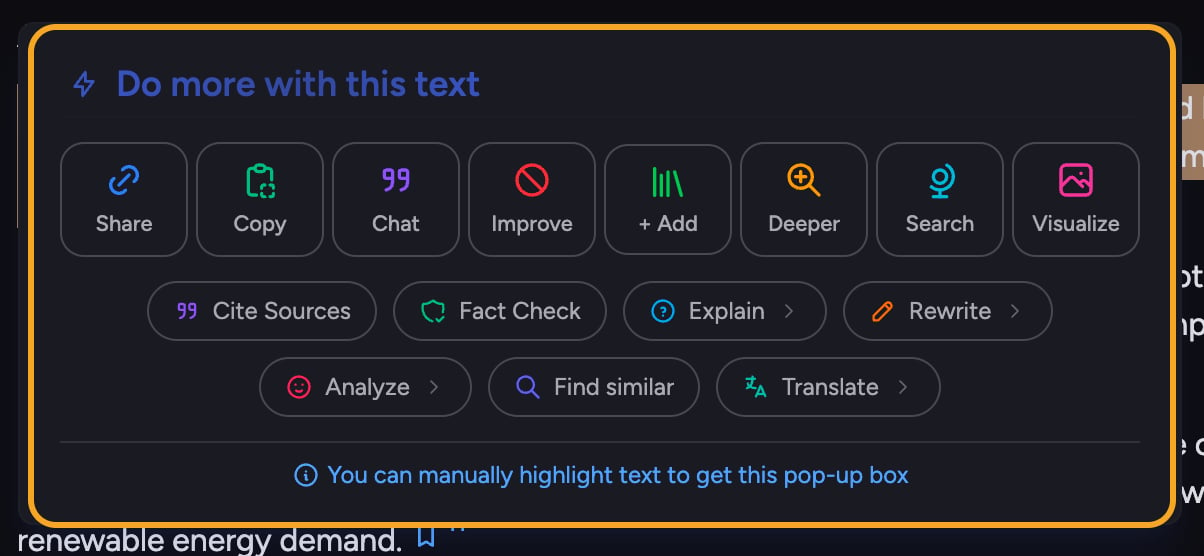 Highlight any passage in an answer and Chief offers a menu of things to do with exactly that text — copy it, chat about it, cite its sources, fact-check it, explain it more simply, rewrite it, translate it, and more. It turns a single sentence into the starting point for your next move.
## Open the menu
1. In any answer, **highlight the text** you want to work with by dragging across it.
2. The **Do more with this text** menu pops up next to your selection.
3. Click an action. The menu closes and Chief runs it on the highlighted text.
## The everyday actions
Highlight any passage in an answer and Chief offers a menu of things to do with exactly that text — copy it, chat about it, cite its sources, fact-check it, explain it more simply, rewrite it, translate it, and more. It turns a single sentence into the starting point for your next move.
## Open the menu
1. In any answer, **highlight the text** you want to work with by dragging across it.
2. The **Do more with this text** menu pops up next to your selection.
3. Click an action. The menu closes and Chief runs it on the highlighted text.
## The everyday actions
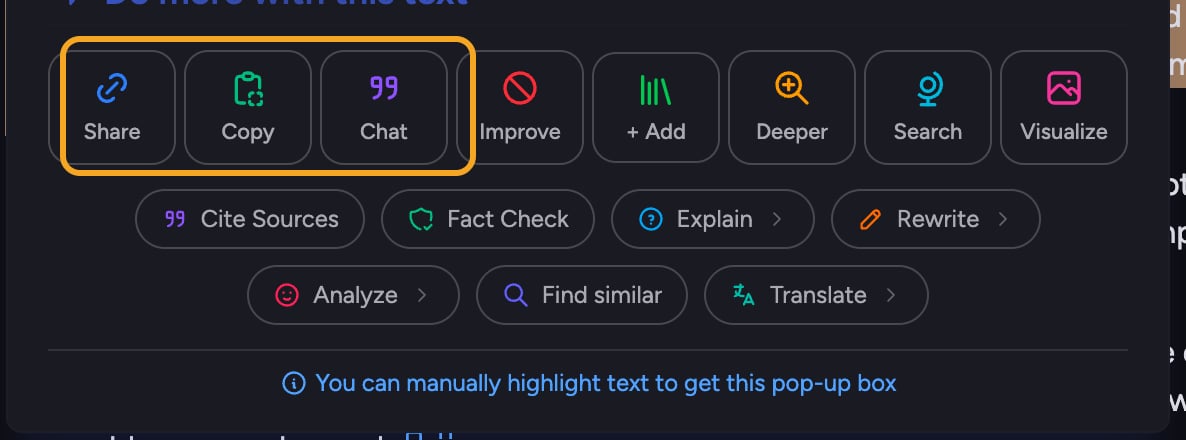 These appear for everyone:
* **[Share](/help/sharing-visibility/sharing-an-individual-answer-or-text-block)** — copies a link that scrolls straight to this passage.
* **Copy** — copies the selected text to your clipboard.
* **Chat** — drops the passage into the [prompt bar](/help/the-prompt-bar-scope/the-prompt-bar-a-tour-of-your-chat-controls) as a quote so you can ask about it.
## The deeper actions
These appear for everyone:
* **[Share](/help/sharing-visibility/sharing-an-individual-answer-or-text-block)** — copies a link that scrolls straight to this passage.
* **Copy** — copies the selected text to your clipboard.
* **Chat** — drops the passage into the [prompt bar](/help/the-prompt-bar-scope/the-prompt-bar-a-tour-of-your-chat-controls) as a quote so you can ask about it.
## The deeper actions
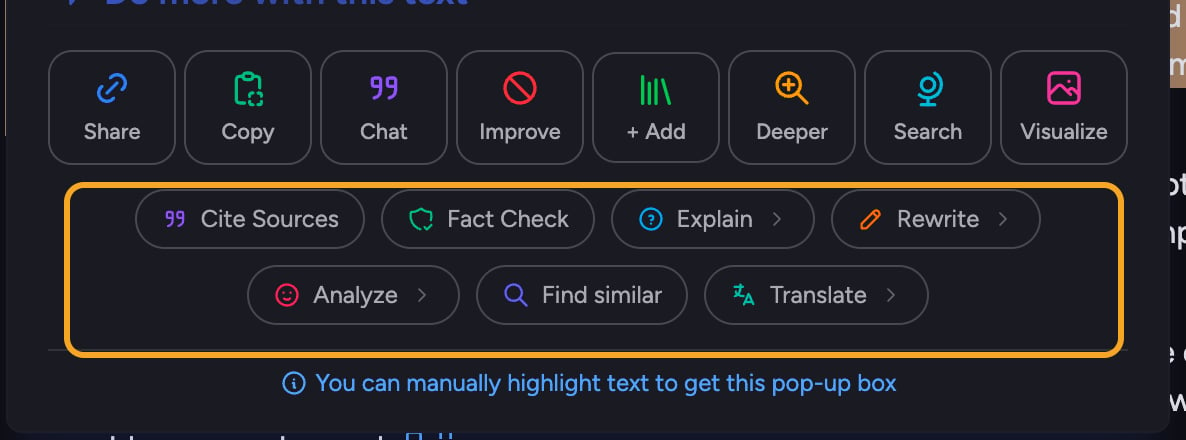 Below those, a second set of actions lets you put the text to work:
* **[Cite Sources](/help/chatting-with-chief/understanding-sources-citations-in-answers)** — asks Chief to show exactly where the text came from.
* **Fact Check** — runs Chief's fact-checker on the passage.
* **Explain** — a submenu to explain it simply (like you're five, in middle school, in high school) or "why does this matter?"
* **Rewrite** — a submenu for brevity, an executive audience, more or less technical, or even a chosen personality type.
* **Analyze** — a submenu for feelings, unmet needs, what's under the surface, and more.
* **Find similar** — searches your [Library](/help/your-knowledge-library/what-is-the-library) and the web for related content.
* **Translate** — a submenu to translate the passage into [any supported language](/help/account-settings/language-locale-17-languages).
A few power actions — **Improve**, [**+ Add**](/help/your-knowledge-library/saving-a-chat-answer-back-to-your-library) (save to your Project Library), **Deeper**, **Search**, and [**Visualize**](/help/creating-exporting/turning-answers-concepts-into-visuals-charts-infographics-word-clouds-mind-maps-timelines-visualize) — appear when you are in [**Advanced Mode**](/help/account-settings/regular-vs-advanced-mode).
🚀 **Pro-Tip:** The same menu works on [a whole answer](/help/chatting-with-chief/working-with-an-answer-the-response-menu). Hover an answer and click the **bolt** icon to open **Do more with this answer** without highlighting anything.
## FAQ
Improve, + Add, Deeper, Search, and Visualize require **Advanced Mode**. Switch to Advanced from your user menu — the menu even shows a "Switch to Advanced mode" prompt — and the greyed-out actions become available.
In a [public or shared chat](/help/sharing-visibility/viewing-shared-chats-as-a-guest), most actions are disabled unless you are a member of that Project. The menu explains this on hover — for example "You must be a member of this Project to chat with this text." Open the chat from a Project you belong to.
Make sure you are highlighting text inside a completed answer; selections elsewhere won't trigger it. Try selecting again — the menu appears right after you finish dragging across the passage.
Below those, a second set of actions lets you put the text to work:
* **[Cite Sources](/help/chatting-with-chief/understanding-sources-citations-in-answers)** — asks Chief to show exactly where the text came from.
* **Fact Check** — runs Chief's fact-checker on the passage.
* **Explain** — a submenu to explain it simply (like you're five, in middle school, in high school) or "why does this matter?"
* **Rewrite** — a submenu for brevity, an executive audience, more or less technical, or even a chosen personality type.
* **Analyze** — a submenu for feelings, unmet needs, what's under the surface, and more.
* **Find similar** — searches your [Library](/help/your-knowledge-library/what-is-the-library) and the web for related content.
* **Translate** — a submenu to translate the passage into [any supported language](/help/account-settings/language-locale-17-languages).
A few power actions — **Improve**, [**+ Add**](/help/your-knowledge-library/saving-a-chat-answer-back-to-your-library) (save to your Project Library), **Deeper**, **Search**, and [**Visualize**](/help/creating-exporting/turning-answers-concepts-into-visuals-charts-infographics-word-clouds-mind-maps-timelines-visualize) — appear when you are in [**Advanced Mode**](/help/account-settings/regular-vs-advanced-mode).
🚀 **Pro-Tip:** The same menu works on [a whole answer](/help/chatting-with-chief/working-with-an-answer-the-response-menu). Hover an answer and click the **bolt** icon to open **Do more with this answer** without highlighting anything.
## FAQ
Improve, + Add, Deeper, Search, and Visualize require **Advanced Mode**. Switch to Advanced from your user menu — the menu even shows a "Switch to Advanced mode" prompt — and the greyed-out actions become available.
In a [public or shared chat](/help/sharing-visibility/viewing-shared-chats-as-a-guest), most actions are disabled unless you are a member of that Project. The menu explains this on hover — for example "You must be a member of this Project to chat with this text." Open the chat from a Project you belong to.
Make sure you are highlighting text inside a completed answer; selections elsewhere won't trigger it. Try selecting again — the menu appears right after you finish dragging across the passage.