> ## Documentation Index
> Fetch the complete documentation index at: https://docs.chief.bot/llms.txt
> Use this file to discover all available pages before exploring further.
# Building a Collection with AND/OR Label filters
> A Collection is built entirely from Label filters, so you need at least one Label that's applied to some files.
## Before you start
A [Collection](/help/collections/what-are-collections) is built entirely from [Label](/help/labels/tagging-files-filtering-by-label) filters, so you need at least one Label that's applied to some files. If you haven't created Labels yet, do that first — see [Creating & customizing Labels](/help/labels/creating-customizing-labels-colors-icons).
## Open the New Collection page
 1. In your [Library](/help/your-knowledge-library/what-is-the-library), go to the **Collections** page.
2. At the top, click the **Create Collection** button. The **New Collection** page opens.
## Name the Collection
1. Click the **Collection Name** field and type a name (for example, **Competitors 2026**).
## Add your first Label filter
1. In your [Library](/help/your-knowledge-library/what-is-the-library), go to the **Collections** page.
2. At the top, click the **Create Collection** button. The **New Collection** page opens.
## Name the Collection
1. Click the **Collection Name** field and type a name (for example, **Competitors 2026**).
## Add your first Label filter
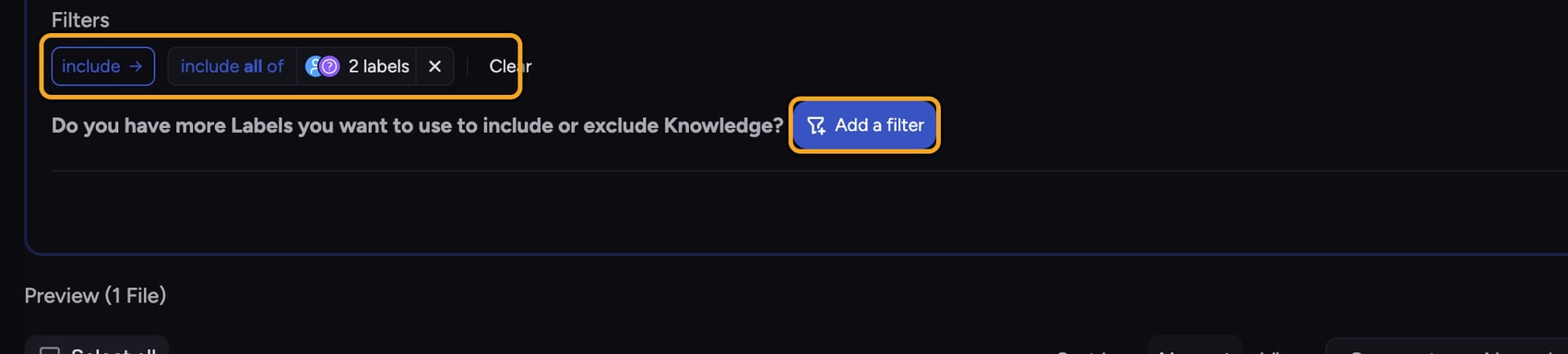 1. Under **Filters**, find the prompt **Select one or more Labels you want to use to include or exclude sets of Files from this Collection**, then click the **Add a filter** button (filter-plus icon).
2. In the **Choose Labels to Filter** picker that opens, click a Label. It becomes a filter chip, and the **Preview** below updates to show matching files.
3. Add more Labels to the same chip by clicking them in the picker, or close the picker and use the prompt **Do you have more Labels you want to use to include or exclude Knowledge?** to add another filter group.
## Switch between AND and OR
1. Under **Filters**, find the prompt **Select one or more Labels you want to use to include or exclude sets of Files from this Collection**, then click the **Add a filter** button (filter-plus icon).
2. In the **Choose Labels to Filter** picker that opens, click a Label. It becomes a filter chip, and the **Preview** below updates to show matching files.
3. Add more Labels to the same chip by clicking them in the picker, or close the picker and use the prompt **Do you have more Labels you want to use to include or exclude Knowledge?** to add another filter group.
## Switch between AND and OR
 1. On a filter chip with two or more Labels, click the operator at the left of the chip to cycle its logic: **include all of** (AND — a file must carry every Label), **include any of** (OR — any one Label qualifies), **exclude if all**, or **exclude if any of**.
2. When you have two or more separate filter chips, click the operator chip at the start of the row to flip how the groups combine between **and** and **or**.
ℹ️ **Good to Know:** Multiple Labels inside one chip combine with that chip's operator; separate chips combine with the row's top-level operator. This lets you build rules like "(A **and** B) **or** C" by putting A and B in one chip and C in another.
## Check the Preview, then save
1. On a filter chip with two or more Labels, click the operator at the left of the chip to cycle its logic: **include all of** (AND — a file must carry every Label), **include any of** (OR — any one Label qualifies), **exclude if all**, or **exclude if any of**.
2. When you have two or more separate filter chips, click the operator chip at the start of the row to flip how the groups combine between **and** and **or**.
ℹ️ **Good to Know:** Multiple Labels inside one chip combine with that chip's operator; separate chips combine with the row's top-level operator. This lets you build rules like "(A **and** B) **or** C" by putting A and B in one chip and C in another.
## Check the Preview, then save
 1. Watch the **Preview** count and file list update as you adjust filters, so you can confirm the Collection captures what you intend before saving.
2. Click **Save**. Chief creates the Collection and returns you to the **Collections** page, where your new Collection appears with its file count.
🚀 **Pro-Tip:** Use an **exclude** filter to carve out noise — for example, include **Competitor** but exclude **Archived** so retired files never clutter the Collection.
## Frequently asked questions
Save stays disabled until you've both given the Collection a name and added at least one Label filter. Hovering it shows the hint **Add at least one filter above**. Add a name and a filter and it becomes active.
You can't build a Collection without Labels. Go create and [apply Labels to some files](/help/labels/bulk-labeling), then come back and build the Collection.
Not necessarily. A zero count usually means your AND logic is too strict (no file carries every Label) or your exclude rule removed everything. Loosen a chip to **include any of**, or remove an exclude filter, and watch the count recover.
Open the Collection from the Collections page to review it. To redefine the rule, build the Collection you want; you can delete a Collection at any time from its card without affecting your files.
1. Watch the **Preview** count and file list update as you adjust filters, so you can confirm the Collection captures what you intend before saving.
2. Click **Save**. Chief creates the Collection and returns you to the **Collections** page, where your new Collection appears with its file count.
🚀 **Pro-Tip:** Use an **exclude** filter to carve out noise — for example, include **Competitor** but exclude **Archived** so retired files never clutter the Collection.
## Frequently asked questions
Save stays disabled until you've both given the Collection a name and added at least one Label filter. Hovering it shows the hint **Add at least one filter above**. Add a name and a filter and it becomes active.
You can't build a Collection without Labels. Go create and [apply Labels to some files](/help/labels/bulk-labeling), then come back and build the Collection.
Not necessarily. A zero count usually means your AND logic is too strict (no file carries every Label) or your exclude rule removed everything. Loosen a chip to **include any of**, or remove an exclude filter, and watch the count recover.
Open the Collection from the Collections page to review it. To redefine the rule, build the Collection you want; you can delete a Collection at any time from its card without affecting your files.