> ## Documentation Index
> Fetch the complete documentation index at: https://docs.chief.bot/llms.txt
> Use this file to discover all available pages before exploring further.
# Defining a Concept & exploring the Concept Graph
> Chief surfaces most Concepts for you automatically, but you can also define your own — telling Chief exactly which theme to track.
## Two ways to work with Concepts
 Chief [surfaces most Concepts for you automatically](/help/how-chief-works-magic-under-the-hood/how-chief-creates-concepts), but you can also **define your own** — telling Chief exactly which theme to track. And whether a Concept was auto-surfaced or hand-defined, the **Concept Graph** lets you explore how your themes relate to one another. This article covers both.
## Define your own Concept
Chief [surfaces most Concepts for you automatically](/help/how-chief-works-magic-under-the-hood/how-chief-creates-concepts), but you can also **define your own** — telling Chief exactly which theme to track. And whether a Concept was auto-surfaced or hand-defined, the **Concept Graph** lets you explore how your themes relate to one another. This article covers both.
## Define your own Concept
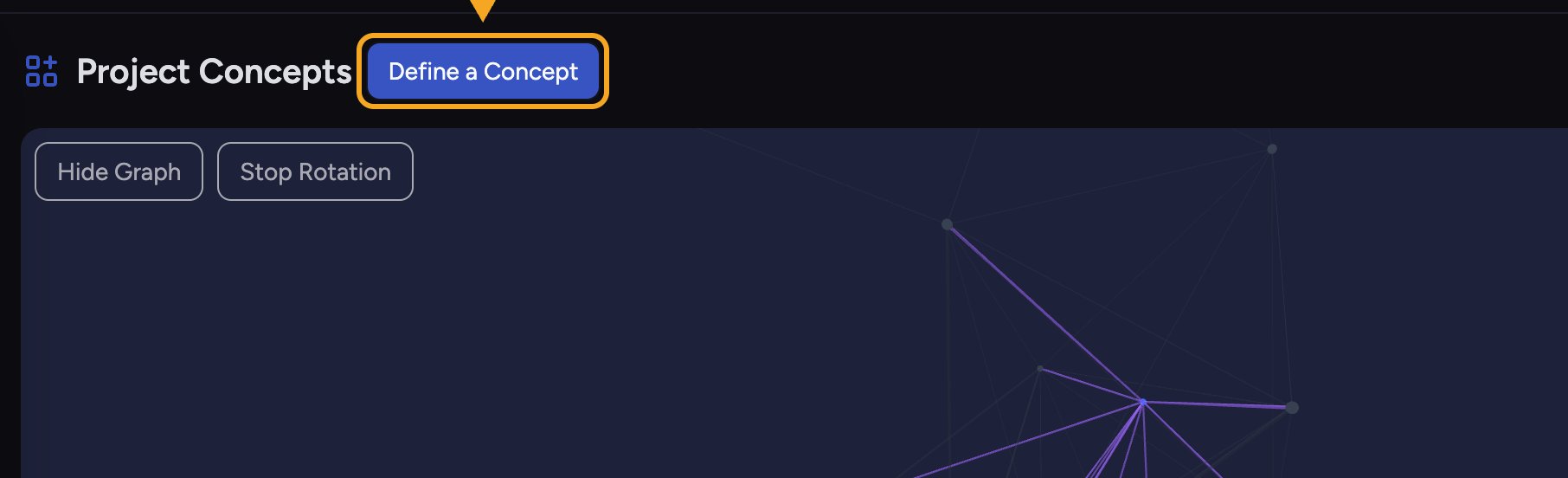
 1. On the [**Concepts** page](/help/concepts/navigating-the-concepts-view-viewing-concept-details), click the **Define a Concept** button at the top. The **Define a Concept** dialog opens.
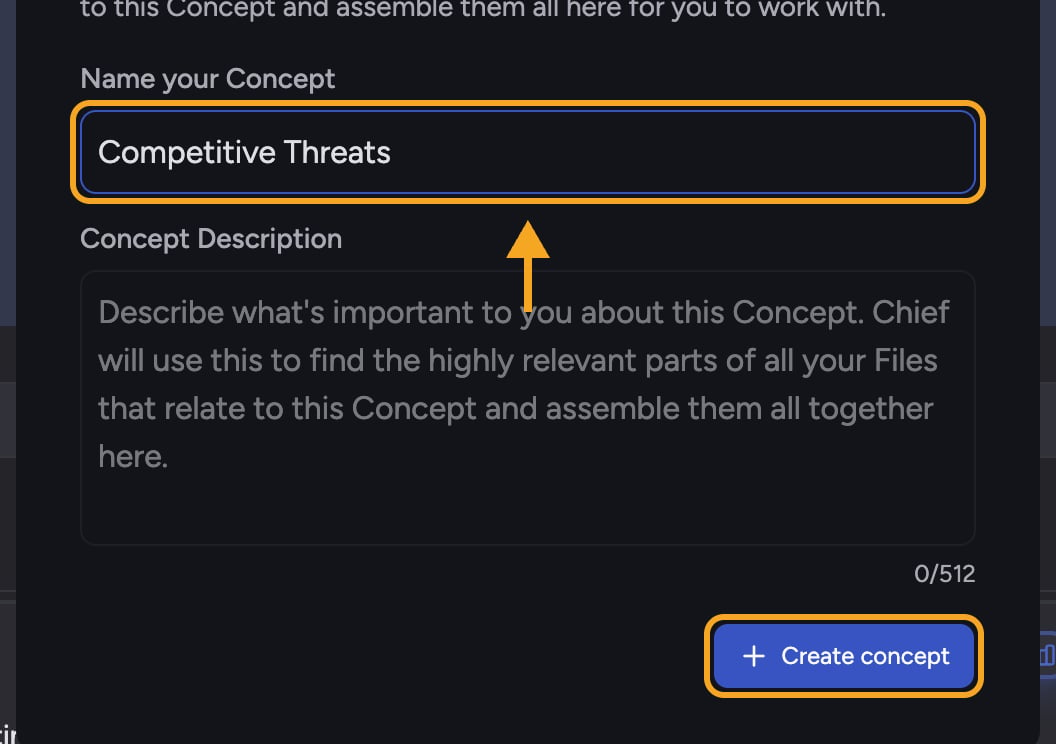
2. Click the **Name your Concept** field and type a name (for example, **Market Trends** or **Key Competitors**). The name must be 2 to 256 characters.
3. Click the **Concept Description** field and describe what the Concept covers, so Chief knows what to look for. The description can be up to 512 characters; a counter shows how many you've used.
4. Click **Create concept**. The dialog closes and a placeholder card reads **\{name} is being generated** while Chief builds it.
ℹ️ **Good to Know:** Generating a Concept takes a few seconds, and up to a few minutes for larger data sets. When it's ready, it joins the list with a "Created by you" badge so you can tell it apart from [auto-surfaced Concepts](/help/concepts/what-are-concepts).
## Explore the Concept Graph
1. On the [**Concepts** page](/help/concepts/navigating-the-concepts-view-viewing-concept-details), click the **Define a Concept** button at the top. The **Define a Concept** dialog opens.
2. Click the **Name your Concept** field and type a name (for example, **Market Trends** or **Key Competitors**). The name must be 2 to 256 characters.
3. Click the **Concept Description** field and describe what the Concept covers, so Chief knows what to look for. The description can be up to 512 characters; a counter shows how many you've used.
4. Click **Create concept**. The dialog closes and a placeholder card reads **\{name} is being generated** while Chief builds it.
ℹ️ **Good to Know:** Generating a Concept takes a few seconds, and up to a few minutes for larger data sets. When it's ready, it joins the list with a "Created by you" badge so you can tell it apart from [auto-surfaced Concepts](/help/concepts/what-are-concepts).
## Explore the Concept Graph
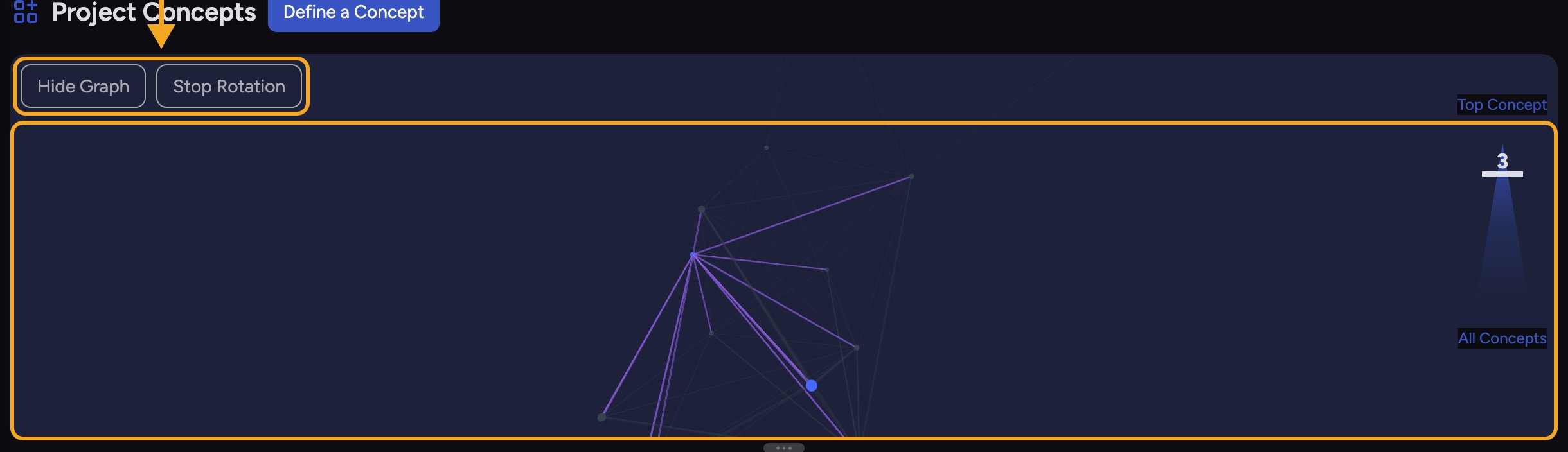 The graph sits at the top of the Concepts page and shows your Concepts as nodes, with related Concepts linked and positioned near each other.
1. The graph rotates slowly on its own. Click **Stop Rotation** to hold it still, or **Start Rotation** to resume.
2. Hover over a node to see the Concept's name and description.
3. Click a node to select that Concept: the view focuses on it, its connected Concepts stay highlighted, and its details open in the side panel.
4. Use the vertical slider on the right to control how many Concepts the graph shows — drag toward **Top Concept** to focus on the most prominent few, or toward **All Concepts** to reveal more. The list below stays in sync with the slider.
5. Click **Hide Graph** to collapse the graph and give the list more room; click **Show Graph** to bring it back.
🚀 **Pro-Tip:** Concepts that sit close together in the graph are closely related. Selecting one highlights its neighbors — a fast way to discover themes you didn't know were connected.
## Frequently asked questions
The name must be at least 2 characters (and no more than 256), and the description must be 512 characters or fewer. The **Create concept** button stays disabled until both are within those limits.
The slider can only show as many Concepts as exist. If you're already at **All Concepts**, there are no more to reveal. A hint, "Move the graph slider to see more Concepts," appears when you haven't tried the slider yet.
The graph uses your browser's hardware-accelerated graphics. If it fails to load, make sure hardware acceleration is on in your browser settings, [close some other graphics-heavy tabs](/help/troubleshooting/performance-speed-tips), and reload the page.
No. Defining a Concept requires being signed in. Clicking **Define a Concept** as a guest prompts you to [sign up](/help/getting-started/creating-your-account-signing-in) first.
The graph sits at the top of the Concepts page and shows your Concepts as nodes, with related Concepts linked and positioned near each other.
1. The graph rotates slowly on its own. Click **Stop Rotation** to hold it still, or **Start Rotation** to resume.
2. Hover over a node to see the Concept's name and description.
3. Click a node to select that Concept: the view focuses on it, its connected Concepts stay highlighted, and its details open in the side panel.
4. Use the vertical slider on the right to control how many Concepts the graph shows — drag toward **Top Concept** to focus on the most prominent few, or toward **All Concepts** to reveal more. The list below stays in sync with the slider.
5. Click **Hide Graph** to collapse the graph and give the list more room; click **Show Graph** to bring it back.
🚀 **Pro-Tip:** Concepts that sit close together in the graph are closely related. Selecting one highlights its neighbors — a fast way to discover themes you didn't know were connected.
## Frequently asked questions
The name must be at least 2 characters (and no more than 256), and the description must be 512 characters or fewer. The **Create concept** button stays disabled until both are within those limits.
The slider can only show as many Concepts as exist. If you're already at **All Concepts**, there are no more to reveal. A hint, "Move the graph slider to see more Concepts," appears when you haven't tried the slider yet.
The graph uses your browser's hardware-accelerated graphics. If it fails to load, make sure hardware acceleration is on in your browser settings, [close some other graphics-heavy tabs](/help/troubleshooting/performance-speed-tips), and reload the page.
No. Defining a Concept requires being signed in. Clicking **Define a Concept** as a guest prompts you to [sign up](/help/getting-started/creating-your-account-signing-in) first.