> ## Documentation Index
> Fetch the complete documentation index at: https://docs.chief.bot/llms.txt
> Use this file to discover all available pages before exploring further.
# Navigating the Concepts view & viewing Concept details
> The Concepts page has two parts: the interactive Concept Graph on top and a list of Concept cards below.
## What the Concepts page shows
The **Concepts** page has two parts: the interactive [**Concept Graph**](/help/concepts/defining-a-concept-exploring-the-concept-graph) on top and a list of Concept cards below. Each card shows the Concept's name, a short summary, and how many citations and source files it's built from. This article covers getting around that page and opening a single Concept's details.
## Open the Concepts page
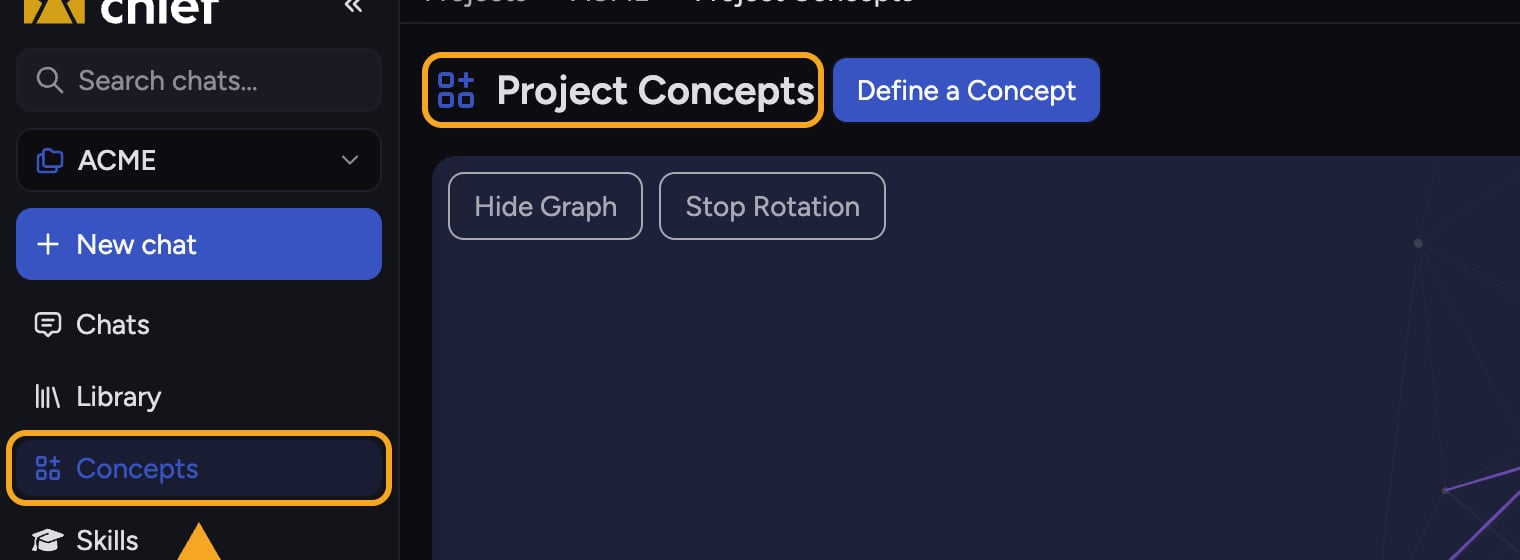 1. In the [left sidebar](/help/getting-started/the-chief-interface-a-quick-tour), click **Concepts**. The page opens under the heading **Project Concepts**.
## Search and sort the list
1. In the [left sidebar](/help/getting-started/the-chief-interface-a-quick-tour), click **Concepts**. The page opens under the heading **Project Concepts**.
## Search and sort the list
 1. Click the **Search concept names** box above the list and type to narrow the cards to matching names.
2. Click the **Sort by** dropdown to reorder the list: **Created by you**, **Chief** (surfaced automatically), **Recent**, or oldest first.
## Switch between card and row views
1. Click the **Search concept names** box above the list and type to narrow the cards to matching names.
2. Click the **Sort by** dropdown to reorder the list: **Created by you**, **Chief** (surfaced automatically), **Recent**, or oldest first.
## Switch between card and row views
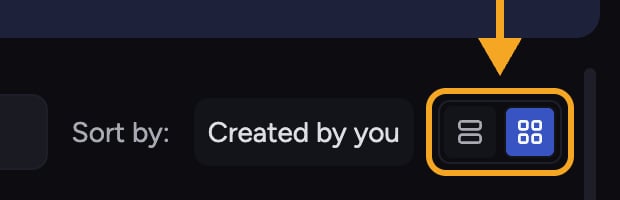 1. Use the view toggle at the top-right of the list to switch between a card grid and a compact row layout, whichever is easier to scan.
## Open a Concept's details
1. Use the view toggle at the top-right of the list to switch between a card grid and a compact row layout, whichever is easier to scan.
## Open a Concept's details
 1. Click any Concept card. Its details open in a side panel, and the matching node lights up in the graph above.
2. In the details panel you'll see the Concept's name, its summary or description, and a line reading **This Concept is built from N citations** from one or more files.
3. Scroll the panel to read [the citations themselves](/help/concepts/concept-timelines): each source file is listed with its passages (chunks). Click a passage to expand or collapse its full text.
4. When a passage list is long, click the **+ N more sources** control to reveal the rest.
## Act on the Concept
1. Click any Concept card. Its details open in a side panel, and the matching node lights up in the graph above.
2. In the details panel you'll see the Concept's name, its summary or description, and a line reading **This Concept is built from N citations** from one or more files.
3. Scroll the panel to read [the citations themselves](/help/concepts/concept-timelines): each source file is listed with its passages (chunks). Click a passage to expand or collapse its full text.
4. When a passage list is long, click the **+ N more sources** control to reveal the rest.
## Act on the Concept
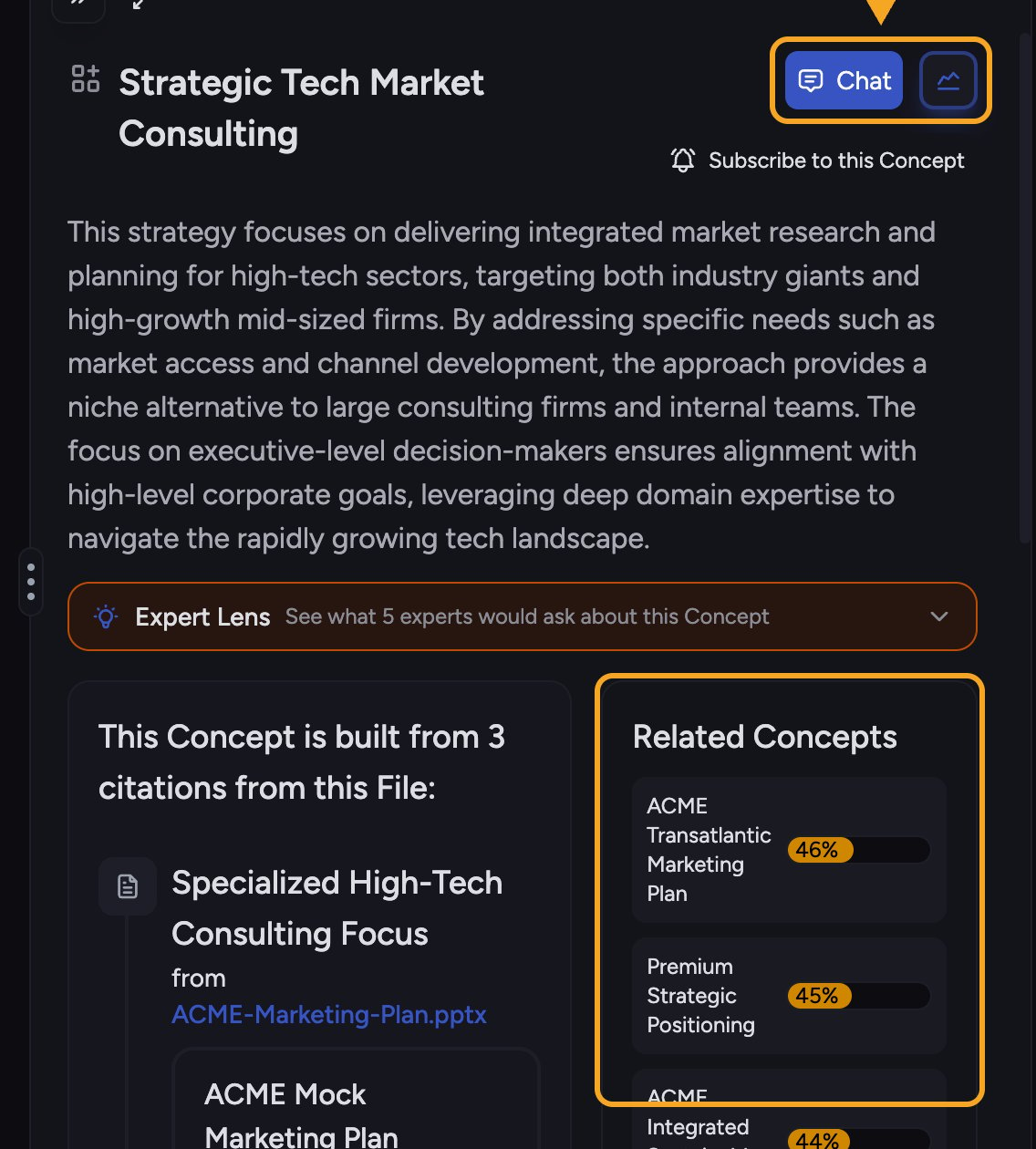 1. Click **Chat** in the details panel to [start a conversation](/help/chatting-with-chief/how-chats-work) grounded in this Concept's source passages.
2. Click the [**Visualize**](/help/creating-exporting/turning-answers-concepts-into-visuals-charts-infographics-word-clouds-mind-maps-timelines-visualize) control (the chart icon next to Chat) to turn the Concept into a graphic.
3. Check **Related Concepts** in the panel and click one to jump straight to it.
ℹ️ **Good to Know:** Press **Esc** while a Concept's details are open to close the panel and return to the graph.
🚀 **Pro-Tip:** Tick the checkboxes on several Concept cards, then use **Chat with N Concepts** to ground one conversation in multiple themes at once.
## Frequently asked questions
The Concept exists but Chief hasn't attached source passages to it yet — common right after you define a Concept. Give it a little time and the citations will populate.
That means the citation list couldn't load this time. Close and reopen the Concept, or refresh, to retry loading its citations.
If you opened the Concept from inside a filtered view (such as a [Collection](/help/collections/what-are-collections)), citations from files outside that view are hidden. Click **Remove filters** in the note to see every citation behind the Concept.
Citations are individual passages; files are the documents those passages came from. One file can contribute several citations, so the citation count is usually higher than the file count.
1. Click **Chat** in the details panel to [start a conversation](/help/chatting-with-chief/how-chats-work) grounded in this Concept's source passages.
2. Click the [**Visualize**](/help/creating-exporting/turning-answers-concepts-into-visuals-charts-infographics-word-clouds-mind-maps-timelines-visualize) control (the chart icon next to Chat) to turn the Concept into a graphic.
3. Check **Related Concepts** in the panel and click one to jump straight to it.
ℹ️ **Good to Know:** Press **Esc** while a Concept's details are open to close the panel and return to the graph.
🚀 **Pro-Tip:** Tick the checkboxes on several Concept cards, then use **Chat with N Concepts** to ground one conversation in multiple themes at once.
## Frequently asked questions
The Concept exists but Chief hasn't attached source passages to it yet — common right after you define a Concept. Give it a little time and the citations will populate.
That means the citation list couldn't load this time. Close and reopen the Concept, or refresh, to retry loading its citations.
If you opened the Concept from inside a filtered view (such as a [Collection](/help/collections/what-are-collections)), citations from files outside that view are hidden. Click **Remove filters** in the note to see every citation behind the Concept.
Citations are individual passages; files are the documents those passages came from. One file can contribute several citations, so the citation count is usually higher than the file count.