> ## Documentation Index
> Fetch the complete documentation index at: https://docs.chief.bot/llms.txt
> Use this file to discover all available pages before exploring further.
# Building presentations & choosing a theme
> Chief can turn your research, notes, or analysis into a slide presentation — a real deck with themed slides, not a wall of bullet points.
Chief can turn your research, notes, or analysis into a slide presentation — a real deck with themed slides, not a wall of bullet points. This article covers asking Chief to build a presentation, changing its theme, presenting it, and saving it.
## Build a presentation
 1. In [a conversation](/help/chatting-with-chief/how-chats-work), ask Chief to create a presentation, for example **"Turn this into a 6-slide presentation for our leadership team."**
2. Chief generates the deck (you'll see a **Generating presentation...** status while it works).
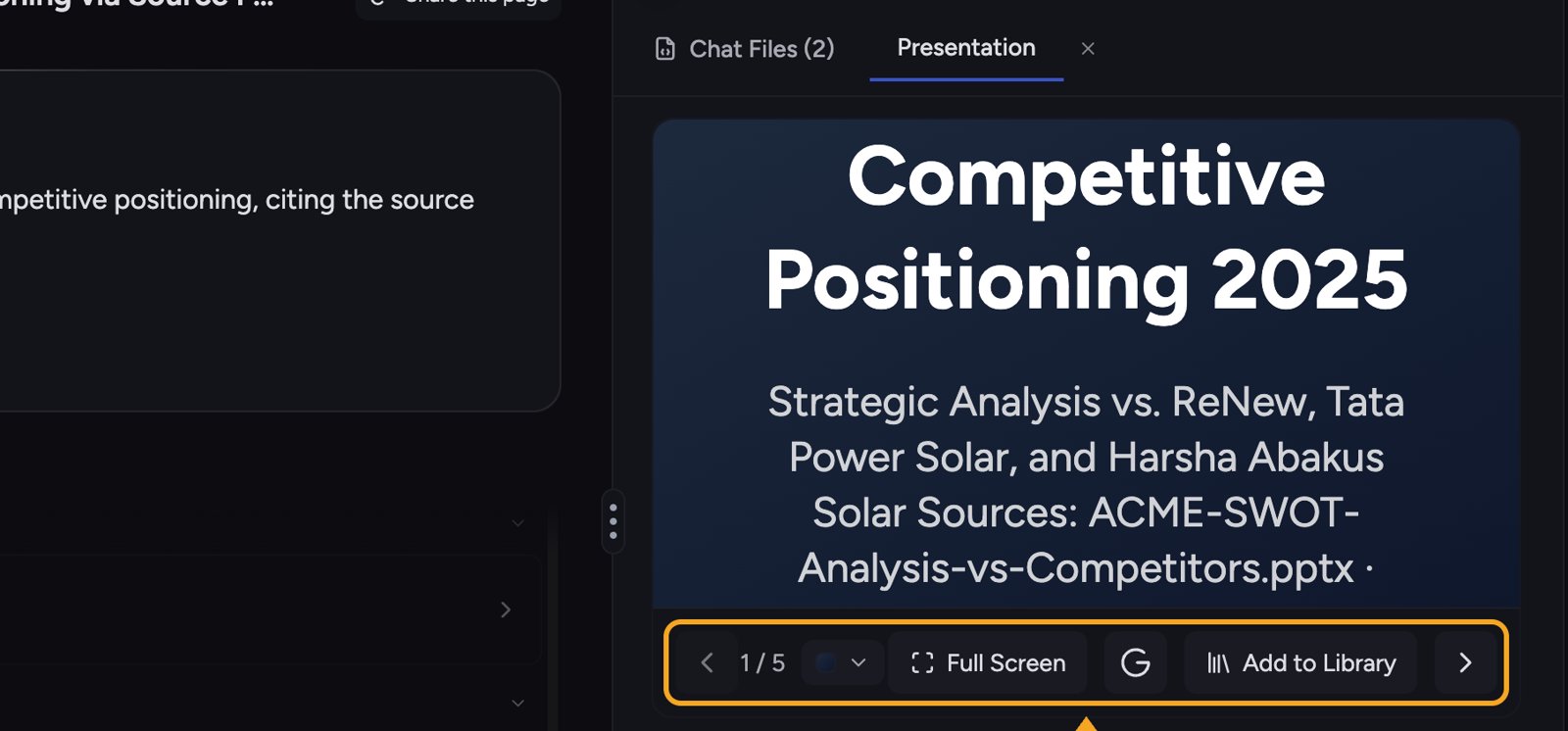
3. When it finishes, the presentation is created as [a File](/help/creating-exporting/working-with-artifacts-the-document-editor-concept) and opens in the **Presentation** tab.
## Choose a theme
1. In [a conversation](/help/chatting-with-chief/how-chats-work), ask Chief to create a presentation, for example **"Turn this into a 6-slide presentation for our leadership team."**
2. Chief generates the deck (you'll see a **Generating presentation...** status while it works).
3. When it finishes, the presentation is created as [a File](/help/creating-exporting/working-with-artifacts-the-document-editor-concept) and opens in the **Presentation** tab.
## Choose a theme
 1. Open the presentation.
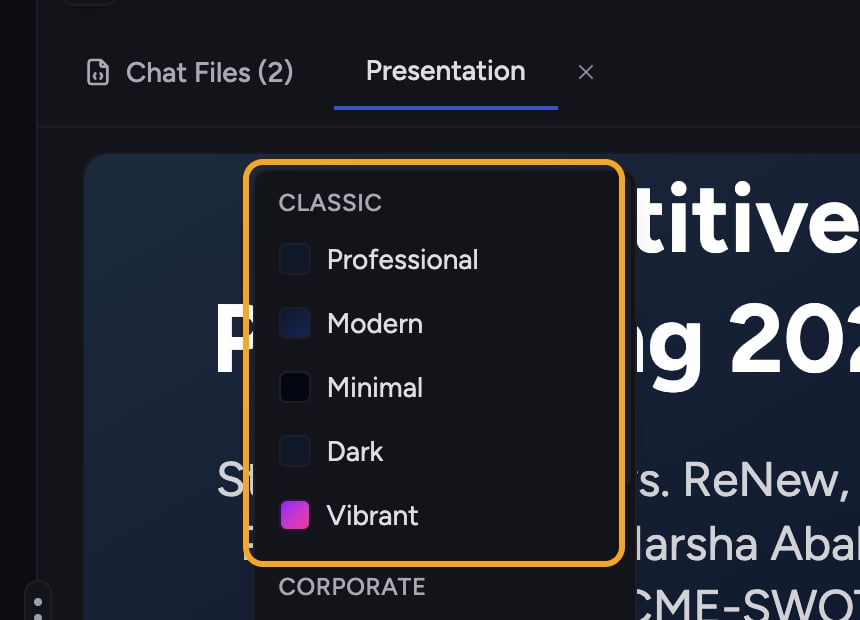
2. Click the theme control (**Select theme**).
3. Choose a theme. Themes are grouped into categories — **Classic** (Professional, Modern, Minimal, Dark, Vibrant), **Corporate** (Executive, Startup), and **Creative** (Gradient, Nature, Neon, Pastel).
The deck re-renders in the new theme immediately.
ℹ️ **Good to Know:** You can't change the theme while the presentation is still streaming in — the **Select theme** control is disabled until generation finishes. Wait for it to complete, then switch themes.
## Present and navigate
* Click **Full Screen** to present.
* Use the next-slide and previous-slide controls (the ‹ › arrows, or your keyboard arrow keys) to move through the slides — the counter shows your position (for example 1 / 5).
* Click **Exit Full Screen** when you're done.
## Save the presentation
1. Open the presentation.
2. Click the theme control (**Select theme**).
3. Choose a theme. Themes are grouped into categories — **Classic** (Professional, Modern, Minimal, Dark, Vibrant), **Corporate** (Executive, Startup), and **Creative** (Gradient, Nature, Neon, Pastel).
The deck re-renders in the new theme immediately.
ℹ️ **Good to Know:** You can't change the theme while the presentation is still streaming in — the **Select theme** control is disabled until generation finishes. Wait for it to complete, then switch themes.
## Present and navigate
* Click **Full Screen** to present.
* Use the next-slide and previous-slide controls (the ‹ › arrows, or your keyboard arrow keys) to move through the slides — the counter shows your position (for example 1 / 5).
* Click **Exit Full Screen** when you're done.
## Save the presentation
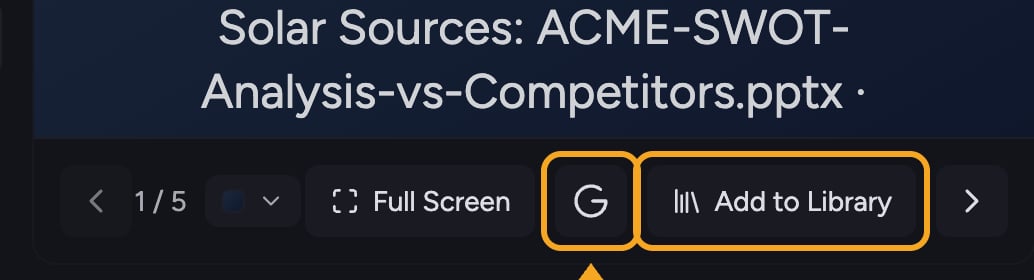 Click [**Add to Library**](/help/your-knowledge-library/saving-a-chat-answer-back-to-your-library) in the presentation toolbar to save the deck to your Project Library, so you and your team can find it later.
## FAQ
The theme can't be changed while the presentation is still generating. Wait for it to finish, then pick a theme.
If you see "Failed to save presentation to Project Library," try again. If it keeps failing, confirm you have [edit access](/help/projects-sharing-teams/roles-access-levels-owner-collaborator-reader) to the Project.
Google Slides export is an early-access feature and isn't enabled for every account yet. If you see the **Export to Google Slides** button in the presentation toolbar, [you can use it](/help/creating-exporting/exporting-presentations-to-google-slides). Otherwise, save the deck to your Library or download it.
Click [**Add to Library**](/help/your-knowledge-library/saving-a-chat-answer-back-to-your-library) in the presentation toolbar to save the deck to your Project Library, so you and your team can find it later.
## FAQ
The theme can't be changed while the presentation is still generating. Wait for it to finish, then pick a theme.
If you see "Failed to save presentation to Project Library," try again. If it keeps failing, confirm you have [edit access](/help/projects-sharing-teams/roles-access-levels-owner-collaborator-reader) to the Project.
Google Slides export is an early-access feature and isn't enabled for every account yet. If you see the **Export to Google Slides** button in the presentation toolbar, [you can use it](/help/creating-exporting/exporting-presentations-to-google-slides). Otherwise, save the deck to your Library or download it.