> ## Documentation Index
> Fetch the complete documentation index at: https://docs.chief.bot/llms.txt
> Use this file to discover all available pages before exploring further.
# Copying responses as rich text or Markdown
> The fastest way to move a Chief answer into an email, doc, or ticket is to copy it.
The fastest way to move a Chief [answer](/help/chatting-with-chief/working-with-an-answer-the-response-menu) into an email, doc, or ticket is to copy it. Chief copies as formatted rich text by default — so headings, bold, and lists survive the paste — and also lets you grab the raw Markdown when that's what the destination wants.
## Copy an answer as rich text
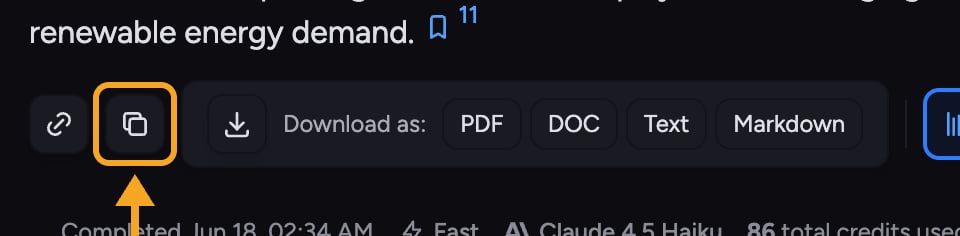 1. [Hover over the answer](/help/chatting-with-chief/editing-copying-downloading-messages).
2. Click the **Copy** button.
The answer is copied as rich text. Paste it into a document, email, or any editor that accepts formatting, and the structure comes with it.
## Copy an answer as Markdown
1. Click the **Copy** button on the answer.
2. A secondary **Copy as Markdown** button appears right after — click it.
This copies the raw Markdown, ideal for pasting into a Markdown editor, a code comment, or another AI tool.
ℹ️ **Good to Know:** The **Copy as Markdown** button is shown only briefly after you click **Copy**. If it disappears before you reach it, just click **Copy** again to bring it back.
## Copying tables
A table inside an answer has its own **Copy table as Markdown** action, so you can grab just the table without the surrounding text — or [download it as a spreadsheet](/help/creating-exporting/downloading-responses-pdf-docx-xlsx-csv-markdown-text-tables).
## FAQ
You likely pasted Markdown into a destination that doesn't render it, or used plain-text paste. Use the default **Copy** (rich text) and a normal paste into a formatting-aware editor to keep headings, bold, and lists.
It only shows for a few seconds after you click **Copy**. Click **Copy** again and the Markdown option reappears.
Yes — use the table's own **Copy table as Markdown** action to copy only that table.
1. [Hover over the answer](/help/chatting-with-chief/editing-copying-downloading-messages).
2. Click the **Copy** button.
The answer is copied as rich text. Paste it into a document, email, or any editor that accepts formatting, and the structure comes with it.
## Copy an answer as Markdown
1. Click the **Copy** button on the answer.
2. A secondary **Copy as Markdown** button appears right after — click it.
This copies the raw Markdown, ideal for pasting into a Markdown editor, a code comment, or another AI tool.
ℹ️ **Good to Know:** The **Copy as Markdown** button is shown only briefly after you click **Copy**. If it disappears before you reach it, just click **Copy** again to bring it back.
## Copying tables
A table inside an answer has its own **Copy table as Markdown** action, so you can grab just the table without the surrounding text — or [download it as a spreadsheet](/help/creating-exporting/downloading-responses-pdf-docx-xlsx-csv-markdown-text-tables).
## FAQ
You likely pasted Markdown into a destination that doesn't render it, or used plain-text paste. Use the default **Copy** (rich text) and a normal paste into a formatting-aware editor to keep headings, bold, and lists.
It only shows for a few seconds after you click **Copy**. Click **Copy** again and the Markdown option reappears.
Yes — use the table's own **Copy table as Markdown** action to copy only that table.