> ## Documentation Index
> Fetch the complete documentation index at: https://docs.chief.bot/llms.txt
> Use this file to discover all available pages before exploring further.
# Generating images [beta]
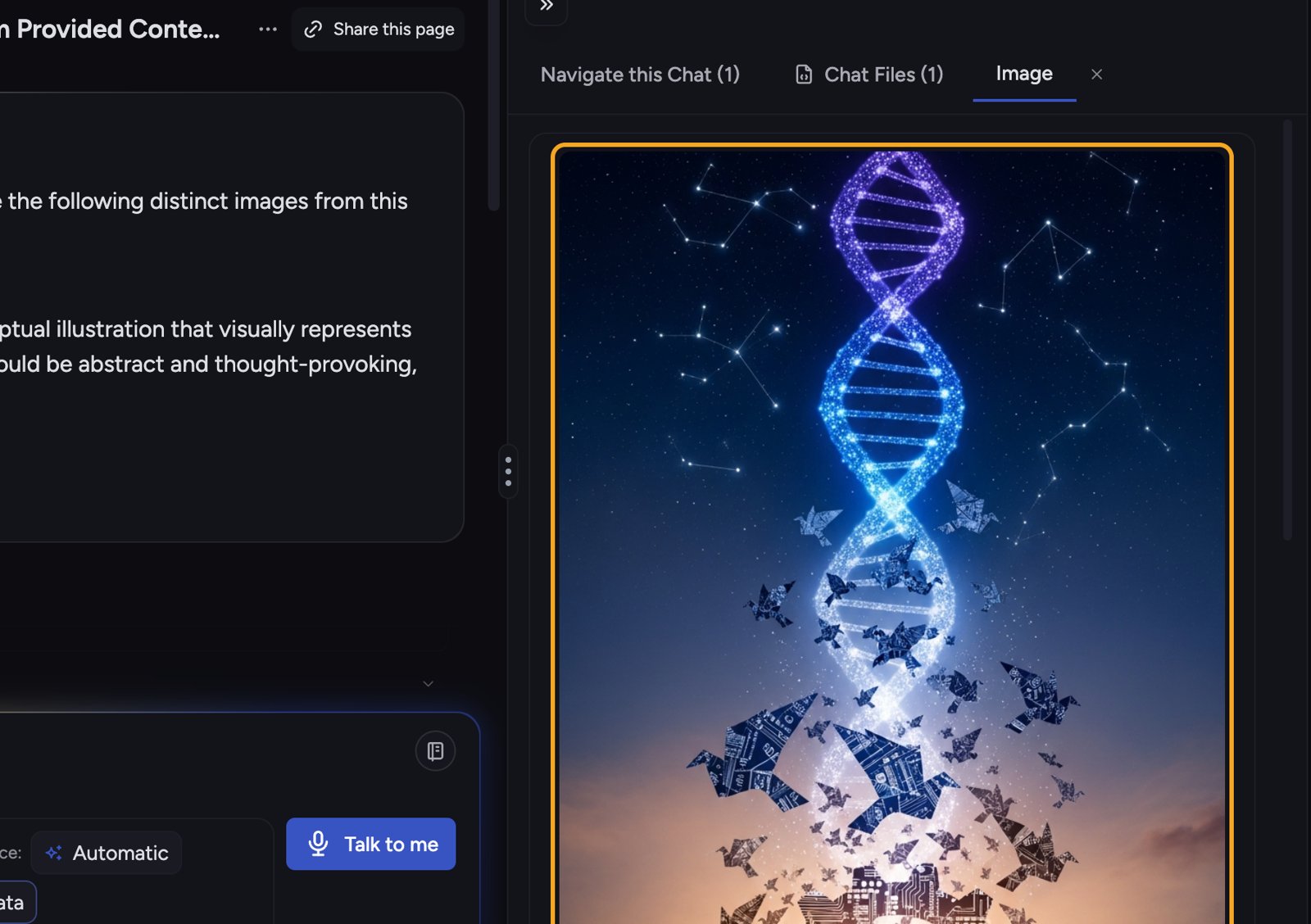
> Beyond charts, Chief can generate images from your content — a conceptual illustration for a blog post, a metaphorical image for a slide, or a photorealistic scene.
Beyond charts, Chief can generate images from your content — a conceptual illustration for a blog post, a metaphorical image for a slide, or a photorealistic scene. Image generation runs through the same [**Visualize**](/help/creating-exporting/turning-answers-concepts-into-visuals-charts-infographics-word-clouds-mind-maps-timelines-visualize) action as [charts](/help/creating-exporting/generating-charts-visualizations).
⚠️ **Important:** Image generation is a beta feature and is more prone to errors like misspellings and misrendered numbers. Make sure to double-check anything inside a generated image before you use it.
## Generate an image
 1. Open the Visualize window from your content — on a finished answer choose **Visualize this answer**, or select a File in your [**Library**](/help/your-knowledge-library/what-is-the-library) and click **Visualize**. (Highlighting text and choosing **Visualize** from the [**Do more with this text**](/help/chatting-with-chief/the-text-selection-menu-act-on-any-passage) menu works too.)
2. In the Visualize window, choose **select the visuals yourself**.
3. Pick an image option from a group such as **Images & Scenes** — for example **Photorealistic Scene**, **Metaphorical Image**, or **Conceptual Illustration**.
4. Click **Go**.
Chief generates the image and lists it under **Created Files** in the answer. Click it to open it in a panel, where you can view it full-size, download it, or keep it in your Project.
## What you can make
1. Open the Visualize window from your content — on a finished answer choose **Visualize this answer**, or select a File in your [**Library**](/help/your-knowledge-library/what-is-the-library) and click **Visualize**. (Highlighting text and choosing **Visualize** from the [**Do more with this text**](/help/chatting-with-chief/the-text-selection-menu-act-on-any-passage) menu works too.)
2. In the Visualize window, choose **select the visuals yourself**.
3. Pick an image option from a group such as **Images & Scenes** — for example **Photorealistic Scene**, **Metaphorical Image**, or **Conceptual Illustration**.
4. Click **Go**.
Chief generates the image and lists it under **Created Files** in the answer. Click it to open it in a panel, where you can view it full-size, download it, or keep it in your Project.
## What you can make
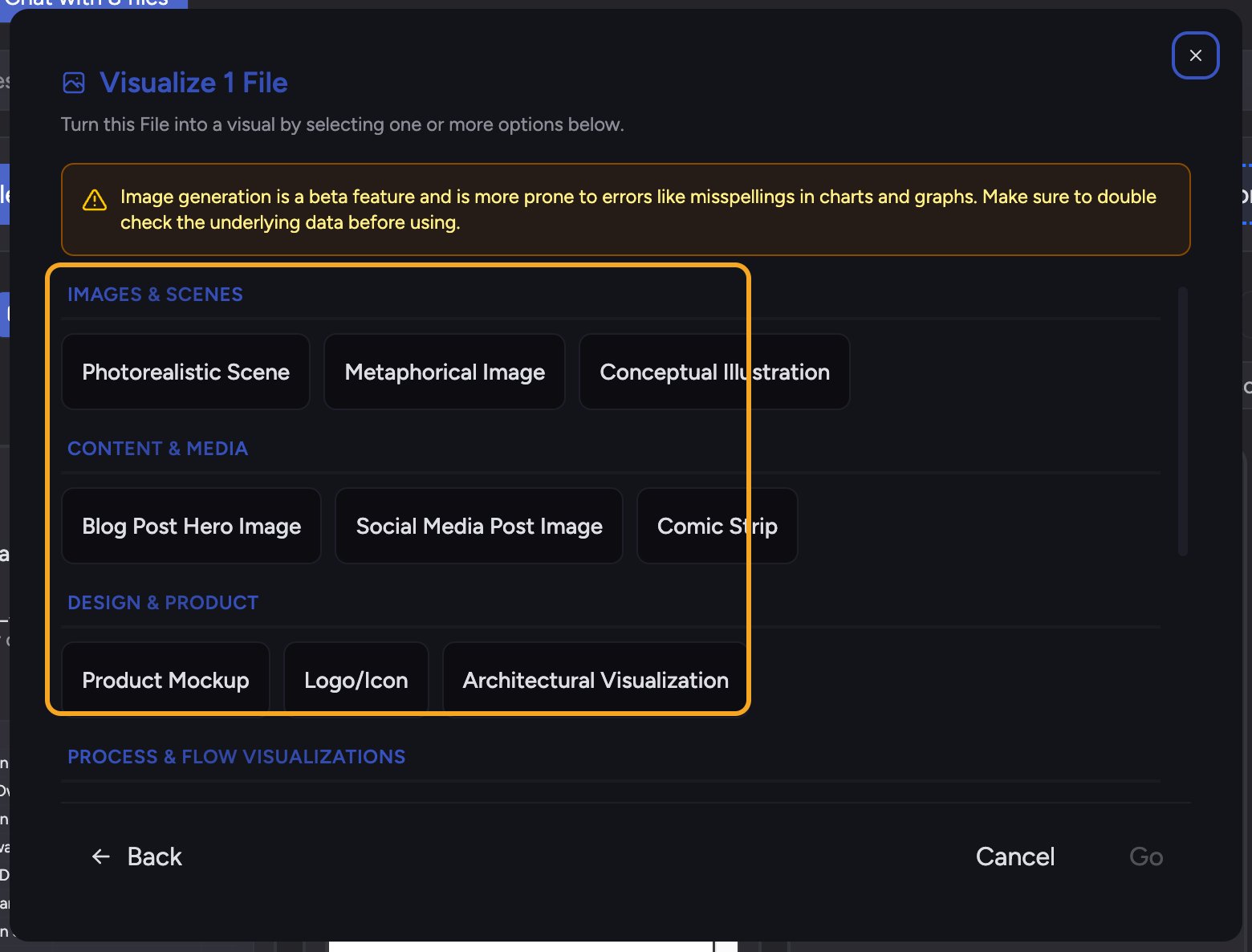 When you choose **select the visuals yourself**, the image options are grouped by purpose:
* **Images & Scenes** — Photorealistic Scene, Metaphorical Image, Conceptual Illustration.
* **Content & Media** — Blog Post Hero Image, Social Media Post Image, Comic Strip.
* **Design & Product** — Product Mockup, Logo/Icon, Architectural Visualization.
* **Artistic** — Character Portrait, Abstract Art.
The same window also has data options (**Charts & Data Visualizations**) and **Process & Flow Visualizations** — see the article on generating charts for those.
💡 **Tip:** Not sure which style fits? Choose **Surprise me** in the Visualize window and let Chief pick — use the count dropdown to set how many visuals it generates.
## FAQ
This is a known limitation of the beta. Generated images can misspell text and misrender numbers. Treat any text inside an image as a draft and verify it against your source before sharing.
You can regenerate by running Visualize again with a different option, or refine your prompt. For text-heavy content, a chart or document is often more reliable than a generated image.
Each one is created as a File, listed under **Created Files** in the answer. Open it to view it in a panel, download it, or [keep it in your Project Library](/help/your-knowledge-library/saving-a-chat-answer-back-to-your-library) to reuse.
When you choose **select the visuals yourself**, the image options are grouped by purpose:
* **Images & Scenes** — Photorealistic Scene, Metaphorical Image, Conceptual Illustration.
* **Content & Media** — Blog Post Hero Image, Social Media Post Image, Comic Strip.
* **Design & Product** — Product Mockup, Logo/Icon, Architectural Visualization.
* **Artistic** — Character Portrait, Abstract Art.
The same window also has data options (**Charts & Data Visualizations**) and **Process & Flow Visualizations** — see the article on generating charts for those.
💡 **Tip:** Not sure which style fits? Choose **Surprise me** in the Visualize window and let Chief pick — use the count dropdown to set how many visuals it generates.
## FAQ
This is a known limitation of the beta. Generated images can misspell text and misrender numbers. Treat any text inside an image as a draft and verify it against your source before sharing.
You can regenerate by running Visualize again with a different option, or refine your prompt. For text-heavy content, a chart or document is often more reliable than a generated image.
Each one is created as a File, listed under **Created Files** in the answer. Open it to view it in a panel, download it, or [keep it in your Project Library](/help/your-knowledge-library/saving-a-chat-answer-back-to-your-library) to reuse.