> ## Documentation Index
> Fetch the complete documentation index at: https://docs.chief.bot/llms.txt
> Use this file to discover all available pages before exploring further.
# Generating reports & documents
> When you need more than a chat answer — a formatted report you can hand to a stakeholder — ask Chief to generate one.
When you need more than [a chat answer](/help/chatting-with-chief/working-with-an-answer-the-response-menu) — a formatted report you can hand to a stakeholder — ask Chief to generate one. Chief produces a structured document you can read in the **Report** tab, copy, download in several formats, and save to your Project.
## Generate a report
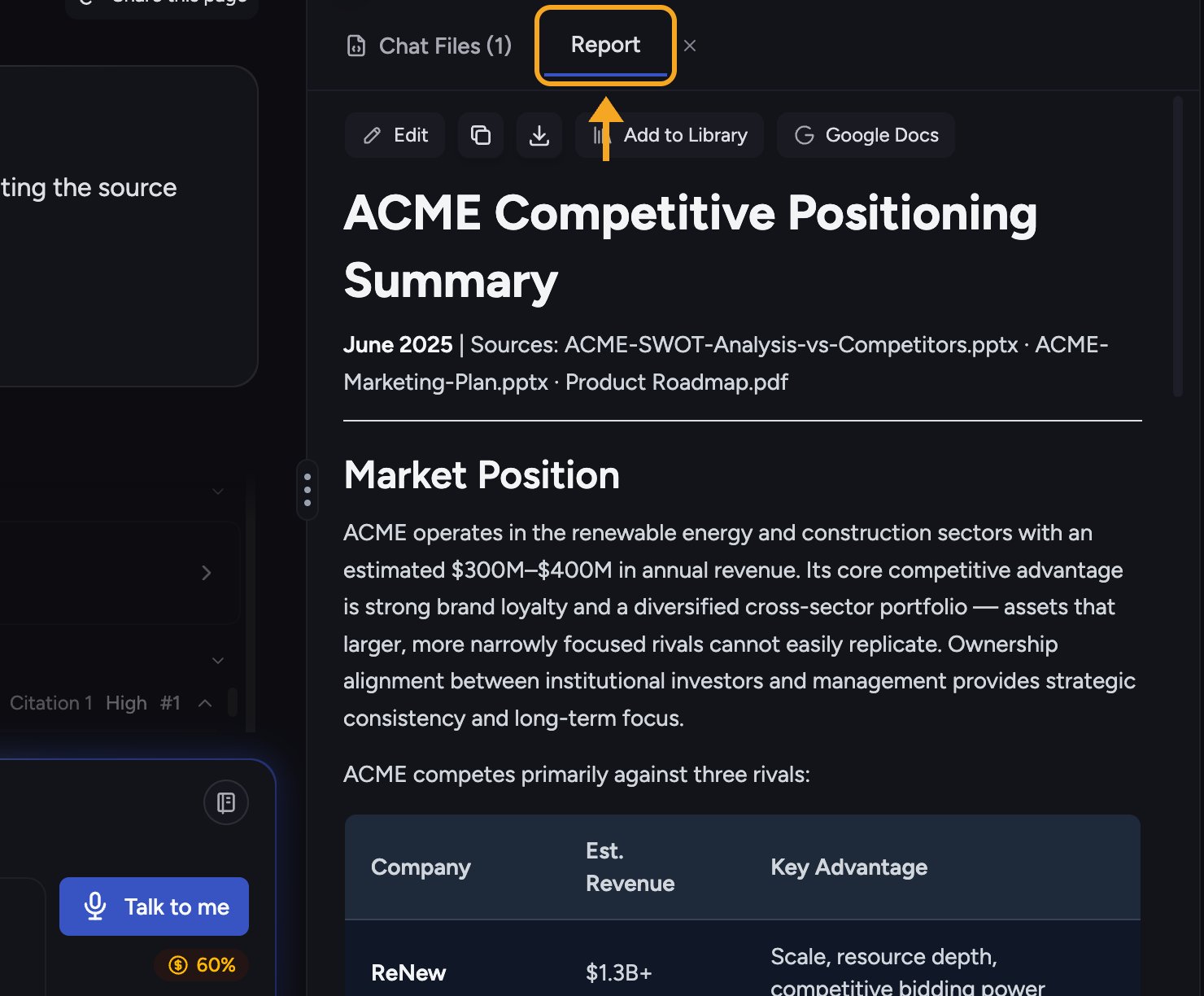 1. In a conversation, ask Chief to produce a report or document, for example **"Write a one-page report summarizing these findings with a recommendations section."**
2. Chief builds it (you'll see a **Generating report...** status while it works).
3. When it finishes, it's created as [a File](/help/creating-exporting/working-with-artifacts-the-document-editor-concept). Open it from the conversation to read it in the **Report** tab.
## Download a report
1. In a conversation, ask Chief to produce a report or document, for example **"Write a one-page report summarizing these findings with a recommendations section."**
2. Chief builds it (you'll see a **Generating report...** status while it works).
3. When it finishes, it's created as [a File](/help/creating-exporting/working-with-artifacts-the-document-editor-concept). Open it from the conversation to read it in the **Report** tab.
## Download a report
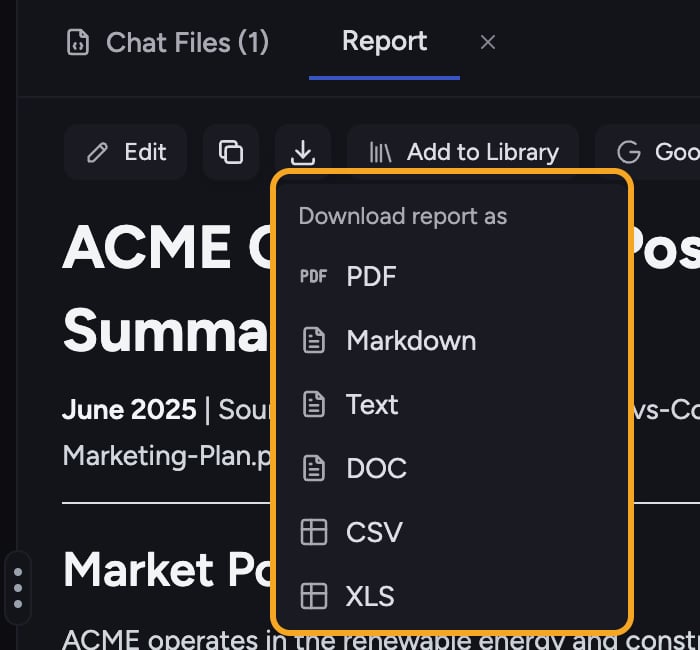 1. In the report toolbar, open the **Download** menu (**Download report as**).
2. Choose [a format](/help/creating-exporting/downloading-responses-pdf-docx-xlsx-csv-markdown-text-tables): **PDF**, **Markdown**, **Text**, or **DOC**.
ℹ️ **Good to Know:** **CSV** and **XLS** appear in the download menu only when the report contains a table. If your report is all prose, you'll see PDF, Markdown, Text, and DOC but no spreadsheet formats.
## Copy a report
1. In the report toolbar, open the **Download** menu (**Download report as**).
2. Choose [a format](/help/creating-exporting/downloading-responses-pdf-docx-xlsx-csv-markdown-text-tables): **PDF**, **Markdown**, **Text**, or **DOC**.
ℹ️ **Good to Know:** **CSV** and **XLS** appear in the download menu only when the report contains a table. If your report is all prose, you'll see PDF, Markdown, Text, and DOC but no spreadsheet formats.
## Copy a report
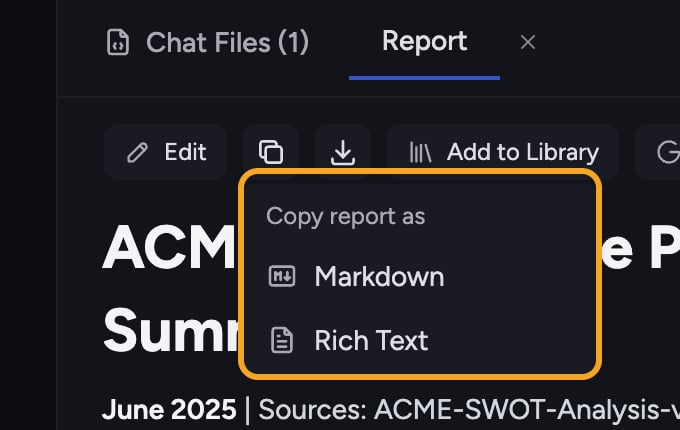 Use the **Copy** menu (**Copy report as**) to [copy the whole report](/help/creating-exporting/copying-responses-as-rich-text-or-markdown) as **Markdown** or **Rich Text**, ready to paste into another tool.
## Save to your Project
Click [**Add to Library**](/help/your-knowledge-library/saving-a-chat-answer-back-to-your-library) in the report toolbar to save the report to your Project Library, so you can keep it and share it with your team.
## FAQ
PDF export runs through a conversion service and can occasionally fail ("Failed to download PDF. Please try again."). Try again; if it persists, download the report as DOC or Markdown instead.
Those formats appear only when the report includes at least one table. A prose-only report offers PDF, Markdown, Text, and DOC.
Yes — use the **Google Docs** button in the report toolbar. You'll need a [connected Google account](/help/integrations/google-drive); otherwise download the report as DOC or Markdown.
Use the **Copy** menu (**Copy report as**) to [copy the whole report](/help/creating-exporting/copying-responses-as-rich-text-or-markdown) as **Markdown** or **Rich Text**, ready to paste into another tool.
## Save to your Project
Click [**Add to Library**](/help/your-knowledge-library/saving-a-chat-answer-back-to-your-library) in the report toolbar to save the report to your Project Library, so you can keep it and share it with your team.
## FAQ
PDF export runs through a conversion service and can occasionally fail ("Failed to download PDF. Please try again."). Try again; if it persists, download the report as DOC or Markdown instead.
Those formats appear only when the report includes at least one table. A prose-only report offers PDF, Markdown, Text, and DOC.
Yes — use the **Google Docs** button in the report toolbar. You'll need a [connected Google account](/help/integrations/google-drive); otherwise download the report as DOC or Markdown.