> ## Documentation Index
> Fetch the complete documentation index at: https://docs.chief.bot/llms.txt
> Use this file to discover all available pages before exploring further.
# Working with artifacts & the document editor (concept)
> When Chief writes a document, builds a chart, or drafts a report, that output isn't just text in the chat — it's an artifact: a self-contained file you can open, edit, download, and save to your Project.
When Chief writes a document, [builds a chart](/help/creating-exporting/generating-charts-visualizations), or [drafts a report](/help/creating-exporting/generating-reports-documents), that output isn't just text in the chat — it's an **artifact**: a self-contained file you can open, edit, download, and save to your Project. Artifacts are how Chief turns a conversation into deliverables you can actually use.
## What an artifact is
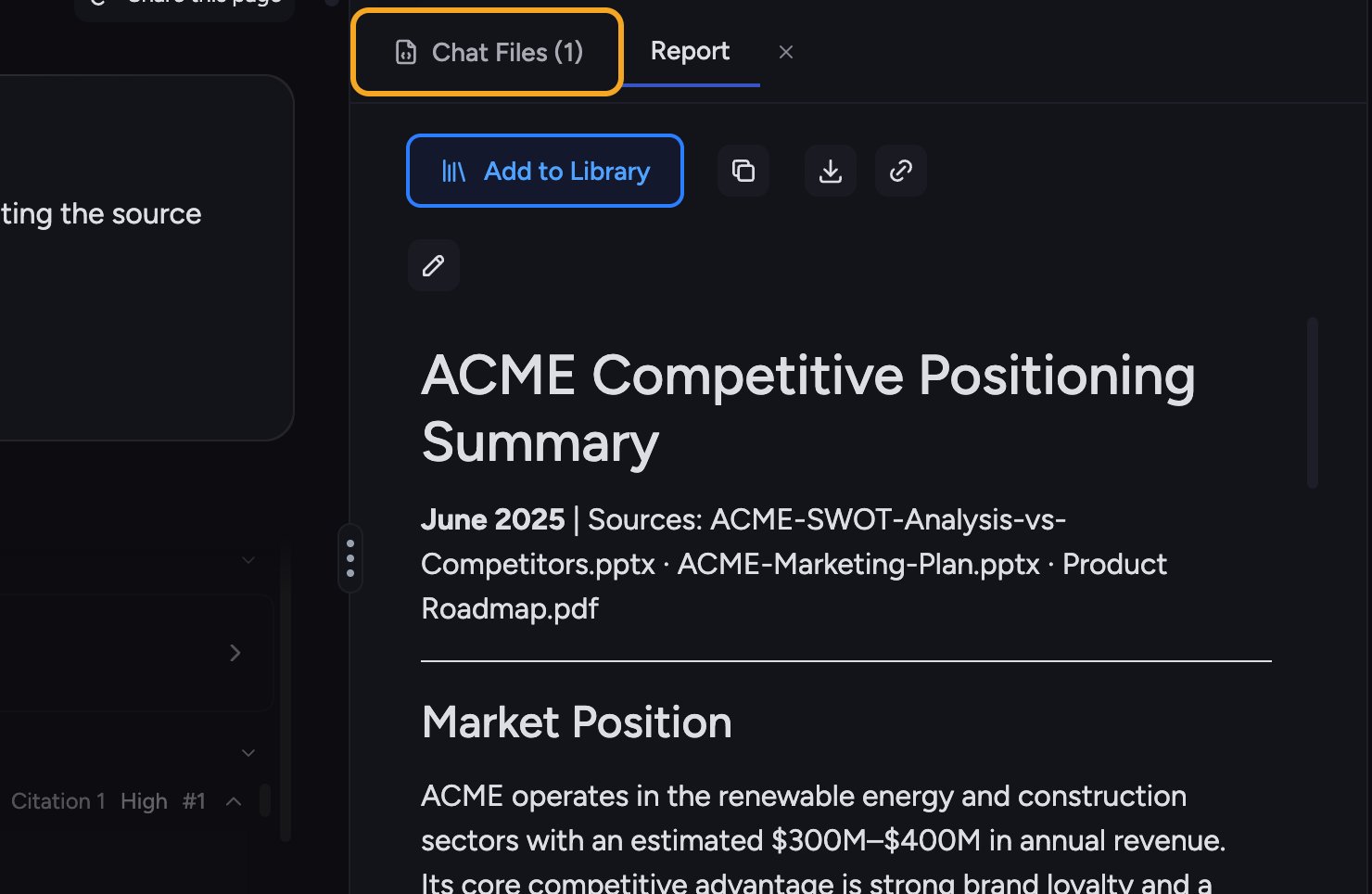 An artifact is any standalone file Chief generates inside a chat — a document, a report, a [presentation](/help/creating-exporting/building-presentations-choosing-a-theme), or a visual. Each chat's artifacts are collected in the **Chat Files** tab, so you can find everything a conversation produced in one place. A report artifact opens in its own **Report** tab.
## The document editor
An artifact is any standalone file Chief generates inside a chat — a document, a report, a [presentation](/help/creating-exporting/building-presentations-choosing-a-theme), or a visual. Each chat's artifacts are collected in the **Chat Files** tab, so you can find everything a conversation produced in one place. A report artifact opens in its own **Report** tab.
## The document editor
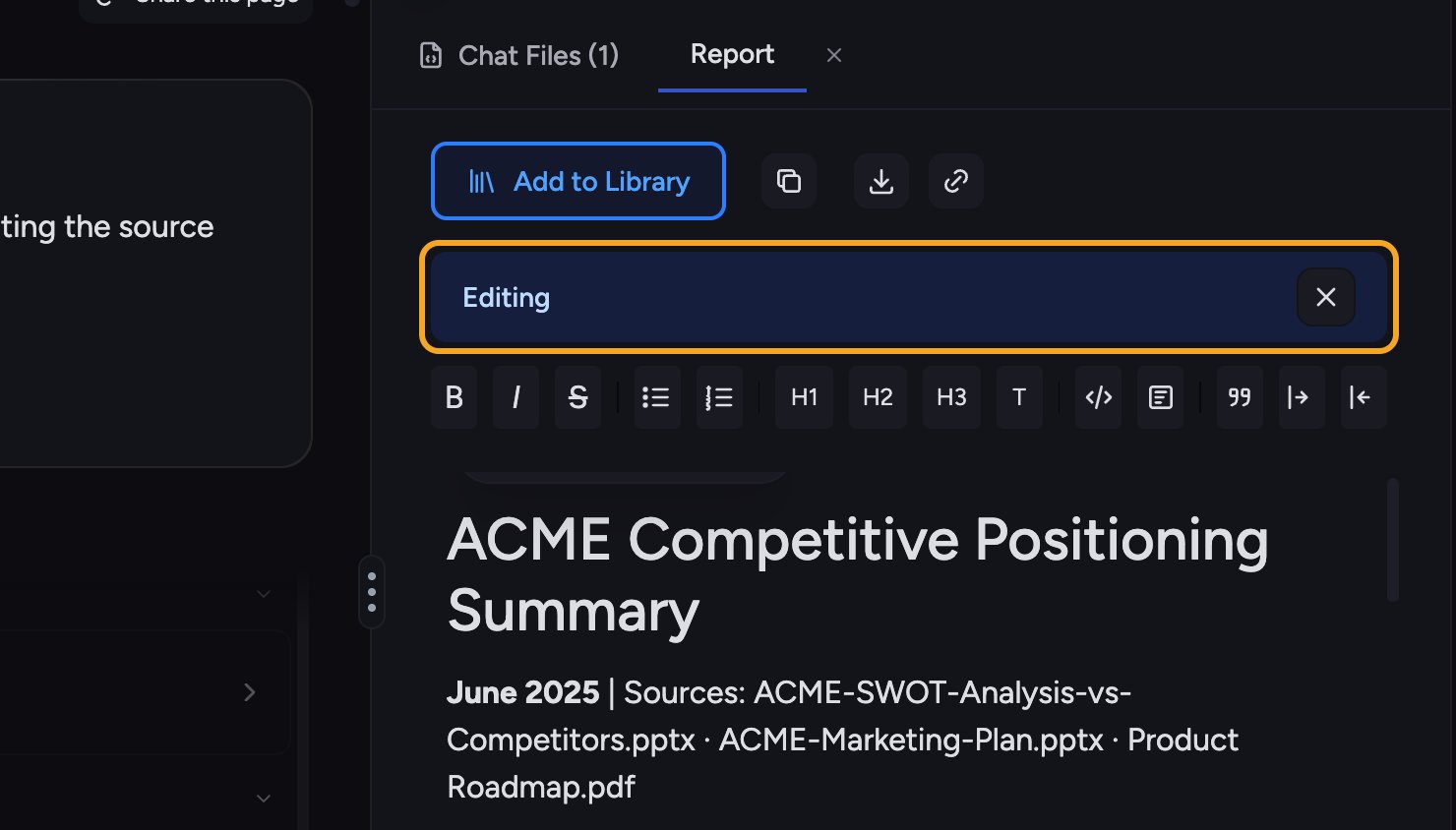 Generated documents open in a built-in editor, so you can refine Chief's draft without leaving the app or copying it elsewhere. From a document artifact:
* Click **Edit** (Open Edit Mode) — the document switches to **Editing** mode.
* Format text with the editor toolbar (bold, italic, strikethrough, lists, headings H1–H3, and more).
* Use **Revert to Original** to undo your changes back to Chief's first version.
ℹ️ **Good to Know:** If you leave edit mode with unsaved changes, Chief asks before discarding them ("Exit and Discard Unsaved Changes"). Save your work first if you want to keep it.
## Keeping and exporting artifacts
Generated documents open in a built-in editor, so you can refine Chief's draft without leaving the app or copying it elsewhere. From a document artifact:
* Click **Edit** (Open Edit Mode) — the document switches to **Editing** mode.
* Format text with the editor toolbar (bold, italic, strikethrough, lists, headings H1–H3, and more).
* Use **Revert to Original** to undo your changes back to Chief's first version.
ℹ️ **Good to Know:** If you leave edit mode with unsaved changes, Chief asks before discarding them ("Exit and Discard Unsaved Changes"). Save your work first if you want to keep it.
## Keeping and exporting artifacts
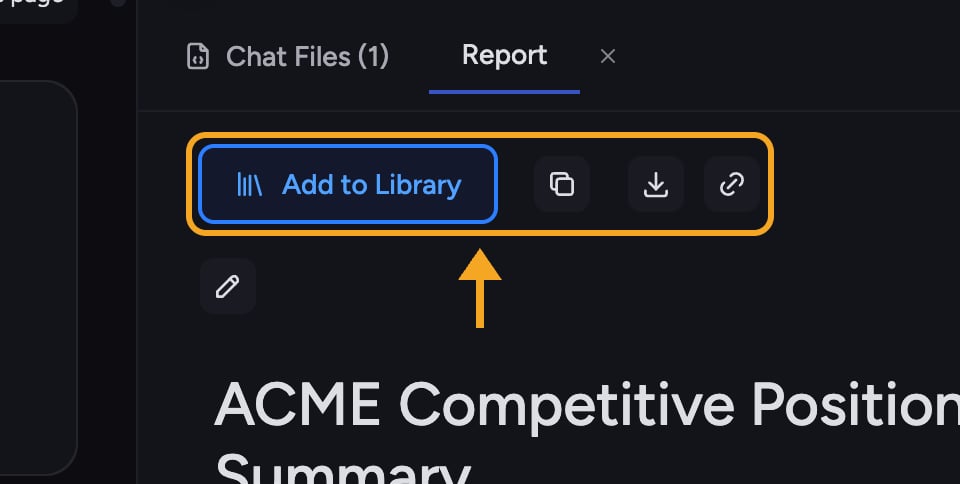 From an artifact you can [**Add to Library**](/help/your-knowledge-library/saving-a-chat-answer-back-to-your-library) to store it in your Project Library, or use **Download report as** (or **Download as**, for other artifact types) to take it elsewhere. The exact [download formats](/help/creating-exporting/downloading-responses-pdf-docx-xlsx-csv-markdown-text-tables) depend on the artifact type.
## FAQ
If saving fails ("Failed to save artifact"), try again. Don't exit edit mode with unsaved changes — Chief will warn you, and discarding loses your edits.
Use **Revert to Original** in the editor to discard your edits and restore Chief's first draft.
Open the **Chat Files** tab for that conversation. Every artifact the chat produced is listed there.
From an artifact you can [**Add to Library**](/help/your-knowledge-library/saving-a-chat-answer-back-to-your-library) to store it in your Project Library, or use **Download report as** (or **Download as**, for other artifact types) to take it elsewhere. The exact [download formats](/help/creating-exporting/downloading-responses-pdf-docx-xlsx-csv-markdown-text-tables) depend on the artifact type.
## FAQ
If saving fails ("Failed to save artifact"), try again. Don't exit edit mode with unsaved changes — Chief will warn you, and discarding loses your edits.
Use **Revert to Original** in the editor to discard your edits and restore Chief's first draft.
Open the **Chat Files** tab for that conversation. Every artifact the chat produced is listed there.