> ## Documentation Index
> Fetch the complete documentation index at: https://docs.chief.bot/llms.txt
> Use this file to discover all available pages before exploring further.
# Applying a voice to a chat ("Respond as")
> You apply an Expert Voice from the Respond as control in the prompt bar.
You apply an [Expert Voice](/help/expert-voices/what-are-expert-voices) from the **Respond as** control in the [prompt bar](/help/the-prompt-bar-scope/the-prompt-bar-a-tour-of-your-chat-controls). Once set, Chief responds in that voice across your chats until you switch it or reset to the Default.
## Apply a voice
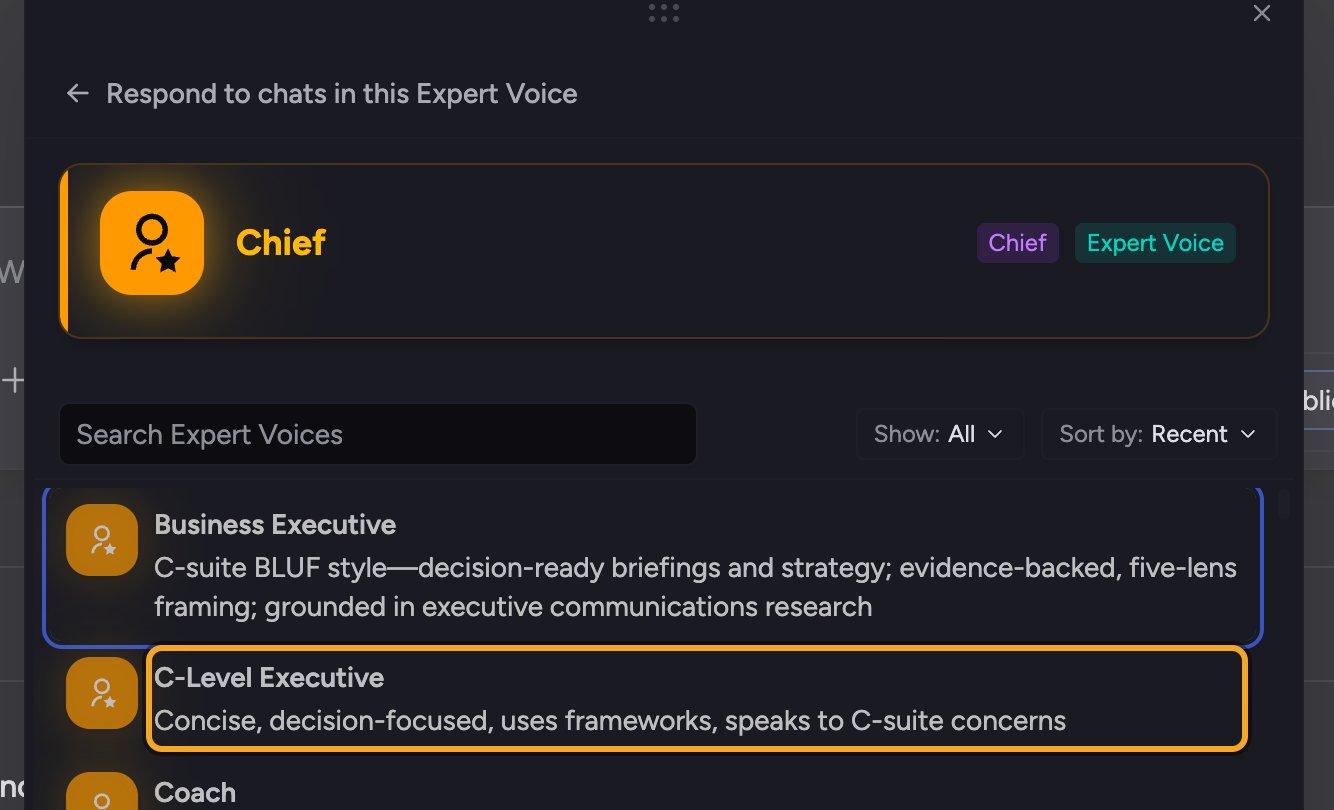 1. Open or start a chat so the prompt bar is visible.
2. Open the **Respond as** control in the prompt bar. A flyout opens with the current voice shown at the top and a searchable list below.
3. Use the search box or the **Show** and **Sort** options to find [the voice you want](/help/expert-voices/using-built-in-expert-voices).
4. Click the voice. The flyout marks it as selected, and it becomes your active Expert Voice.
5. Send your message. Chief replies in that voice.
## Switch or reset the voice
1. Open or start a chat so the prompt bar is visible.
2. Open the **Respond as** control in the prompt bar. A flyout opens with the current voice shown at the top and a searchable list below.
3. Use the search box or the **Show** and **Sort** options to find [the voice you want](/help/expert-voices/using-built-in-expert-voices).
4. Click the voice. The flyout marks it as selected, and it becomes your active Expert Voice.
5. Send your message. Chief replies in that voice.
## Switch or reset the voice
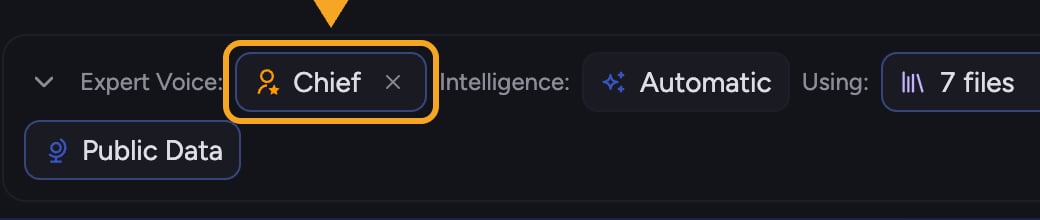 1. Open the **Respond as** control again.
2. To switch, click a different voice in the list.
3. To go back to neutral, click **Reset**. Chief returns to the **Default Expert Voice**.
💡 **Good to Know:** The voice you choose persists across chats and sessions in your browser — it isn't reset each time you start a new chat. If you only want a specialist tone occasionally, remember to Reset when you're done.
## FAQ
That's expected: the selected voice stays active until you change it. Open the **Respond as** control and click **Reset** to return to the Default Expert Voice.
Open the **Show** filter and make sure it isn't limited to **Chief** voices. If [the voice is scoped](/help/expert-voices/creating-a-custom-expert-voice) **Private**, only you can see it; if it's **Anyone in the Project**, confirm you're in the right Project.
Yes. Set your voice with **Respond as**, then [mention a Skill with @](/help/skills/enabling-disabling-mentioning-skills-skill) in your prompt. Chief applies the voice's style and the Skill's task instructions together.
1. Open the **Respond as** control again.
2. To switch, click a different voice in the list.
3. To go back to neutral, click **Reset**. Chief returns to the **Default Expert Voice**.
💡 **Good to Know:** The voice you choose persists across chats and sessions in your browser — it isn't reset each time you start a new chat. If you only want a specialist tone occasionally, remember to Reset when you're done.
## FAQ
That's expected: the selected voice stays active until you change it. Open the **Respond as** control and click **Reset** to return to the Default Expert Voice.
Open the **Show** filter and make sure it isn't limited to **Chief** voices. If [the voice is scoped](/help/expert-voices/creating-a-custom-expert-voice) **Private**, only you can see it; if it's **Anyone in the Project**, confirm you're in the right Project.
Yes. Set your voice with **Respond as**, then [mention a Skill with @](/help/skills/enabling-disabling-mentioning-skills-skill) in your prompt. Chief applies the voice's style and the Skill's task instructions together.