> ## Documentation Index
> Fetch the complete documentation index at: https://docs.chief.bot/llms.txt
> Use this file to discover all available pages before exploring further.
# Creating a custom expert voice
> When the built-in voices don't quite match how you want Chief to sound, create your own Expert Voice.
When the [built-in voices](/help/expert-voices/using-built-in-expert-voices) don't quite match how you want Chief to sound, create your own **Expert Voice**. Custom voices are great for capturing your personal style, a colleague's, your brand, or your company's tone. As with [Skills](/help/skills/creating-a-custom-skill-ai-assisted), Chief can draft the voice definition for you.
## Create a custom Expert Voice
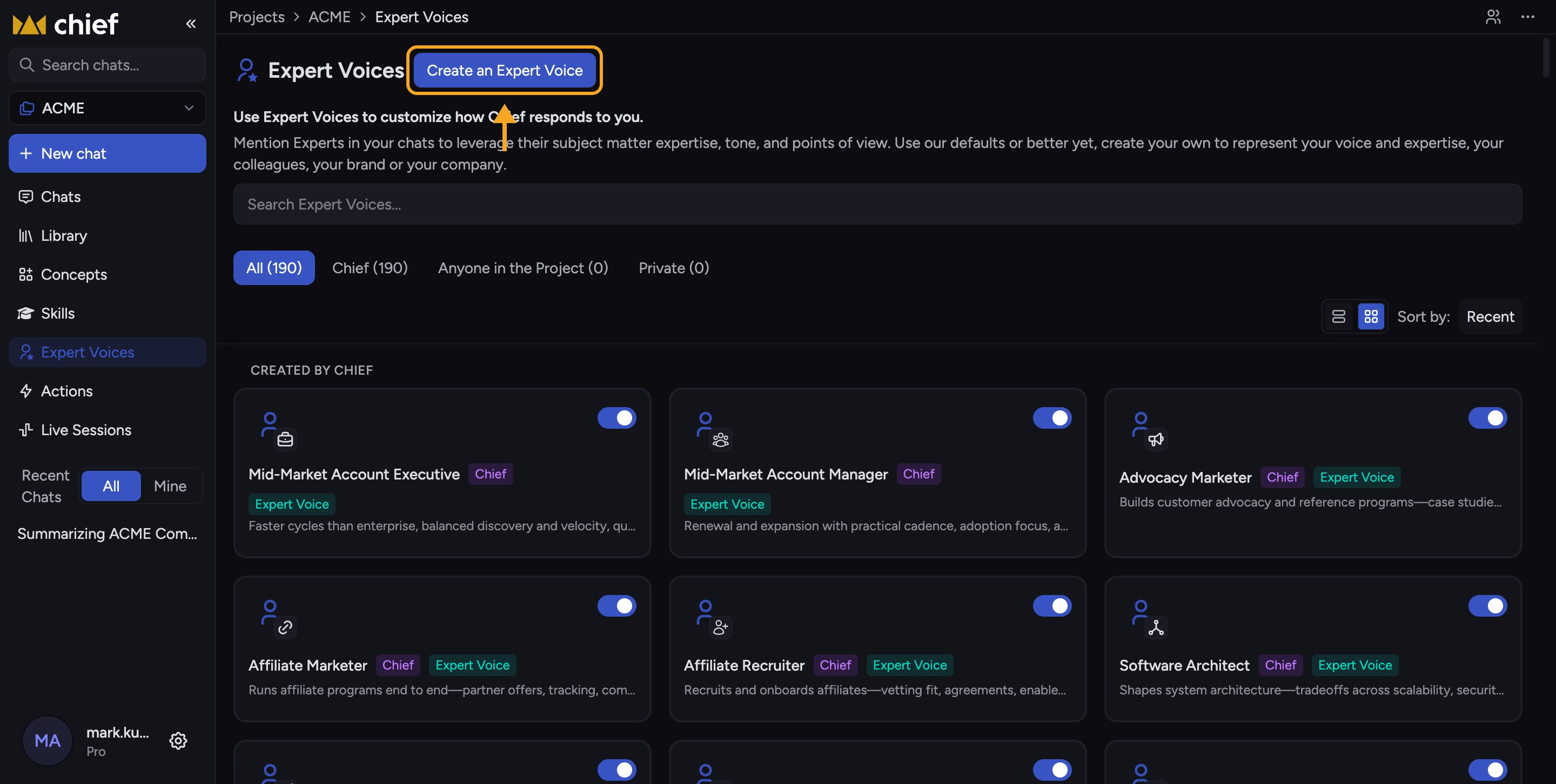 1. In the left navigation, click [**Expert Voices**](/help/expert-voices/what-are-expert-voices) to open the page.
2. Click the **Create an Expert Voice** button. The **Create an Expert Voice** dialog opens.
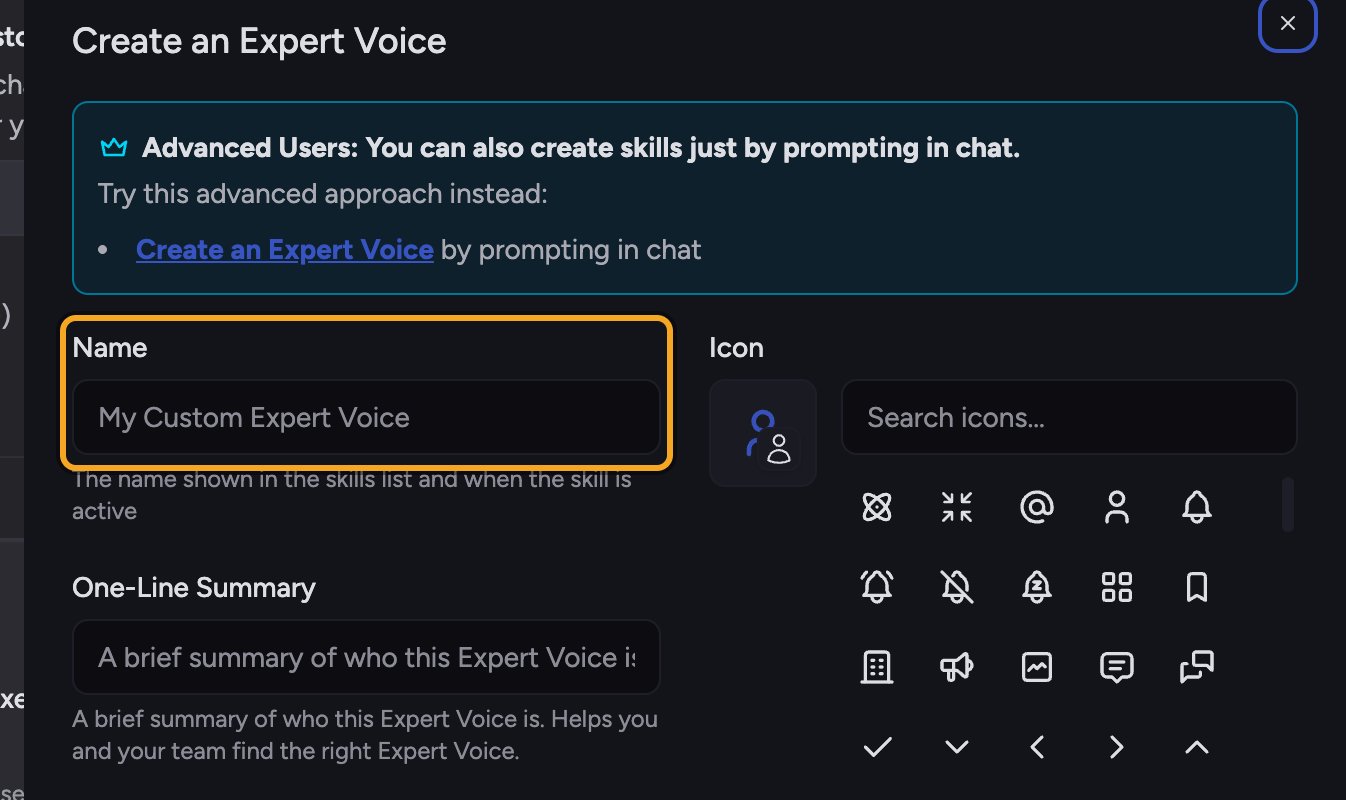
3. In the **Name** field, type a name for the voice (for example, "Our Brand Voice").
4. In the **One-Line Summary** field, type a brief summary of who this voice is. It helps you and your team pick the right voice later.
5. Once the name has text, a green panel appears with a **Generate** button. Click **Generate**. Chief drafts the full voice definition and fills it into the content editor.
6. Review the definition and edit it in the content editor to fine-tune the tone and perspective.
7. Under **Who can use this Expert Voice?**, choose [**Anyone in the Project** or **Private**](/help/skills/sharing-skills-with-your-project-vs-private).
8. Click **Save**. Your voice now appears in the [**Respond as** control](/help/expert-voices/applying-a-voice-to-a-chat-respond-as), ready to apply.
🚀 **Pro-Tip:** Describe the voice in concrete terms — who they are, how formal they are, what they emphasize, what they avoid. The more specific your name and description, the closer Chief's generated definition lands.
## FAQ
It appears only after the **Name** field has text. Type a name first, then the green panel with **Generate** will appear.
An Expert Voice defines how Chief communicates (tone and perspective). A Skill defines a task for Chief to perform. You pick the type with the category control when creating — choose Expert Voice for a communication style.
Yes. Open it on the **Expert Voices** page and edit the definition or scope any time.
1. In the left navigation, click [**Expert Voices**](/help/expert-voices/what-are-expert-voices) to open the page.
2. Click the **Create an Expert Voice** button. The **Create an Expert Voice** dialog opens.
3. In the **Name** field, type a name for the voice (for example, "Our Brand Voice").
4. In the **One-Line Summary** field, type a brief summary of who this voice is. It helps you and your team pick the right voice later.
5. Once the name has text, a green panel appears with a **Generate** button. Click **Generate**. Chief drafts the full voice definition and fills it into the content editor.
6. Review the definition and edit it in the content editor to fine-tune the tone and perspective.
7. Under **Who can use this Expert Voice?**, choose [**Anyone in the Project** or **Private**](/help/skills/sharing-skills-with-your-project-vs-private).
8. Click **Save**. Your voice now appears in the [**Respond as** control](/help/expert-voices/applying-a-voice-to-a-chat-respond-as), ready to apply.
🚀 **Pro-Tip:** Describe the voice in concrete terms — who they are, how formal they are, what they emphasize, what they avoid. The more specific your name and description, the closer Chief's generated definition lands.
## FAQ
It appears only after the **Name** field has text. Type a name first, then the green panel with **Generate** will appear.
An Expert Voice defines how Chief communicates (tone and perspective). A Skill defines a task for Chief to perform. You pick the type with the category control when creating — choose Expert Voice for a communication style.
Yes. Open it on the **Expert Voices** page and edit the definition or scope any time.