> ## Documentation Index
> Fetch the complete documentation index at: https://docs.chief.bot/llms.txt
> Use this file to discover all available pages before exploring further.
# Using built-in expert voices
> Chief includes a set of ready-made Expert Voices you can switch to instantly.
Chief includes a set of ready-made **[Expert Voices](/help/expert-voices/what-are-expert-voices)** you can switch to instantly. They cover common needs — for example, **Business Executive**, **Executive Advisor**, **Coach**, **Brevity-focused**, and **Explain Like I'm 5**. Built-in voices carry the **Chief** badge.
## Browse the built-in voices
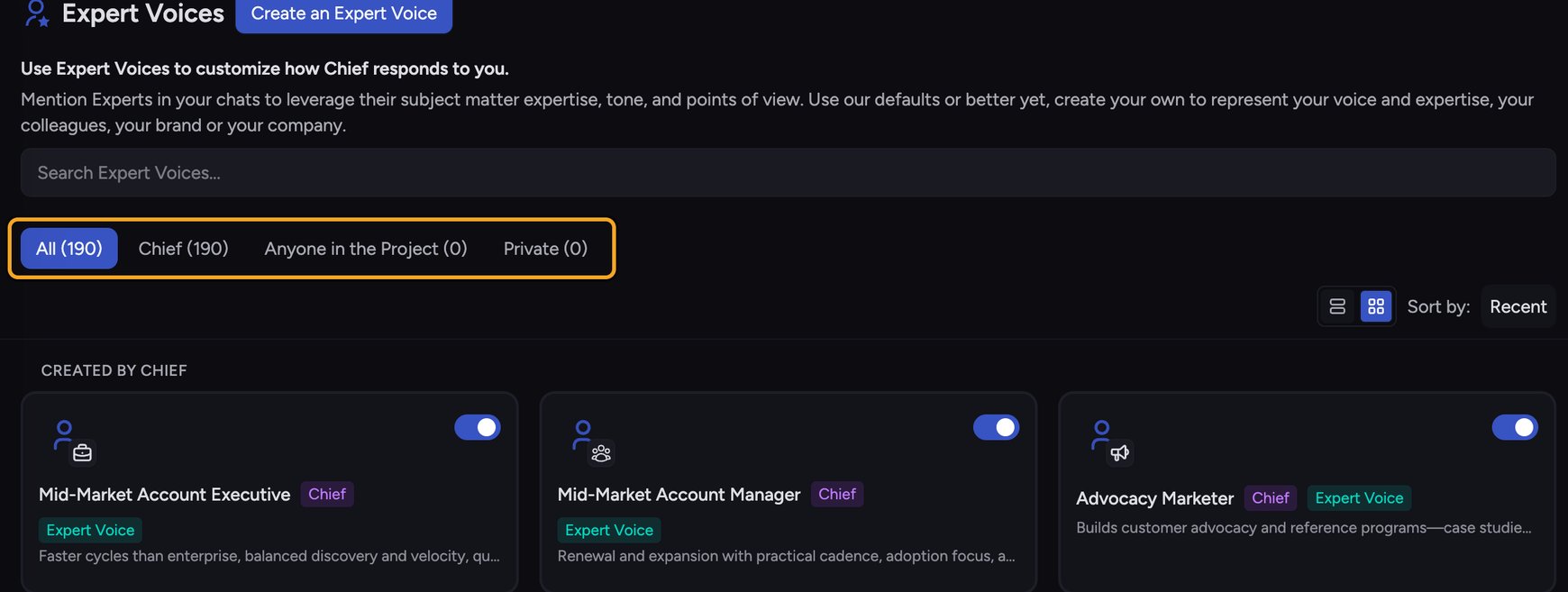 1. In the [left navigation](/help/getting-started/the-chief-interface-a-quick-tour), click **Expert Voices**. The page lists every voice available to you.
2. Voices badged **Chief** are the built-in ones. To narrow the list, click the **Chief** tab.
## Apply a built-in voice from the prompt bar
1. In the [left navigation](/help/getting-started/the-chief-interface-a-quick-tour), click **Expert Voices**. The page lists every voice available to you.
2. Voices badged **Chief** are the built-in ones. To narrow the list, click the **Chief** tab.
## Apply a built-in voice from the prompt bar
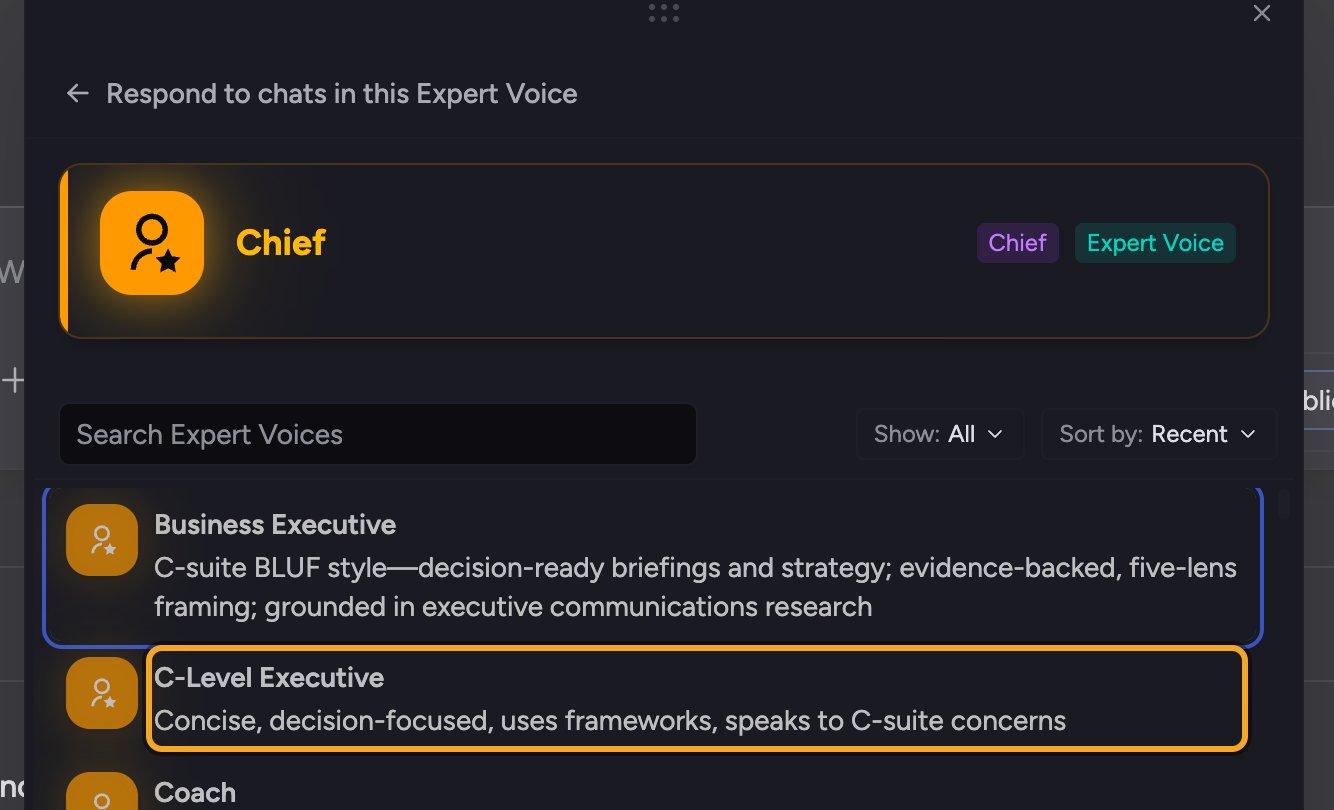 1. Open or start a chat so the [prompt bar](/help/the-prompt-bar-scope/the-prompt-bar-a-tour-of-your-chat-controls) is visible.
2. Open the [**Respond as** control](/help/expert-voices/applying-a-voice-to-a-chat-respond-as) in the prompt bar. A flyout opens showing the current voice at the top and a searchable list of voices below.
3. Click the voice you want — for example, **Business Executive**. It becomes the active voice.
4. Send your message. Chief responds in that voice, and it stays active for your next messages until you change it.
🚀 **Pro-Tip:** The Respond as flyout keeps your recently used voices handy, so the ones you switch between most are quick to reach. Use the search box to jump straight to a voice by name.
## FAQ
Open the **Respond as** control and click **Reset**. Chief returns to the **Default Expert Voice**, which adapts to your task without a specialist tone.
Built-in Chief voices are read-only. To customize one, [create your own Expert Voice](/help/expert-voices/creating-a-custom-expert-voice) instead — you can model it on the built-in voice's style.
Changing the voice affects new responses, not messages Chief already sent. Send a new message (or re-ask) and Chief will reply in the newly selected voice.
1. Open or start a chat so the [prompt bar](/help/the-prompt-bar-scope/the-prompt-bar-a-tour-of-your-chat-controls) is visible.
2. Open the [**Respond as** control](/help/expert-voices/applying-a-voice-to-a-chat-respond-as) in the prompt bar. A flyout opens showing the current voice at the top and a searchable list of voices below.
3. Click the voice you want — for example, **Business Executive**. It becomes the active voice.
4. Send your message. Chief responds in that voice, and it stays active for your next messages until you change it.
🚀 **Pro-Tip:** The Respond as flyout keeps your recently used voices handy, so the ones you switch between most are quick to reach. Use the search box to jump straight to a voice by name.
## FAQ
Open the **Respond as** control and click **Reset**. Chief returns to the **Default Expert Voice**, which adapts to your task without a specialist tone.
Built-in Chief voices are read-only. To customize one, [create your own Expert Voice](/help/expert-voices/creating-a-custom-expert-voice) instead — you can model it on the built-in voice's style.
Changing the voice affects new responses, not messages Chief already sent. Send a new message (or re-ask) and Chief will reply in the newly selected voice.