> ## Documentation Index
> Fetch the complete documentation index at: https://docs.chief.bot/llms.txt
> Use this file to discover all available pages before exploring further.
# What are Expert Voices?
> An Expert Voice defines how Chief communicates — its perspective, tone, and level of detail.
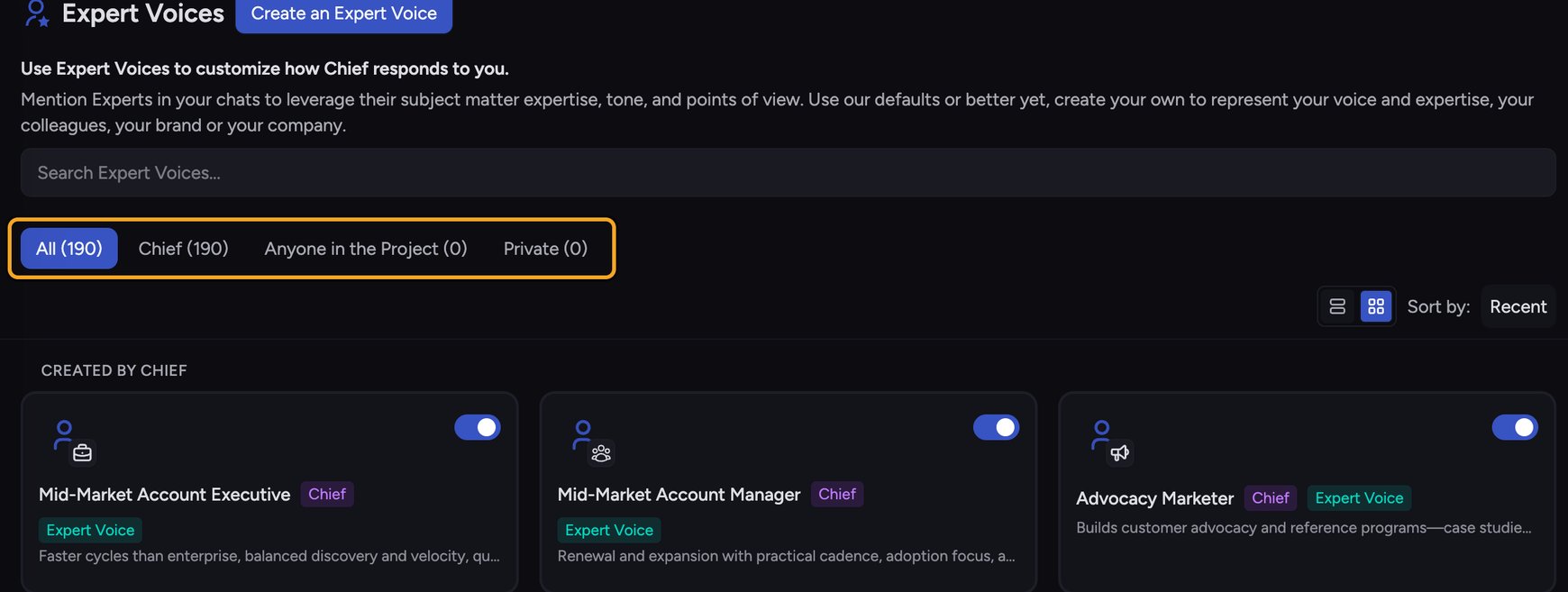 ## Expert Voices shape how Chief talks to you
An **Expert Voice** defines how Chief communicates — its perspective, tone, and level of detail. While a [Skill](/help/skills/what-are-skills) teaches Chief to do a specific task, an Expert Voice changes the *style and point of view* of the answer. Pick a voice, and Chief responds as that kind of expert until you switch it.
Here is a concrete example. You're drafting a board update and want it crisp and strategic, not chatty. Set your voice to **Business Executive**. Ask your question, and Chief answers the way a seasoned executive would — direct, decision-oriented, no filler. Later you switch to **Explain Like I'm 5** to get a plain-language version for a wider audience. Same question, two very different deliveries.
## How Expert Voices work
## Expert Voices shape how Chief talks to you
An **Expert Voice** defines how Chief communicates — its perspective, tone, and level of detail. While a [Skill](/help/skills/what-are-skills) teaches Chief to do a specific task, an Expert Voice changes the *style and point of view* of the answer. Pick a voice, and Chief responds as that kind of expert until you switch it.
Here is a concrete example. You're drafting a board update and want it crisp and strategic, not chatty. Set your voice to **Business Executive**. Ask your question, and Chief answers the way a seasoned executive would — direct, decision-oriented, no filler. Later you switch to **Explain Like I'm 5** to get a plain-language version for a wider audience. Same question, two very different deliveries.
## How Expert Voices work
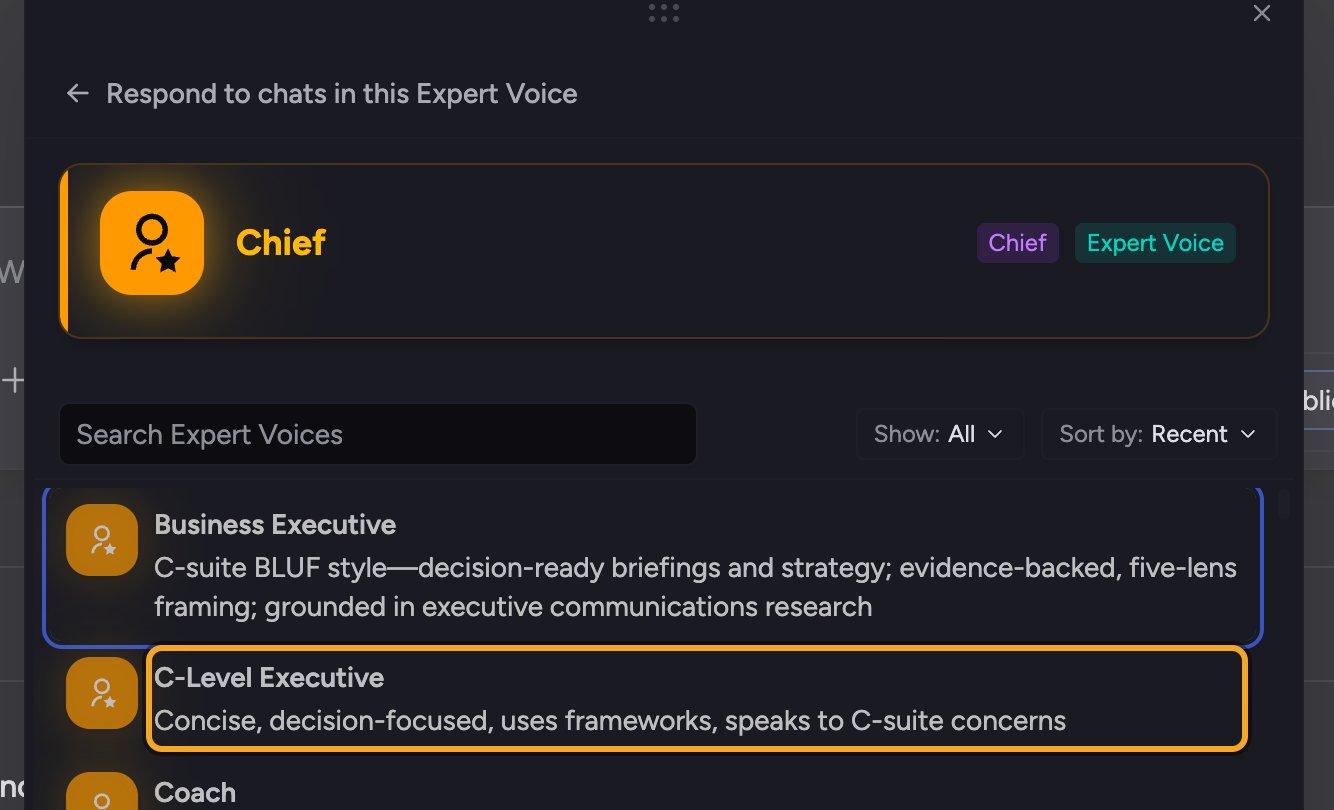 Chief comes with [built-in Expert Voices](/help/expert-voices/using-built-in-expert-voices) such as Business Executive, Executive Advisor, Coach, Brevity-focused, and Explain Like I'm 5. New users start with the **Default Expert Voice** — a versatile, neutral expert that adapts to whatever you're working on. There are two kinds of voices:
* **Built-in Expert Voices** — ready-made voices provided by Chief (badged **Chief**).
* **[Custom Expert Voices](/help/expert-voices/creating-a-custom-expert-voice)** — voices you create to capture your own style, a colleague's, your brand, or your company. [Scope them](/help/skills/sharing-skills-with-your-project-vs-private) to **Anyone in the Project** or keep them **Private**.
You [apply a voice](/help/expert-voices/applying-a-voice-to-a-chat-respond-as) from the **Respond as** control in the prompt bar, and it stays active across your chats until you change it or reset to the Default. Manage all of your voices on the **Expert Voices** page in the [left navigation](/help/getting-started/the-chief-interface-a-quick-tour).
## Expert Voices vs. Skills
They're managed together but solve different problems. A **Skill** provides task instructions ("turn these notes into action items"). An **Expert Voice** sets the voice and viewpoint of the response. You can combine them — for example, run a summary Skill while responding as a Business Executive.
💡 **Good to Know:** An Expert Voice changes how Chief responds, not what it knows. It doesn't add or remove [access to your files, Projects, or Concepts](/help/the-prompt-bar-scope/setting-the-scope-of-a-chat-using-files-labels-collections-concepts).
## FAQ
Open the **Expert Voices** page from the left navigation. It lists built-in voices (badged **Chief**) alongside any custom voices shared with your Project or kept Private.
No. Until you choose one, Chief uses the **Default Expert Voice**, a neutral expert that adapts to your task. Choose a specific voice when you want a particular tone or perspective.
Confirm the voice is actually applied: open the **Respond as** control in the prompt bar and check that the voice you want is selected. If it shows the Default Expert Voice, the voice was reset — select it again.
Chief comes with [built-in Expert Voices](/help/expert-voices/using-built-in-expert-voices) such as Business Executive, Executive Advisor, Coach, Brevity-focused, and Explain Like I'm 5. New users start with the **Default Expert Voice** — a versatile, neutral expert that adapts to whatever you're working on. There are two kinds of voices:
* **Built-in Expert Voices** — ready-made voices provided by Chief (badged **Chief**).
* **[Custom Expert Voices](/help/expert-voices/creating-a-custom-expert-voice)** — voices you create to capture your own style, a colleague's, your brand, or your company. [Scope them](/help/skills/sharing-skills-with-your-project-vs-private) to **Anyone in the Project** or keep them **Private**.
You [apply a voice](/help/expert-voices/applying-a-voice-to-a-chat-respond-as) from the **Respond as** control in the prompt bar, and it stays active across your chats until you change it or reset to the Default. Manage all of your voices on the **Expert Voices** page in the [left navigation](/help/getting-started/the-chief-interface-a-quick-tour).
## Expert Voices vs. Skills
They're managed together but solve different problems. A **Skill** provides task instructions ("turn these notes into action items"). An **Expert Voice** sets the voice and viewpoint of the response. You can combine them — for example, run a summary Skill while responding as a Business Executive.
💡 **Good to Know:** An Expert Voice changes how Chief responds, not what it knows. It doesn't add or remove [access to your files, Projects, or Concepts](/help/the-prompt-bar-scope/setting-the-scope-of-a-chat-using-files-labels-collections-concepts).
## FAQ
Open the **Expert Voices** page from the left navigation. It lists built-in voices (badged **Chief**) alongside any custom voices shared with your Project or kept Private.
No. Until you choose one, Chief uses the **Default Expert Voice**, a neutral expert that adapts to your task. Choose a specific voice when you want a particular tone or perspective.
Confirm the voice is actually applied: open the **Respond as** control in the prompt bar and check that the voice you want is selected. If it shows the Default Expert Voice, the voice was reset — select it again.