> ## Documentation Index
> Fetch the complete documentation index at: https://docs.chief.bot/llms.txt
> Use this file to discover all available pages before exploring further.
# Keyboard shortcuts, the command palette (⌘K) & Hint Mode
> Chief has a command palette, a small set of keyboard shortcuts, and a keyboard-driven navigation overlay called Hint Mode.
## Move faster without reaching for the mouse
Chief has a command palette, a small set of keyboard shortcuts, and a keyboard-driven navigation overlay called Hint Mode. Together they let you do most things without clicking around.
## The command palette (Command Center)
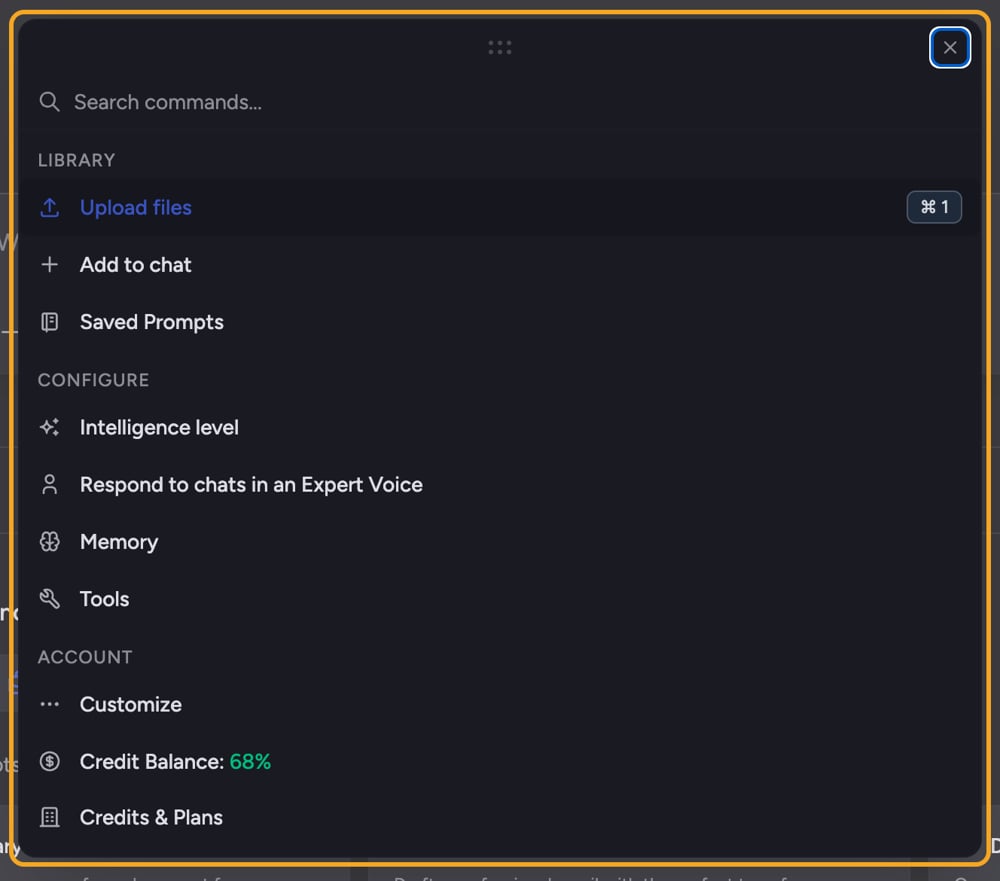 The **Command Center** is Chief's command palette. It's where you [upload files](/help/getting-started/uploading-your-first-document), add items from your [Library](/help/your-knowledge-library/what-is-the-library), pick an [intelligence level](/help/answer-depth-chiefs-agents/response-modes-automatic-fast-expert), choose an [Expert Voice](/help/expert-voices/applying-a-voice-to-a-chat-respond-as), manage [Memory](/help/memories/what-are-memories), and check your [Credit Balance](/help/plans-credits-billing/checking-your-credit-balance-usage).
1. Press **⌘K** (Mac) or **Ctrl+K** (Windows/Linux) — or click the **+** button in the prompt bar — to open it.
2. Items are grouped under **Library**, **Configure**, and **Account**. Start typing to filter, or use the numbered items.
3. With the palette open, press **⌘1**–**⌘9** (or Ctrl) to jump straight to a numbered item.
4. Press **Esc** to back out of a sub-view to the root, and **⌘K** again to close the palette.
🚀 **Pro-Tip:** The fastest path is the number shortcuts — with the palette open, press **⌘1** (Ctrl+1) to jump straight to the first item (Upload files), **⌘2** for the next, and so on down the list.
## Keyboard shortcuts
* **⌘K / Ctrl+K** — open, close, or toggle the Command Center.
* **⌘1–9 / Ctrl+1–9** — select a numbered palette item (while the palette is open).
* **Opt + Shift + N** — [start a new chat](/help/chatting-with-chief/how-chats-work) / go home.
* **Opt + Shift + J** — expand or collapse the [prompt-bar configuration shell](/help/the-prompt-bar-scope/the-prompt-bar-a-tour-of-your-chat-controls).
* **Esc** — back out of palette sub-views and close dialogs.
ℹ️ **Good to Know:** Whether little shortcut hint pills show up depends on your mode. In [**Advanced** mode](/help/account-settings/regular-vs-advanced-mode) hints show by default; in **Regular** mode they're hidden by default. You can set the preference to show, hide, or disable shortcut suggestions entirely.
## Hint Mode
Hint Mode is a click-free way to activate anything on screen using your keyboard.
1. Press the **c** key (when you're not typing in a text field and no modifier keys are held) to turn it on.
2. Small blue badges with short letter codes appear over every clickable element — links, buttons, tabs, and inputs.
3. Type a badge's code to activate that element. Typing narrows the choices until a unique match fires.
4. Press **Esc**, click anywhere, or resize the window to turn Hint Mode off.
## FAQ
Hint Mode only triggers when your cursor is not in a text field or editable area and no modifier keys are held. Click outside any input first, then press "c". If you were typing in the prompt bar, the "c" was treated as text.
You can always open the Command Center by clicking the **+** button at the left of the prompt bar. If ⌘K seems to do nothing, make sure the browser tab has focus and that you are not typing in a text field, then try again.
Hint pill visibility follows [your mode and preference](/help/account-settings/interface-preferences-enter-key-sidebar-advanced-mode). Switch to Advanced mode to show them by default, or set the shortcut-suggestion preference to "show." Setting it to "disable" turns the shortcuts off entirely.
The **Command Center** is Chief's command palette. It's where you [upload files](/help/getting-started/uploading-your-first-document), add items from your [Library](/help/your-knowledge-library/what-is-the-library), pick an [intelligence level](/help/answer-depth-chiefs-agents/response-modes-automatic-fast-expert), choose an [Expert Voice](/help/expert-voices/applying-a-voice-to-a-chat-respond-as), manage [Memory](/help/memories/what-are-memories), and check your [Credit Balance](/help/plans-credits-billing/checking-your-credit-balance-usage).
1. Press **⌘K** (Mac) or **Ctrl+K** (Windows/Linux) — or click the **+** button in the prompt bar — to open it.
2. Items are grouped under **Library**, **Configure**, and **Account**. Start typing to filter, or use the numbered items.
3. With the palette open, press **⌘1**–**⌘9** (or Ctrl) to jump straight to a numbered item.
4. Press **Esc** to back out of a sub-view to the root, and **⌘K** again to close the palette.
🚀 **Pro-Tip:** The fastest path is the number shortcuts — with the palette open, press **⌘1** (Ctrl+1) to jump straight to the first item (Upload files), **⌘2** for the next, and so on down the list.
## Keyboard shortcuts
* **⌘K / Ctrl+K** — open, close, or toggle the Command Center.
* **⌘1–9 / Ctrl+1–9** — select a numbered palette item (while the palette is open).
* **Opt + Shift + N** — [start a new chat](/help/chatting-with-chief/how-chats-work) / go home.
* **Opt + Shift + J** — expand or collapse the [prompt-bar configuration shell](/help/the-prompt-bar-scope/the-prompt-bar-a-tour-of-your-chat-controls).
* **Esc** — back out of palette sub-views and close dialogs.
ℹ️ **Good to Know:** Whether little shortcut hint pills show up depends on your mode. In [**Advanced** mode](/help/account-settings/regular-vs-advanced-mode) hints show by default; in **Regular** mode they're hidden by default. You can set the preference to show, hide, or disable shortcut suggestions entirely.
## Hint Mode
Hint Mode is a click-free way to activate anything on screen using your keyboard.
1. Press the **c** key (when you're not typing in a text field and no modifier keys are held) to turn it on.
2. Small blue badges with short letter codes appear over every clickable element — links, buttons, tabs, and inputs.
3. Type a badge's code to activate that element. Typing narrows the choices until a unique match fires.
4. Press **Esc**, click anywhere, or resize the window to turn Hint Mode off.
## FAQ
Hint Mode only triggers when your cursor is not in a text field or editable area and no modifier keys are held. Click outside any input first, then press "c". If you were typing in the prompt bar, the "c" was treated as text.
You can always open the Command Center by clicking the **+** button at the left of the prompt bar. If ⌘K seems to do nothing, make sure the browser tab has focus and that you are not typing in a text field, then try again.
Hint pill visibility follows [your mode and preference](/help/account-settings/interface-preferences-enter-key-sidebar-advanced-mode). Switch to Advanced mode to show them by default, or set the shortcut-suggestion preference to "show." Setting it to "disable" turns the shortcuts off entirely.