> ## Documentation Index
> Fetch the complete documentation index at: https://docs.chief.bot/llms.txt
> Use this file to discover all available pages before exploring further.
# Setting up your first project
> Projects are a great way to collaborate with colleagues, teams, and communities.
## A Project is your shared workspace
[Projects](/help/projects-sharing-teams/what-is-a-project) are a great way to collaborate with colleagues, teams, and communities. Each Project holds its own [Library of Files](/help/your-knowledge-library/what-is-the-library), its chats, and its members — so the people you invite see the same data and can work alongside you.
## Create a Project
1. In the left sidebar, click the **Projects** switcher at the top (the current project's name), then click **"+ New Project"**.
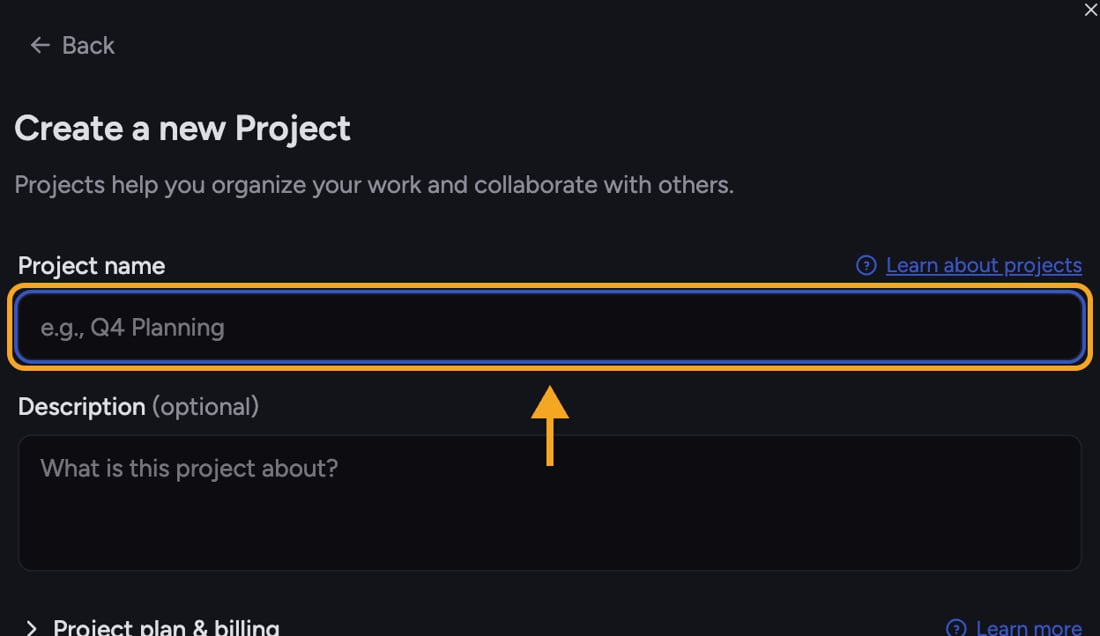
2. In the **"Create a new Project"** dialog, type a name in the **"Project name"** field (placeholder *"e.g., Q4 Planning"*). You can also add an optional **"Description."**
3. Under the **"Project plan & billing"** heading, choose [how usage is charged](/help/projects-sharing-teams/choosing-which-plan-funds-a-project-billing-source):
* **"Use my plan for everyone"** — all project usage is charged to your account.
* **"Members use their own plans"** — each member's usage is charged to their own account.
4. Click **"Create project"**. Its name now appears in the navigation and on the project home screen.
 ℹ️ **Good to Know:** The billing choice you make here decides who pays for [credits](/help/plans-credits-billing/how-credits-work) used inside the Project. Pick "Use my plan for everyone" if you want to cover usage for guests or teammates who don't have their own plan.
🚀 **Pro-Tip:** Once your Project exists, [upload your documents](/help/getting-started/uploading-your-first-document) into its Library so every chat in the Project can reference them — and so teammates you invite get the same context.
## FAQ
Creating a Project requires an account. If you're not signed in, Chief shows that prompt — create an account or log in, then try again.
The billing model is set when you create the Project and can't be changed afterward. Check the project's plan and billing settings to review it.
Use the project's share options to invite people by email, by domain, or with a secret link. See [Inviting your team](/help/getting-started/inviting-your-team) for the full walkthrough.
ℹ️ **Good to Know:** The billing choice you make here decides who pays for [credits](/help/plans-credits-billing/how-credits-work) used inside the Project. Pick "Use my plan for everyone" if you want to cover usage for guests or teammates who don't have their own plan.
🚀 **Pro-Tip:** Once your Project exists, [upload your documents](/help/getting-started/uploading-your-first-document) into its Library so every chat in the Project can reference them — and so teammates you invite get the same context.
## FAQ
Creating a Project requires an account. If you're not signed in, Chief shows that prompt — create an account or log in, then try again.
The billing model is set when you create the Project and can't be changed afterward. Check the project's plan and billing settings to review it.
Use the project's share options to invite people by email, by domain, or with a secret link. See [Inviting your team](/help/getting-started/inviting-your-team) for the full walkthrough.