> ## Documentation Index
> Fetch the complete documentation index at: https://docs.chief.bot/llms.txt
> Use this file to discover all available pages before exploring further.
# The Chief interface: a quick tour
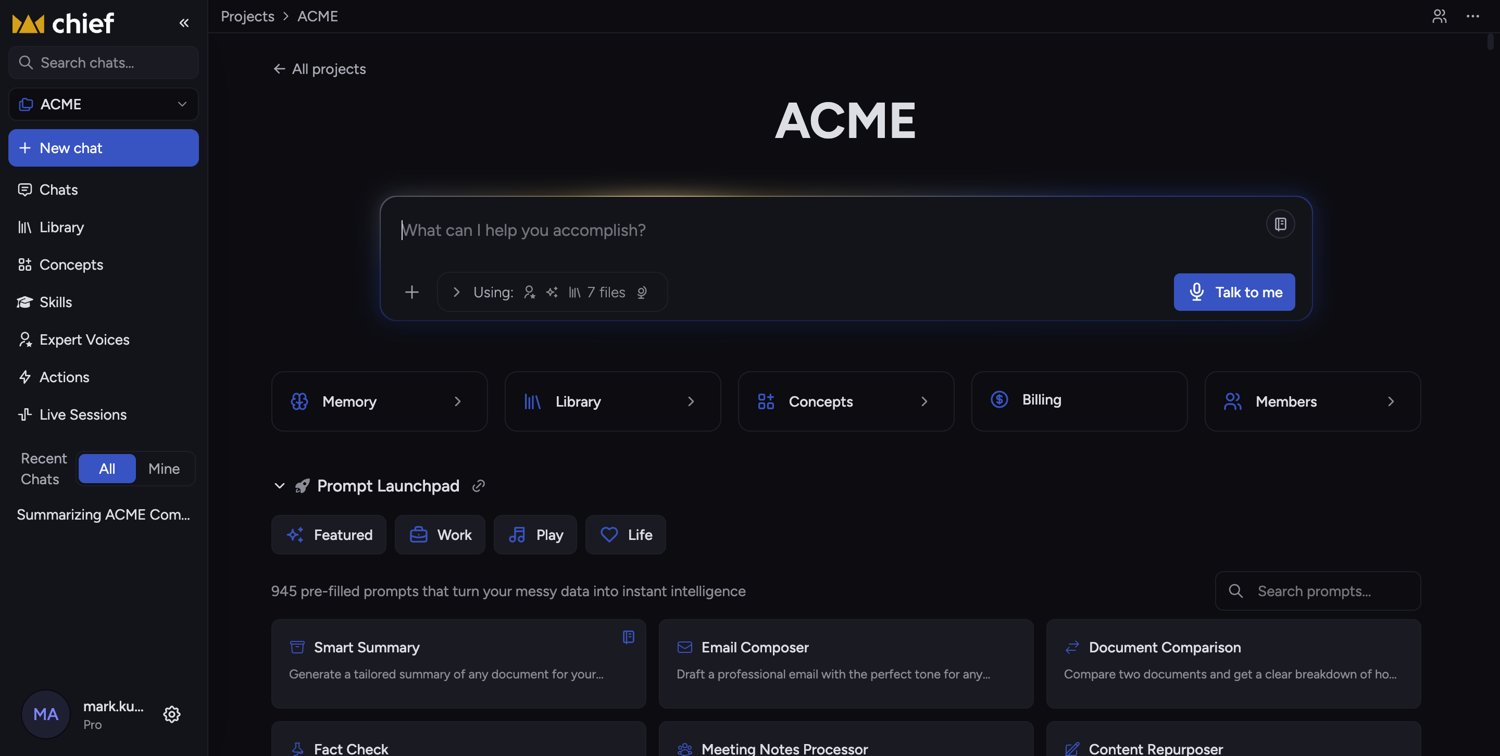
> Chief has three main areas: the navigation sidebar on the left, the prompt bar in the center, and the home screen around it.
 ## Find your way around in 60 seconds
Chief has three main areas: the **navigation sidebar** on the left, the **prompt bar** in the center, and the **home screen** around it. Here's what each one does.
## The navigation sidebar
## Find your way around in 60 seconds
Chief has three main areas: the **navigation sidebar** on the left, the **prompt bar** in the center, and the **home screen** around it. Here's what each one does.
## The navigation sidebar
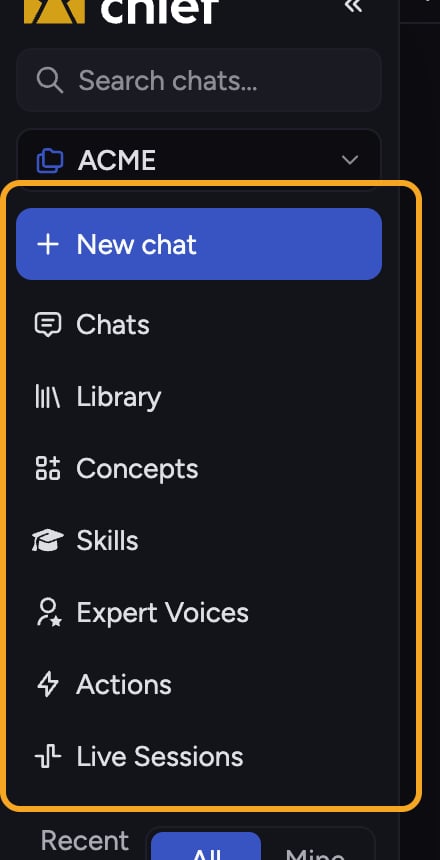 The sidebar runs down the left edge. You can pin it open or collapse it to icons only. From top to bottom it includes:
* **Search** — a "Search chats…" box to find past conversations.
* **Projects** — [switch between Projects](/help/projects-sharing-teams/switching-bookmarking-discovering-projects) or create a new one with "+ New Project".
* **New chat** — start a fresh conversation (keyboard shortcut Opt + Shift + N).
* **[Chats](/help/chatting-with-chief/how-chats-work)** — all your conversations.
* **[Library](/help/your-knowledge-library/what-is-the-library)** — your uploaded Files, with **[Labels](/help/labels/creating-customizing-labels-colors-icons)** and **[Collections](/help/collections/what-are-collections)** nested inside.
* **[Concepts](/help/concepts/what-are-concepts)** — topics Chief continually monitors across your Files.
* **[Skills](/help/skills/what-are-skills)** — specific abilities you can invoke in a chat.
* **[Expert Voices](/help/expert-voices/what-are-expert-voices)** — response styles that make Chief answer as a subject-matter expert.
* **[Actions](/help/actions-automation/what-are-actions)** — automations that run on a schedule or when new data arrives.
* **[Live Sessions](/help/meetings-live-sessions/what-are-live-sessions)** — meeting capture (powered by [the desktop app](/help/getting-started/chief-on-web-desktop-browser-extension)).
ℹ️ **Good to Know:** Some items — like **Concepts** and **Collections** — only appear when you're in [Advanced mode](/help/account-settings/regular-vs-advanced-mode). You can switch between Regular and Advanced under Settings → General (the "User Mode:" setting).
## The prompt bar
The sidebar runs down the left edge. You can pin it open or collapse it to icons only. From top to bottom it includes:
* **Search** — a "Search chats…" box to find past conversations.
* **Projects** — [switch between Projects](/help/projects-sharing-teams/switching-bookmarking-discovering-projects) or create a new one with "+ New Project".
* **New chat** — start a fresh conversation (keyboard shortcut Opt + Shift + N).
* **[Chats](/help/chatting-with-chief/how-chats-work)** — all your conversations.
* **[Library](/help/your-knowledge-library/what-is-the-library)** — your uploaded Files, with **[Labels](/help/labels/creating-customizing-labels-colors-icons)** and **[Collections](/help/collections/what-are-collections)** nested inside.
* **[Concepts](/help/concepts/what-are-concepts)** — topics Chief continually monitors across your Files.
* **[Skills](/help/skills/what-are-skills)** — specific abilities you can invoke in a chat.
* **[Expert Voices](/help/expert-voices/what-are-expert-voices)** — response styles that make Chief answer as a subject-matter expert.
* **[Actions](/help/actions-automation/what-are-actions)** — automations that run on a schedule or when new data arrives.
* **[Live Sessions](/help/meetings-live-sessions/what-are-live-sessions)** — meeting capture (powered by [the desktop app](/help/getting-started/chief-on-web-desktop-browser-extension)).
ℹ️ **Good to Know:** Some items — like **Concepts** and **Collections** — only appear when you're in [Advanced mode](/help/account-settings/regular-vs-advanced-mode). You can switch between Regular and Advanced under Settings → General (the "User Mode:" setting).
## The prompt bar
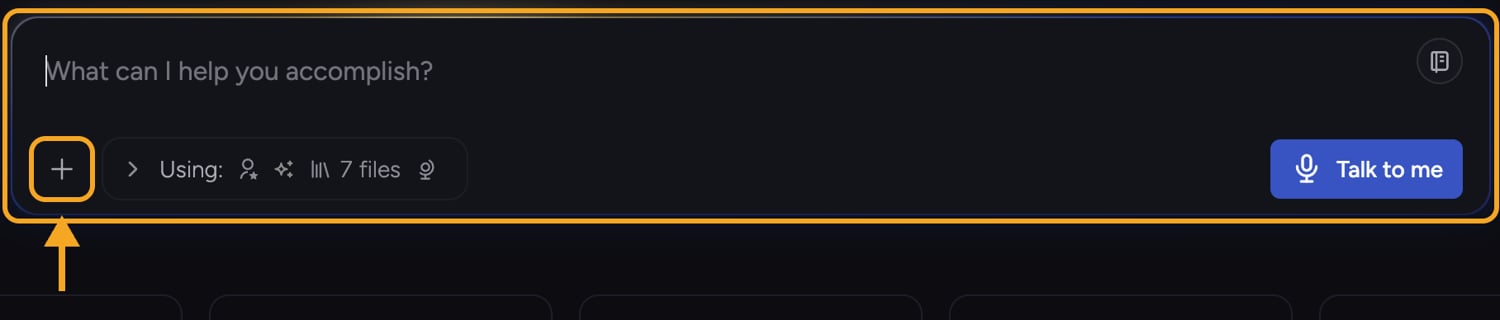 The prompt bar in the center is where you talk to Chief. Its controls let you upload files, add items from your **Library**, set the [**Intelligence level**](/help/answer-depth-chiefs-agents/response-modes-automatic-fast-expert), choose an **Expert Voice**, and [pick which files Chief should use](/help/the-prompt-bar-scope/setting-the-scope-of-a-chat-using-files-labels-collections-concepts) (the **"Using:"** scope). The **+** button opens a command menu for uploading files, adding to the chat, your Saved Prompts, and Customize.
## The home screen
The prompt bar in the center is where you talk to Chief. Its controls let you upload files, add items from your **Library**, set the [**Intelligence level**](/help/answer-depth-chiefs-agents/response-modes-automatic-fast-expert), choose an **Expert Voice**, and [pick which files Chief should use](/help/the-prompt-bar-scope/setting-the-scope-of-a-chat-using-files-labels-collections-concepts) (the **"Using:"** scope). The **+** button opens a command menu for uploading files, adding to the chat, your Saved Prompts, and Customize.
## The home screen
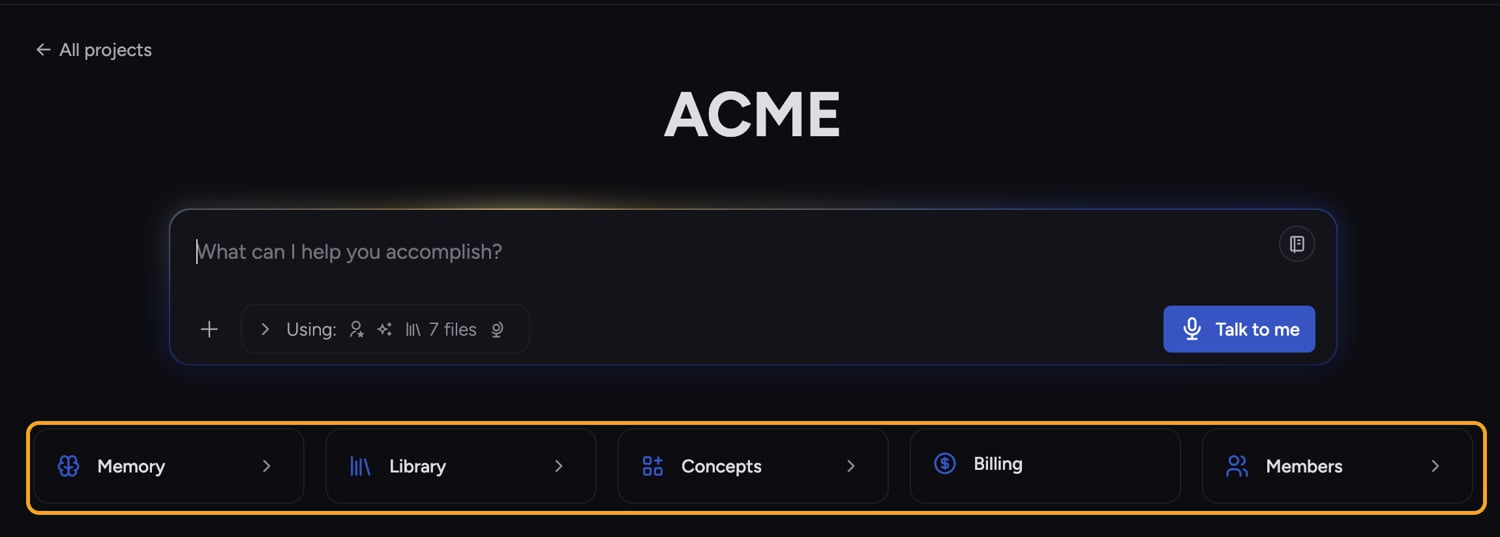 When you open a Project, the home screen shows the **Project's name** at the top and the prompt **"What can I help you accomplish?"** in the prompt bar. Below it sit quick links (**Memory**, **Library**, **Concepts**, **Billing**, **Members**), the [**Prompt Launchpad**](/help/prompts-the-launchpad/what-is-the-launchpad) (ready-made prompts), and your **Recent Chats**.
🚀 **Pro-Tip:** Open the **account menu** (your avatar at the bottom-left of the sidebar) for quick links like [**Get Help**](/help/help-feedback-whats-new/getting-help-in-chief), [**Latest Changes**](/help/help-feedback-whats-new/whats-new-the-changelog) (the changelog), **Settings**, and **Billing**.
## FAQ
Those items only show in Advanced mode. Go to Settings → General and switch the "User Mode:" setting from "Regular" to "Advanced" to reveal them.
Chat search is a [Pro feature](/help/plans-credits-billing/plans-overview-explore-pro-power-user-enterprise). The sidebar shows an "Upgrade to Pro to use chat search" tooltip and a link to pricing. Upgrade to enable it.
The sidebar can be pinned open or collapsed. Use the pin / "Always keep navigation open" control to keep it expanded with labels visible.
When you open a Project, the home screen shows the **Project's name** at the top and the prompt **"What can I help you accomplish?"** in the prompt bar. Below it sit quick links (**Memory**, **Library**, **Concepts**, **Billing**, **Members**), the [**Prompt Launchpad**](/help/prompts-the-launchpad/what-is-the-launchpad) (ready-made prompts), and your **Recent Chats**.
🚀 **Pro-Tip:** Open the **account menu** (your avatar at the bottom-left of the sidebar) for quick links like [**Get Help**](/help/help-feedback-whats-new/getting-help-in-chief), [**Latest Changes**](/help/help-feedback-whats-new/whats-new-the-changelog) (the changelog), **Settings**, and **Billing**.
## FAQ
Those items only show in Advanced mode. Go to Settings → General and switch the "User Mode:" setting from "Regular" to "Advanced" to reveal them.
Chat search is a [Pro feature](/help/plans-credits-billing/plans-overview-explore-pro-power-user-enterprise). The sidebar shows an "Upgrade to Pro to use chat search" tooltip and a link to pricing. Upgrade to enable it.
The sidebar can be pinned open or collapsed. Use the pin / "Always keep navigation open" control to keep it expanded with labels visible.