> ## Documentation Index
> Fetch the complete documentation index at: https://docs.chief.bot/llms.txt
> Use this file to discover all available pages before exploring further.
# Uploading your first document
> Uploading a document adds it to your Library — the place where you upload documents, data, and other files to reference in your chats.
## Add a file, then chat with it
Uploading a document adds it to your [Library](/help/your-knowledge-library/what-is-the-library) — the place where you **upload documents, data, and other files to reference in your chats**. Once a file [finishes processing](/help/your-knowledge-library/viewing-asset-details-file-processing-status), you can ask Chief questions about it directly.
## Upload from the prompt bar
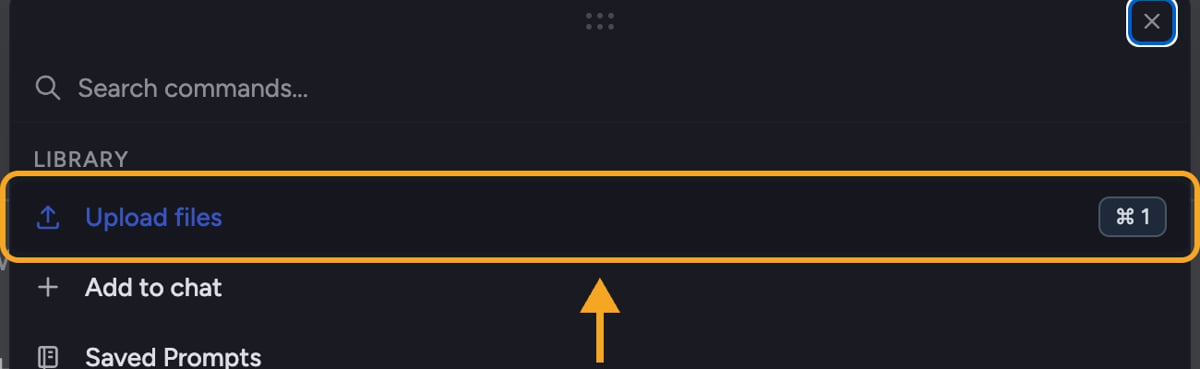 1. In the prompt bar, click the **+** (plus) button to open the [Command Center](/help/getting-started/keyboard-shortcuts-the-command-palette-k-hint-mode) menu.
2. Click **"Upload files"**.
3. Pick the document from your computer in the file picker and confirm.
4. Watch the **"Uploading Files"** progress window. You'll see **"Uploading 1/1 files"** and a note that **"You can close this pop-up. Your files will keep uploading."**
5. When it's done you'll see **"All files ready"** and a **"Chat with 1 files"** button to jump into a conversation about it.
## Or drag and drop
1. In the prompt bar, click the **+** (plus) button to open the [Command Center](/help/getting-started/keyboard-shortcuts-the-command-palette-k-hint-mode) menu.
2. Click **"Upload files"**.
3. Pick the document from your computer in the file picker and confirm.
4. Watch the **"Uploading Files"** progress window. You'll see **"Uploading 1/1 files"** and a note that **"You can close this pop-up. Your files will keep uploading."**
5. When it's done you'll see **"All files ready"** and a **"Chat with 1 files"** button to jump into a conversation about it.
## Or drag and drop
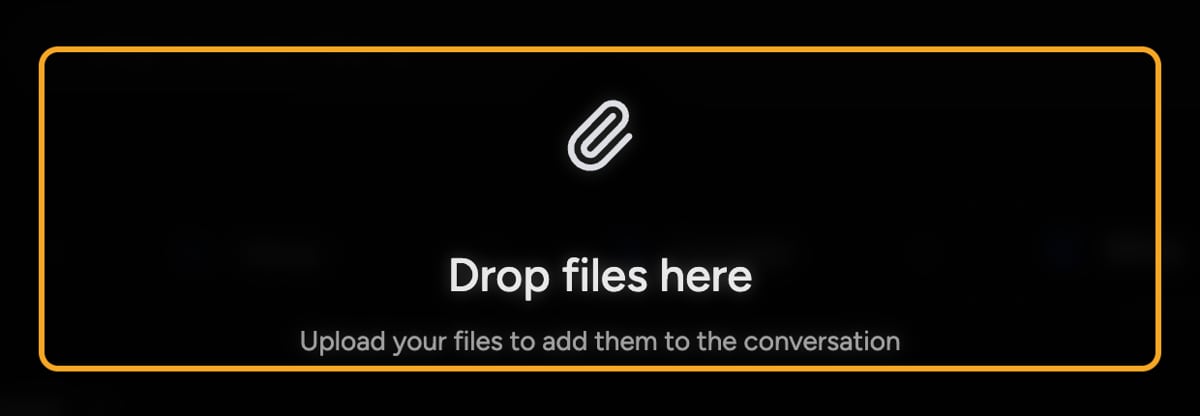 1. Drag a file from your computer over the Chief window.
2. A full-screen dropzone appears reading **"Drop files here"** with **"Upload your files to add them to the conversation"**.
3. Release the file to start the upload.
ℹ️ **Good to Know:** Chief accepts [essentially any file type](/help/your-knowledge-library/uploading-files-supported-file-types) — documents, data, video, audio, or images. After upload, each file moves through stages: "Queued for upload," "Processing your file so you can chat with it," and finally "Ready." Larger files take a little longer to process.
🚀 **Pro-Tip:** You don't have to wait. Close the upload pop-up and keep working — your files keep uploading and processing in the background, and they become chat-ready on their own.
## FAQ
Files above [the maximum size](/help/your-knowledge-library/file-size-limits-processing-stages) are rejected with that message. If your file is too large, split it into smaller files or compress it before uploading. (The exact maximum is enforced by Chief's servers and shown in the error message.)
Most file types are accepted, but a few are rejected on the server. Convert the file to a common format (such as PDF or DOCX) and try again. If it still fails, [use Get Help](/help/help-feedback-whats-new/getting-help-in-chief).
Yes. The upload view offers to let you try the file again, and a "Get Help" link if it keeps failing.
1. Drag a file from your computer over the Chief window.
2. A full-screen dropzone appears reading **"Drop files here"** with **"Upload your files to add them to the conversation"**.
3. Release the file to start the upload.
ℹ️ **Good to Know:** Chief accepts [essentially any file type](/help/your-knowledge-library/uploading-files-supported-file-types) — documents, data, video, audio, or images. After upload, each file moves through stages: "Queued for upload," "Processing your file so you can chat with it," and finally "Ready." Larger files take a little longer to process.
🚀 **Pro-Tip:** You don't have to wait. Close the upload pop-up and keep working — your files keep uploading and processing in the background, and they become chat-ready on their own.
## FAQ
Files above [the maximum size](/help/your-knowledge-library/file-size-limits-processing-stages) are rejected with that message. If your file is too large, split it into smaller files or compress it before uploading. (The exact maximum is enforced by Chief's servers and shown in the error message.)
Most file types are accepted, but a few are rejected on the server. Convert the file to a common format (such as PDF or DOCX) and try again. If it still fails, [use Get Help](/help/help-feedback-whats-new/getting-help-in-chief).
Yes. The upload view offers to let you try the file again, and a "Get Help" link if it keeps failing.