> ## Documentation Index
> Fetch the complete documentation index at: https://docs.chief.bot/llms.txt
> Use this file to discover all available pages before exploring further.
# Your first conversation with Chief
> When you open a Project, the home screen shows the Project's name and a single prompt bar in the center with the placeholder "What can I help you accomplish?" You don't need to create a chat first — type your question and send it to begin a new conversation.
## Just ask — the prompt bar is your starting point
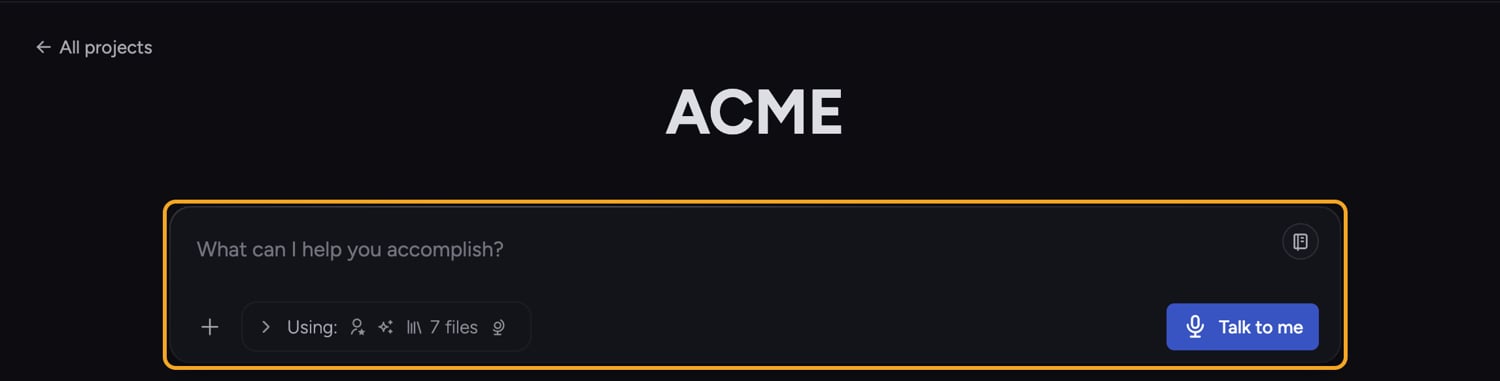 When you open a [Project](/help/projects-sharing-teams/what-is-a-project), the home screen shows the **Project's name** and a single [prompt bar](/help/the-prompt-bar-scope/the-prompt-bar-a-tour-of-your-chat-controls) in the center with the placeholder **"What can I help you accomplish?"** You don't need to create a chat first — type your question and send it to begin a new conversation.
## Start a conversation
When you open a [Project](/help/projects-sharing-teams/what-is-a-project), the home screen shows the **Project's name** and a single [prompt bar](/help/the-prompt-bar-scope/the-prompt-bar-a-tour-of-your-chat-controls) in the center with the placeholder **"What can I help you accomplish?"** You don't need to create a chat first — type your question and send it to begin a new conversation.
## Start a conversation
 1. Click into the prompt bar. The placeholder reads **"What can I help you accomplish?"**
2. Type your question or request.
3. Click the **Submit** button — the arrow icon at the end of the prompt bar — or press Enter to send.
4. Chief replies in a new [chat thread](/help/chatting-with-chief/how-chats-work). Keep typing in the same bar to [continue the conversation](/help/chatting-with-chief/following-up-continuing-the-conversation).
🚀 **Pro-Tip:** Not sure what to ask? Scroll to the [**Prompt Launchpad**](/help/prompts-the-launchpad/what-is-the-launchpad) on the home screen — a grid of pre-filled prompts that turn your messy data into instant intelligence. Browse the Featured, Work, Play, and Life categories, or use the **"Search prompts..."** box.
## Using a Launchpad prompt
1. Click into the prompt bar. The placeholder reads **"What can I help you accomplish?"**
2. Type your question or request.
3. Click the **Submit** button — the arrow icon at the end of the prompt bar — or press Enter to send.
4. Chief replies in a new [chat thread](/help/chatting-with-chief/how-chats-work). Keep typing in the same bar to [continue the conversation](/help/chatting-with-chief/following-up-continuing-the-conversation).
🚀 **Pro-Tip:** Not sure what to ask? Scroll to the [**Prompt Launchpad**](/help/prompts-the-launchpad/what-is-the-launchpad) on the home screen — a grid of pre-filled prompts that turn your messy data into instant intelligence. Browse the Featured, Work, Play, and Life categories, or use the **"Search prompts..."** box.
## Using a Launchpad prompt
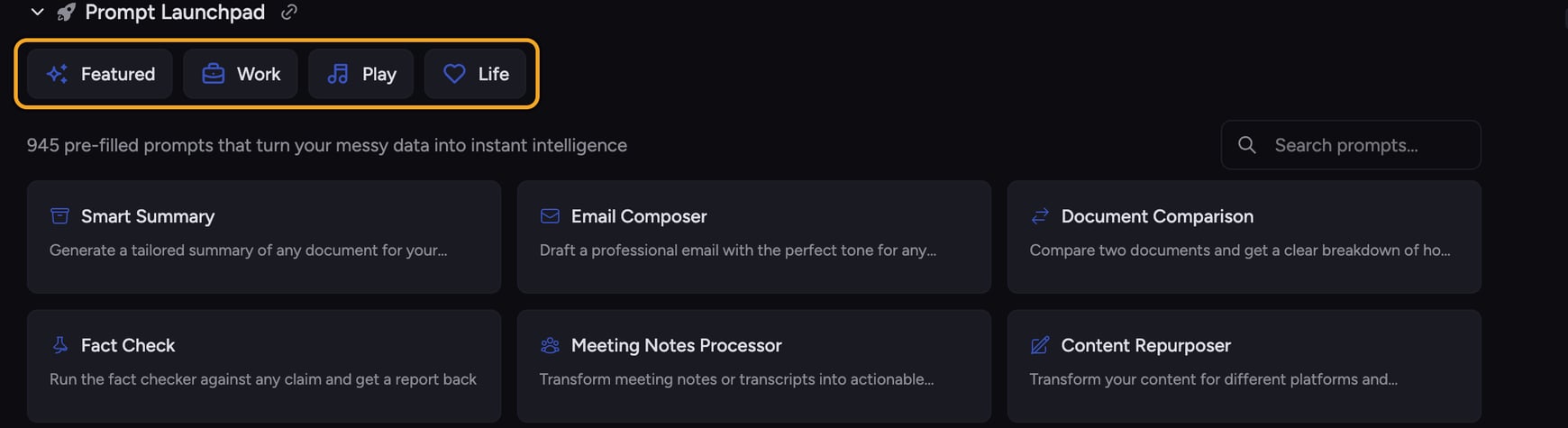 1. Find a card in the **Prompt Launchpad** that fits what you want to do.
2. Click the card. Its full prompt text drops into the prompt bar.
3. Edit the prompt if you'd like, then click **Submit** to send.
ℹ️ **Good to Know:** Clicking a Launchpad card fills the prompt bar but does not send automatically — you stay in control and can tweak it before submitting. You can also [save any card](/help/prompts-the-launchpad/saving-your-own-prompt-templates) with **"Add to my Saved Prompts"** for next time.
## FAQ
That usually means you're offline — Chief shows "Send when online" on the submit button and sends your message once your connection returns. It can also mean your prompt is over the length limit; shorten it and try again.
[Enter-key behavior is configurable](/help/account-settings/interface-preferences-enter-key-sidebar-advanced-mode). Depending on your setting, Enter either sends the message or makes a new line. You can change this behavior in the Command Center settings if it's not doing what you expect.
Chief draws on the files included in the [chat's scope](/help/the-prompt-bar-scope/setting-the-scope-of-a-chat-using-files-labels-collections-concepts). [Upload documents to your Library](/help/getting-started/uploading-your-first-document) and include them so answers are grounded in your own data rather than general knowledge.
1. Find a card in the **Prompt Launchpad** that fits what you want to do.
2. Click the card. Its full prompt text drops into the prompt bar.
3. Edit the prompt if you'd like, then click **Submit** to send.
ℹ️ **Good to Know:** Clicking a Launchpad card fills the prompt bar but does not send automatically — you stay in control and can tweak it before submitting. You can also [save any card](/help/prompts-the-launchpad/saving-your-own-prompt-templates) with **"Add to my Saved Prompts"** for next time.
## FAQ
That usually means you're offline — Chief shows "Send when online" on the submit button and sends your message once your connection returns. It can also mean your prompt is over the length limit; shorten it and try again.
[Enter-key behavior is configurable](/help/account-settings/interface-preferences-enter-key-sidebar-advanced-mode). Depending on your setting, Enter either sends the message or makes a new line. You can change this behavior in the Command Center settings if it's not doing what you expect.
Chief draws on the files included in the [chat's scope](/help/the-prompt-bar-scope/setting-the-scope-of-a-chat-using-files-labels-collections-concepts). [Upload documents to your Library](/help/getting-started/uploading-your-first-document) and include them so answers are grounded in your own data rather than general knowledge.