> ## Documentation Index
> Fetch the complete documentation index at: https://docs.chief.bot/llms.txt
> Use this file to discover all available pages before exploring further.
# API access & personal access tokens
> Personal access tokens let you call the Chief API on your behalf — for integrations and automation.
## Call the Chief API with a personal access token
Personal access tokens let you call the Chief API on your behalf — for [integrations](/help/integrations/integrations-overview) and automation. A token authenticates API requests with your account's permissions, so treat it like a password.
## Create a token
 1. Open **Settings** and go to [the tokens section](/help/security-privacy/managing-api-tokens-securely).
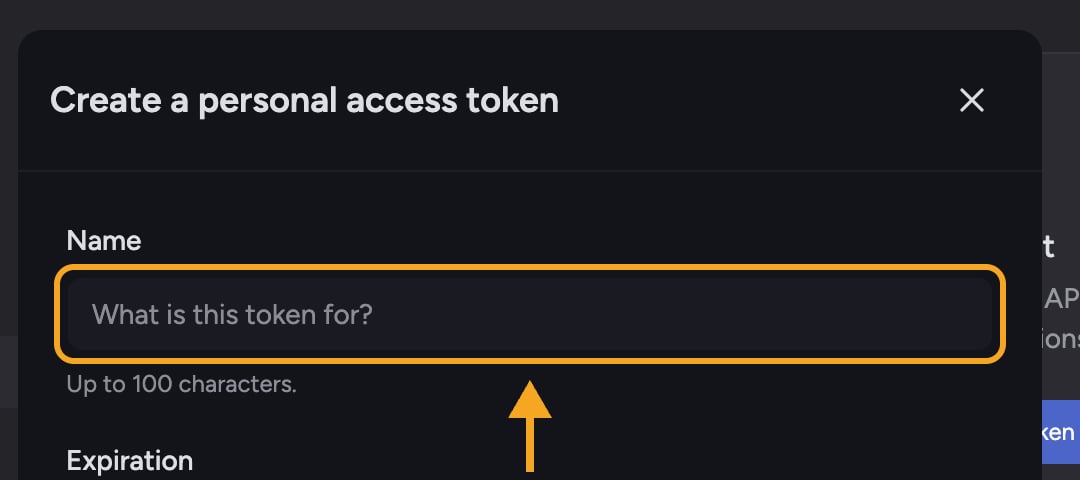
2. Click **Create token**. The **Create a personal access token** window opens.
3. In **Name**, enter what the token is for (up to 100 characters).
4. Choose an **Expiration**: **30 days**, **90 days**, **365 days**, or **Custom date**. Picking **Custom date** reveals a date-and-time picker. The server enforces a one-year maximum.
5. Click **Generate token**.
⚠️ **Important:** Your token is shown only once. The **Copy your token** screen displays it with the warning "This is the only time you'll see this token. Store it somewhere safe." Use the **Copy** button and save it in a secure place before clicking **Done** — you can't view it again.
## See your tokens
Each token in the list shows its name, a short prefix, when it was **Created**, when it was **Last used** (or **Never**), and when it **Expires** (or **Never**). Active tokens are listed first; revoked ones appear struck through with a **Revoked** badge.
## Revoke a token
1. Find the token in the list and click **Revoke**.
2. Confirm in the **Revoke this token?** dialog.
⚠️ **Important:** Revoking takes effect immediately and can't be undone — the token stops working right away. Anything using it — [an MCP server](/help/integrations/mcp-servers-connecting-custom-tools), a script, an automation — will need a new token.
## FAQ
You can't — a token is shown only once. Create a new token, copy it this time, and revoke the old one.
Check the token in the list. If it's **Revoked** or past its **Expires** date, it no longer works — create a new one. Also confirm [your account](/help/security-privacy/authentication-account-security-magic-link-tokens) still has the permissions the request needs, since tokens act with your account's access.
The shortest presets are 30, 90, and 365 days, and the server caps expiration at one year. Choose **Custom date** to set a specific expiry within that limit.
1. Open **Settings** and go to [the tokens section](/help/security-privacy/managing-api-tokens-securely).
2. Click **Create token**. The **Create a personal access token** window opens.
3. In **Name**, enter what the token is for (up to 100 characters).
4. Choose an **Expiration**: **30 days**, **90 days**, **365 days**, or **Custom date**. Picking **Custom date** reveals a date-and-time picker. The server enforces a one-year maximum.
5. Click **Generate token**.
⚠️ **Important:** Your token is shown only once. The **Copy your token** screen displays it with the warning "This is the only time you'll see this token. Store it somewhere safe." Use the **Copy** button and save it in a secure place before clicking **Done** — you can't view it again.
## See your tokens
Each token in the list shows its name, a short prefix, when it was **Created**, when it was **Last used** (or **Never**), and when it **Expires** (or **Never**). Active tokens are listed first; revoked ones appear struck through with a **Revoked** badge.
## Revoke a token
1. Find the token in the list and click **Revoke**.
2. Confirm in the **Revoke this token?** dialog.
⚠️ **Important:** Revoking takes effect immediately and can't be undone — the token stops working right away. Anything using it — [an MCP server](/help/integrations/mcp-servers-connecting-custom-tools), a script, an automation — will need a new token.
## FAQ
You can't — a token is shown only once. Create a new token, copy it this time, and revoke the old one.
Check the token in the list. If it's **Revoked** or past its **Expires** date, it no longer works — create a new one. Also confirm [your account](/help/security-privacy/authentication-account-security-magic-link-tokens) still has the permissions the request needs, since tokens act with your account's access.
The shortest presets are 30, 90, and 365 days, and the server caps expiration at one year. Choose **Custom date** to set a specific expiry within that limit.