> ## Documentation Index
> Fetch the complete documentation index at: https://docs.chief.bot/llms.txt
> Use this file to discover all available pages before exploring further.
# Google Workspace (org-wide setup) — admin guide
> Connect a Google service account once so Chief can access your organization's Gmail, Calendar, and Drive on behalf of your users.
## Connect Google Workspace for your organization
Connect a Google service account once so Chief can access your organization's [Gmail](/help/integrations/gmail-read-search-draft-send-label-archive), [Calendar](/help/integrations/google-calendar-read-create-rsvp), and [Drive](/help/integrations/google-drive) on behalf of your users. You configure this a single time for the whole organization, then assign it to the Projects that should use it — individual users don't each connect their own Google account.
⚠️ **Important:** Only [an organization owner](/help/organization-administration/managing-members-roles-at-the-org-level) can configure Google Workspace. If you're not an owner, you'll see "Only an organization owner can configure the Google Workspace integration. Ask your administrator to set it up." This integration is also [plan-gated](/help/plans-credits-billing/plans-overview-explore-pro-power-user-enterprise) — if your plan doesn't include it, you'll be prompted to upgrade.
## Before you start
Open the **Setup instructions** panel on the integration page and follow these steps in Google Cloud and your Workspace Admin Console:
1. Create a service account in your Google Cloud project.
2. Enable the Gmail, Calendar, Drive, and People APIs in that project.
3. In the Workspace Admin Console, go to **Security** → **Access and data control** → **API controls** → **Domain-wide delegation**, and authorize the service account's client ID with the scopes listed in the panel. Use the **Copy** button to copy the full scope list, and the **Open Domain-wide delegation** link to jump to the right Admin Console page.
4. Download the service account JSON key.
## Add the integration in Chief
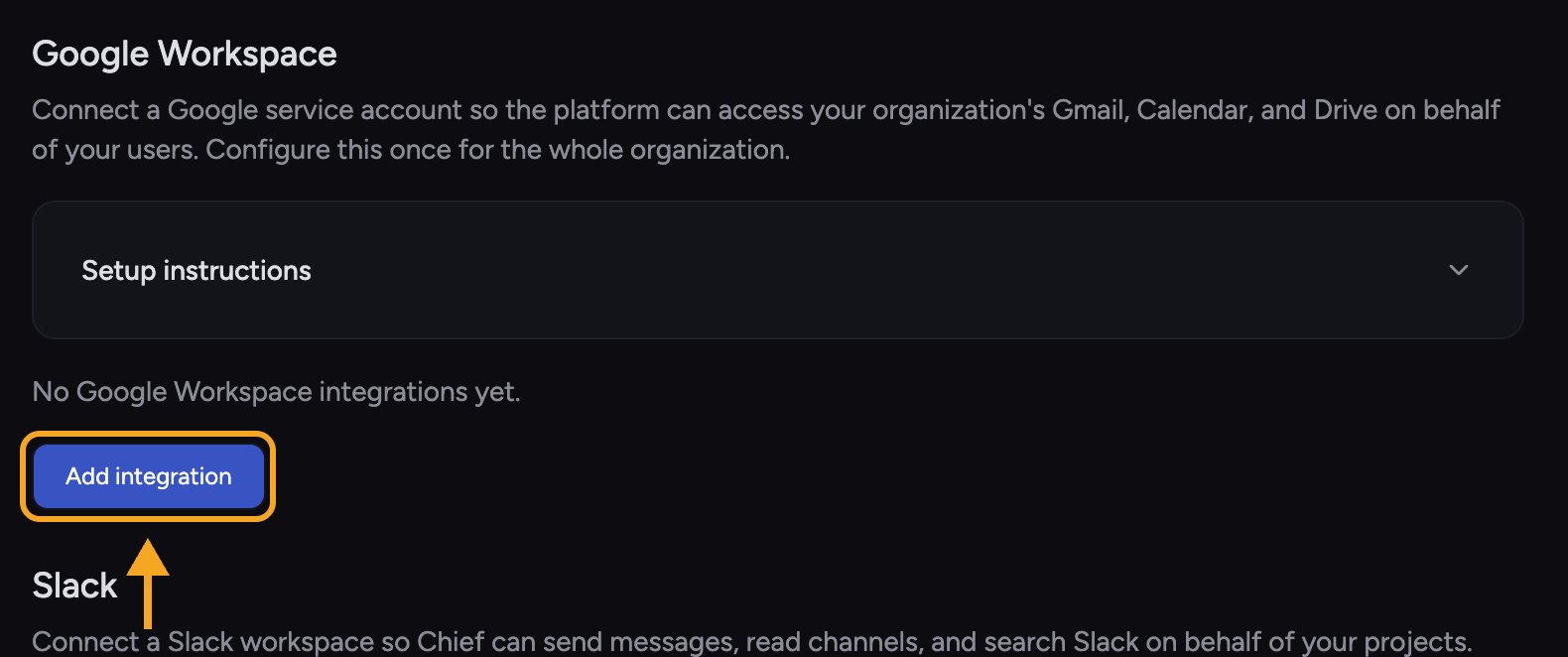 1. Go to your [organization's **Integrations** page](/help/organization-administration/org-wide-integrations-google-workspace-domain-delegation) (under the org's settings).
2. Click **Add integration**.
3. Under **Select projects**, check the [Projects](/help/projects-sharing-teams/what-is-a-project) this integration should serve.
4. In **Google Workspace domain**, enter your domain (for example, `example.com`).
5. In **Service account JSON key**, paste the key contents, or click **Upload JSON file** to load the downloaded file.
6. Click **Save configuration**.
The saved integration card shows the **service account email**, **service account client ID**, the **Google Cloud project ID**, and the assigned **Projects**.
## Manage an existing integration
* **Add or remove Projects:** click **Edit** on the card, then check or uncheck Projects.
* **Remove the integration:** click **Remove** on the card.
ℹ️ **Good to know:** Each Project in an organization can have only one Google Workspace integration. If every Project already has one, you'll see "Every project in this organization already has a Google Workspace integration."
## What this enables for users
Once a Project is covered, members can use Gmail, Calendar, and Drive features in Chief without connecting their own Google accounts. If a user requests a Google capability that isn't set up, Chief shows a **Google Workspace setup required** card explaining why (workspace not connected, tools not enabled in the project, domain mismatch, or a scope not authorized).
## FAQ
The file must be valid service account JSON. If the contents aren't a JSON object, Chief rejects the key before saving. Re-download the key from Google Cloud and upload it again. Make sure you selected a Project, entered the domain, and pasted the key — all three are required to save.
The requested capability needs a scope that isn't authorized for the service account. In the Admin Console, open Domain-wide delegation and add the missing scope from the Setup instructions panel to the service account's client ID.
Their account isn't part of the connected Google Workspace domain. Confirm they're on the domain you configured, or add the appropriate integration for their domain.
1. Go to your [organization's **Integrations** page](/help/organization-administration/org-wide-integrations-google-workspace-domain-delegation) (under the org's settings).
2. Click **Add integration**.
3. Under **Select projects**, check the [Projects](/help/projects-sharing-teams/what-is-a-project) this integration should serve.
4. In **Google Workspace domain**, enter your domain (for example, `example.com`).
5. In **Service account JSON key**, paste the key contents, or click **Upload JSON file** to load the downloaded file.
6. Click **Save configuration**.
The saved integration card shows the **service account email**, **service account client ID**, the **Google Cloud project ID**, and the assigned **Projects**.
## Manage an existing integration
* **Add or remove Projects:** click **Edit** on the card, then check or uncheck Projects.
* **Remove the integration:** click **Remove** on the card.
ℹ️ **Good to know:** Each Project in an organization can have only one Google Workspace integration. If every Project already has one, you'll see "Every project in this organization already has a Google Workspace integration."
## What this enables for users
Once a Project is covered, members can use Gmail, Calendar, and Drive features in Chief without connecting their own Google accounts. If a user requests a Google capability that isn't set up, Chief shows a **Google Workspace setup required** card explaining why (workspace not connected, tools not enabled in the project, domain mismatch, or a scope not authorized).
## FAQ
The file must be valid service account JSON. If the contents aren't a JSON object, Chief rejects the key before saving. Re-download the key from Google Cloud and upload it again. Make sure you selected a Project, entered the domain, and pasted the key — all three are required to save.
The requested capability needs a scope that isn't authorized for the service account. In the Admin Console, open Domain-wide delegation and add the missing scope from the Setup instructions panel to the service account's client ID.
Their account isn't part of the connected Google Workspace domain. Confirm they're on the domain you configured, or add the appropriate integration for their domain.