> ## Documentation Index
> Fetch the complete documentation index at: https://docs.chief.bot/llms.txt
> Use this file to discover all available pages before exploring further.
# Integrations overview
> Integrations let Chief read from and act in the apps you already use — your Google Drive files, your Gmail inbox, your Google Calendar, your Notion workspace, and your Zoom meetings.
## Bring your tools into Chief
Integrations let Chief read from and act in the apps you already use — your Google Drive files, your Gmail inbox, your Google Calendar, your Notion workspace, and your Zoom meetings. Once an integration is connected, Chief can pull that data into a chat, search it, and (for some tools) take actions on your behalf, so you spend less time copying things back and forth.
## What you can connect
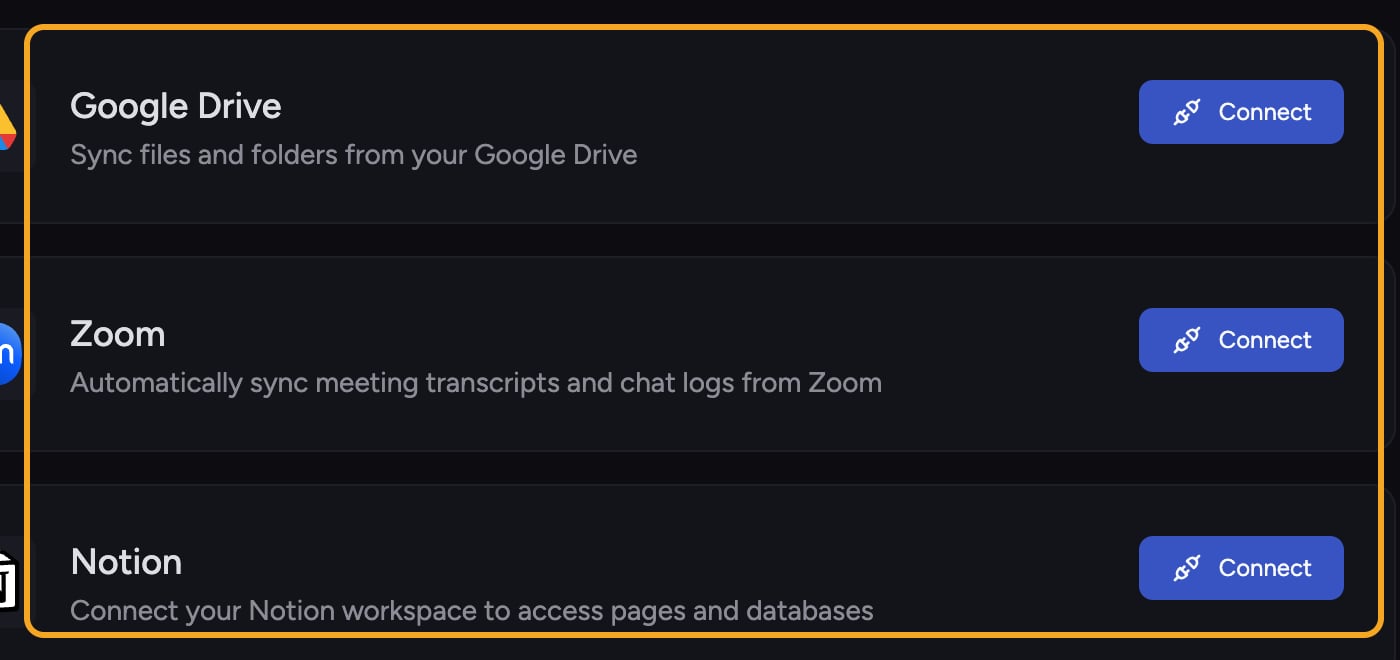 * **[Google Drive](/help/integrations/google-drive)** — sync files and folders so Chief can read them.
* **[Gmail](/help/integrations/gmail-read-search-draft-send-label-archive)** — read, search, draft, send, label, and archive email.
* **[Google Calendar](/help/integrations/google-calendar-read-create-rsvp)** — read your calendars and events, create or update events, and send RSVPs.
* **[Notion](/help/integrations/notion)** — connect a Notion workspace so Chief can access the pages and databases you share with it.
* **[Zoom](/help/integrations/zoom)** — sync meeting transcripts and chat logs.
* **[MCP servers](/help/integrations/mcp-servers-connecting-custom-tools)** — connect custom tools through the Model Context Protocol.
Organizations on a qualifying plan can also set up **Google Workspace** once for the whole org, so Gmail, Calendar, and Drive work across users without each person connecting their own account. See the [Google Workspace admin guide](/help/integrations/google-workspace-org-wide-setup-admin-guide) for that.
## Where to connect them
Open **Settings** and select **Integrations**. Each tool has its own card with a **Connect** button. After connecting, the card shows a **Connected** status.
ℹ️ **Good to know:** Some integrations are available to paying customers and are set up with help from our team. When you click **Connect** on those, Chief opens a **Book a Call** window instead of a self-serve form.
## Actions and asking first
When an integration can change something — sending an email, creating a calendar event, moving messages to Trash — Chief shows you a confirmation card and waits for your **Approve** before it runs. You can let trusted operations run without asking each time in the tools panel. See [Managing integration permissions & connection status](/help/integrations/managing-integration-permissions-connection-status) for details.
## Don't see what you need?
Use the **Request More Integrations** link at the bottom of the Integrations settings to tell us what to build next.
## FAQ
No. Connect only the tools you want Chief to use. Each one is independent, and you can disconnect any of them later.
Some integrations are available to paying customers and are set up with our team. The booking window lets you schedule that setup. If you expected a self-serve connection, check that you're signed in to a plan that includes the integration.
For Google, yes — an organization owner can configure Google Workspace once so Gmail, Calendar, and Drive work org-wide. Notion and personal Google connections are tied to the account that set them up.
* **[Google Drive](/help/integrations/google-drive)** — sync files and folders so Chief can read them.
* **[Gmail](/help/integrations/gmail-read-search-draft-send-label-archive)** — read, search, draft, send, label, and archive email.
* **[Google Calendar](/help/integrations/google-calendar-read-create-rsvp)** — read your calendars and events, create or update events, and send RSVPs.
* **[Notion](/help/integrations/notion)** — connect a Notion workspace so Chief can access the pages and databases you share with it.
* **[Zoom](/help/integrations/zoom)** — sync meeting transcripts and chat logs.
* **[MCP servers](/help/integrations/mcp-servers-connecting-custom-tools)** — connect custom tools through the Model Context Protocol.
Organizations on a qualifying plan can also set up **Google Workspace** once for the whole org, so Gmail, Calendar, and Drive work across users without each person connecting their own account. See the [Google Workspace admin guide](/help/integrations/google-workspace-org-wide-setup-admin-guide) for that.
## Where to connect them
Open **Settings** and select **Integrations**. Each tool has its own card with a **Connect** button. After connecting, the card shows a **Connected** status.
ℹ️ **Good to know:** Some integrations are available to paying customers and are set up with help from our team. When you click **Connect** on those, Chief opens a **Book a Call** window instead of a self-serve form.
## Actions and asking first
When an integration can change something — sending an email, creating a calendar event, moving messages to Trash — Chief shows you a confirmation card and waits for your **Approve** before it runs. You can let trusted operations run without asking each time in the tools panel. See [Managing integration permissions & connection status](/help/integrations/managing-integration-permissions-connection-status) for details.
## Don't see what you need?
Use the **Request More Integrations** link at the bottom of the Integrations settings to tell us what to build next.
## FAQ
No. Connect only the tools you want Chief to use. Each one is independent, and you can disconnect any of them later.
Some integrations are available to paying customers and are set up with our team. The booking window lets you schedule that setup. If you expected a self-serve connection, check that you're signed in to a plan that includes the integration.
For Google, yes — an organization owner can configure Google Workspace once so Gmail, Calendar, and Drive work org-wide. Notion and personal Google connections are tied to the account that set them up.