> ## Documentation Index
> Fetch the complete documentation index at: https://docs.chief.bot/llms.txt
> Use this file to discover all available pages before exploring further.
# Managing integration permissions & connection status
> When an integration can change something in your accounts — send an email, create a calendar event, move messages to Trash — Chief asks before it acts.
## Stay in control of what Chief does
When an integration can change something in your accounts — [send an email](/help/integrations/gmail-read-search-draft-send-label-archive), [create a calendar event](/help/integrations/google-calendar-read-create-rsvp), move messages to Trash — Chief asks before it acts. This article covers how those approvals work, how to let trusted operations run without asking, and how to read connection status.
## Approving an action
When Chief wants to take an action, it shows a confirmation card with the details and two choices: **Approve** and **Reject**. Some cards also offer **Edit** so you can adjust the details first, and a **Notify attendees** option for calendar changes. Nothing happens until you approve. Examples include **Send this email?**, **Create this event?**, and **Move to Trash?**
ℹ️ **Good to know:** If you reload and reopen a chat, an already-handled action shows its outcome (for example, "Email sent" or "This action has already been handled") rather than asking you to approve it again.
## Let operations run without asking
You can let specific operations run automatically once their integration is connected:
1. Open the **tools** panel from [the prompt bar](/help/the-prompt-bar-scope/the-prompt-bar-a-tour-of-your-chat-controls).
2. Each connected tool lists its operations as toggles — for example, Gmail's **Send emails** and **Move emails to trash**, and Google Calendar's **Create & edit events**.
3. Turn a toggle on to let that operation run without asking each time.
If a tool isn't connected yet, its toggles are replaced by a **Connect to enable** button. Click it to connect, then come back to set your preferences.
⚠️ **Important:** Turning on "run without asking" means Chief performs that operation — including sending email or moving messages to Trash — without a confirmation step. Only enable operations you're comfortable letting run automatically.
## Reading connection status
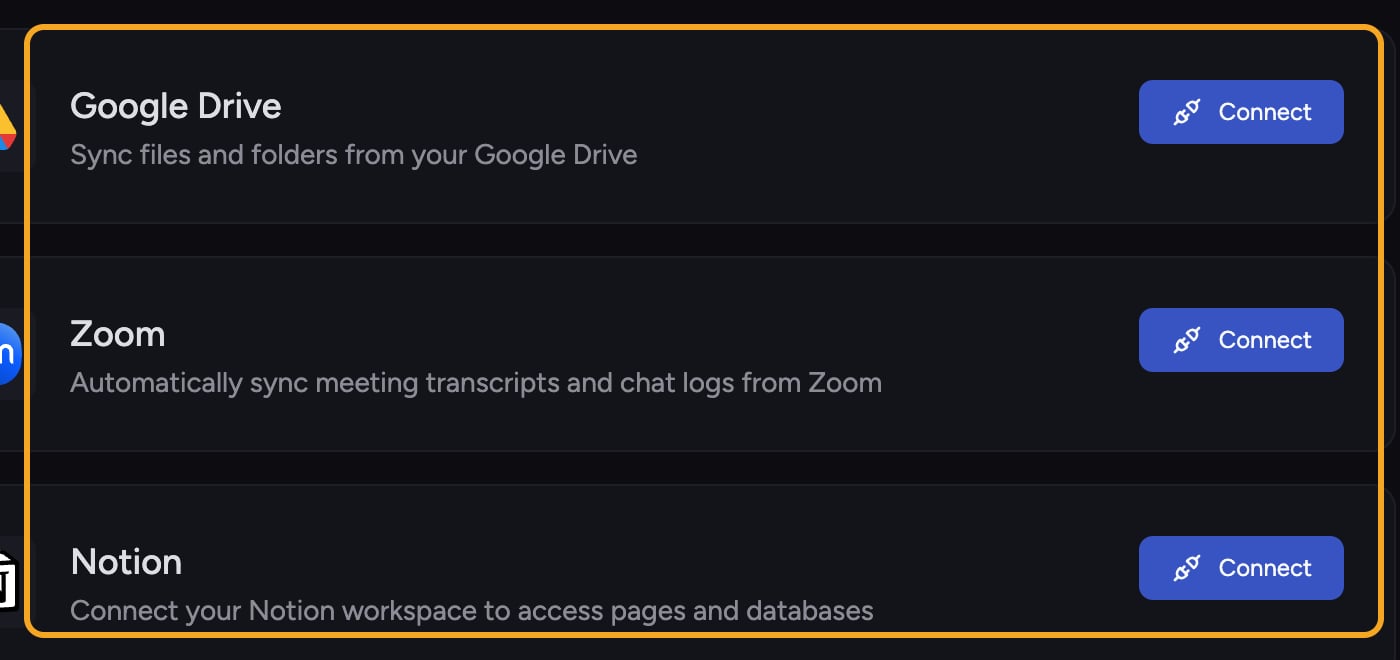 * In [**Settings → Integrations**](/help/integrations/integrations-overview), a connected tool shows a green **Connected** indicator; a tool that isn't connected shows a **Connect** button.
* In the tools panel, an operation's toggles appear only when its integration is connected; otherwise you see **Connect to enable**.
* In chat, if a Google capability isn't connected or is missing a permission, Chief shows a **Connect Google** card; if your org's [Google Workspace](/help/integrations/google-workspace-org-wide-setup-admin-guide) can't serve it, it shows a **Google Workspace setup required** card.
## FAQ
Chief accepted your approval but the operation failed on the connected service's side. Try the request again. If it keeps failing, [the integration may have lost its connection or permission](/help/troubleshooting/an-integration-disconnected-or-wont-sync) — reconnect it from its card or the **Connect Google** card, then retry.
No. The toggle only affects future actions. Turning it off means Chief will ask for approval again the next time; it doesn't reverse anything already done.
That tool isn't connected for the current Project, or the connection dropped. Click **Connect to enable** to (re)connect it, then set your operation toggles.
* In [**Settings → Integrations**](/help/integrations/integrations-overview), a connected tool shows a green **Connected** indicator; a tool that isn't connected shows a **Connect** button.
* In the tools panel, an operation's toggles appear only when its integration is connected; otherwise you see **Connect to enable**.
* In chat, if a Google capability isn't connected or is missing a permission, Chief shows a **Connect Google** card; if your org's [Google Workspace](/help/integrations/google-workspace-org-wide-setup-admin-guide) can't serve it, it shows a **Google Workspace setup required** card.
## FAQ
Chief accepted your approval but the operation failed on the connected service's side. Try the request again. If it keeps failing, [the integration may have lost its connection or permission](/help/troubleshooting/an-integration-disconnected-or-wont-sync) — reconnect it from its card or the **Connect Google** card, then retry.
No. The toggle only affects future actions. Turning it off means Chief will ask for approval again the next time; it doesn't reverse anything already done.
That tool isn't connected for the current Project, or the connection dropped. Click **Connect to enable** to (re)connect it, then set your operation toggles.