> ## Documentation Index
> Fetch the complete documentation index at: https://docs.chief.bot/llms.txt
> Use this file to discover all available pages before exploring further.
# Bulk labeling
> If a batch of files all belong together, you don't have to tag them one at a time.
## When to label in bulk
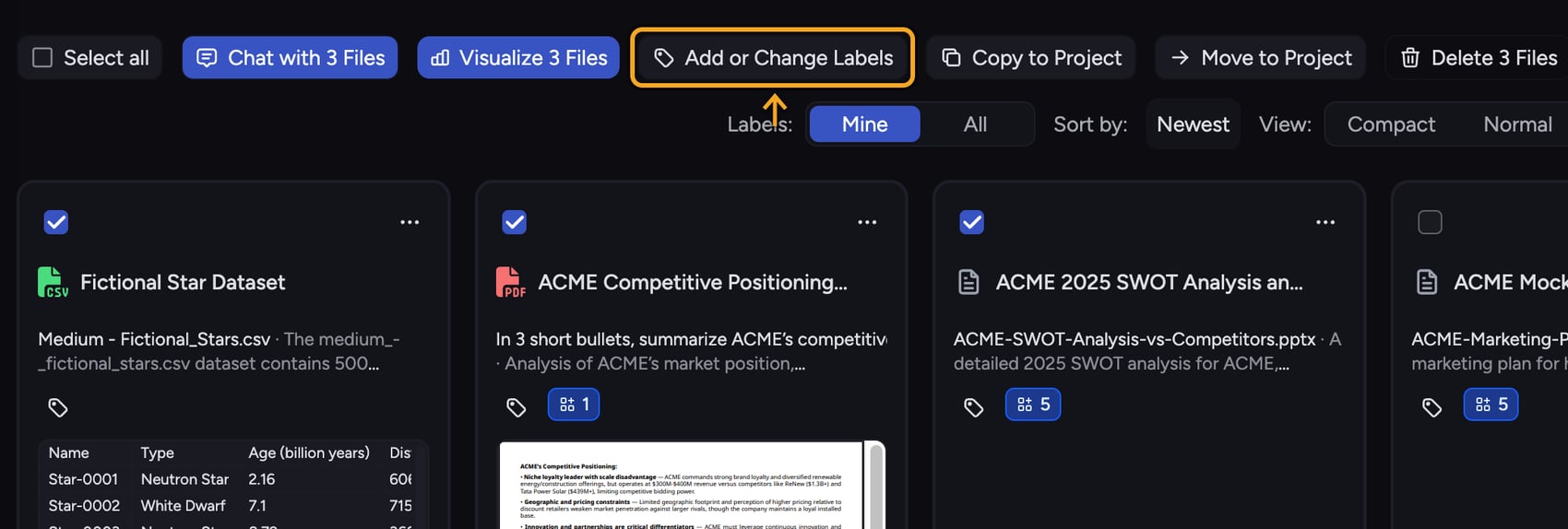 If a batch of files all belong together, you don't have to [tag them one at a time](/help/labels/tagging-files-filtering-by-label). Select them, open the bulk Label picker, and apply changes to every selected file at once. This is the fast way to organize an import or sort a backlog.
## Select the files
1. In your [Library](/help/your-knowledge-library/what-is-the-library), select the files you want to label by ticking their checkboxes (use the **Select All** control to grab everything in the current view).
2. With more than one file selected, open the add-Label control. Because multiple files are selected, the **Add or Change Labels** picker opens instead of the single-file picker.
## Apply Labels across the selection
If a batch of files all belong together, you don't have to [tag them one at a time](/help/labels/tagging-files-filtering-by-label). Select them, open the bulk Label picker, and apply changes to every selected file at once. This is the fast way to organize an import or sort a backlog.
## Select the files
1. In your [Library](/help/your-knowledge-library/what-is-the-library), select the files you want to label by ticking their checkboxes (use the **Select All** control to grab everything in the current view).
2. With more than one file selected, open the add-Label control. Because multiple files are selected, the **Add or Change Labels** picker opens instead of the single-file picker.
## Apply Labels across the selection
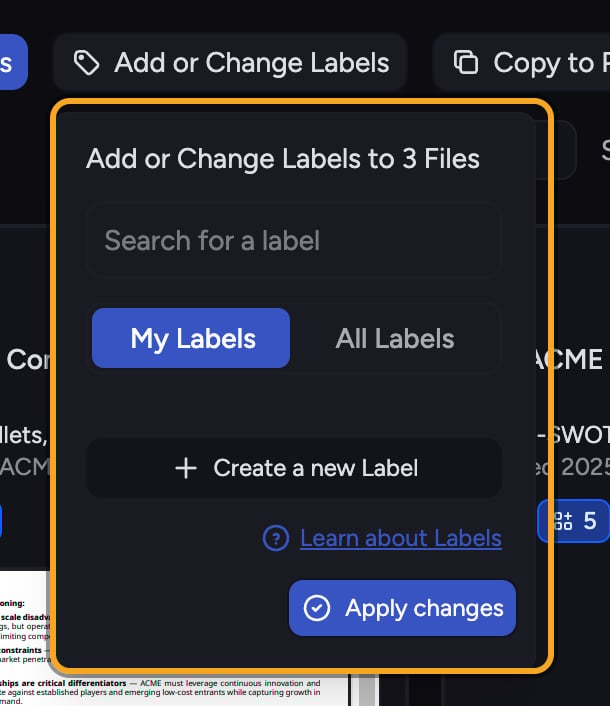 1. In the picker, search for a Label in the search box, then click it to add it to every selected file. Click a selected Label again to remove it from the selection.
2. A Label shown as partially selected means it's on *some* but not all of the selected files. Click it to add it to all of them, or click again to remove it from all of them.
3. Use the **My Labels** / **All Labels** scope toggle to switch between [Labels you created](/help/labels/creating-customizing-labels-colors-icons) and every Label available.
4. Click **Apply changes** to write your additions and removals to all selected files.
ℹ️ **Good to Know:** A three-state Label (partially selected) reflects a mixed selection. Your first click resolves it the same way for the whole group, so check the state before clicking if you only meant to top up the files that were missing it.
## Create a Label and apply it to everything selected
If you need a brand-new Label, create it from inside the bulk picker. Chief creates the Label and attaches it to every file in your current selection in one action.
🚀 **Pro-Tip:** Bulk labeling pairs perfectly with [Collections](/help/collections/what-are-collections). Tag a batch of files with one Label now, then [build a Collection](/help/collections/building-a-collection-with-and-or-label-filters) that fences off everything carrying that Label later.
## Frequently asked questions
It means the Label is already on some of your selected files but not all of them. Clicking it adds it to the rest; clicking again removes it from all of them.
Yes. Chief applies changes in batches behind the scenes (up to 100 files per request) and processes the rest automatically, so large selections are handled for you.
If your search box has text but no Labels match it, there's nothing to apply, so the button stays disabled. Clear the search or pick a Label that exists.
No. It only adds or removes the specific Labels you change in the picker. Any other Labels already on those files stay as they are.
1. In the picker, search for a Label in the search box, then click it to add it to every selected file. Click a selected Label again to remove it from the selection.
2. A Label shown as partially selected means it's on *some* but not all of the selected files. Click it to add it to all of them, or click again to remove it from all of them.
3. Use the **My Labels** / **All Labels** scope toggle to switch between [Labels you created](/help/labels/creating-customizing-labels-colors-icons) and every Label available.
4. Click **Apply changes** to write your additions and removals to all selected files.
ℹ️ **Good to Know:** A three-state Label (partially selected) reflects a mixed selection. Your first click resolves it the same way for the whole group, so check the state before clicking if you only meant to top up the files that were missing it.
## Create a Label and apply it to everything selected
If you need a brand-new Label, create it from inside the bulk picker. Chief creates the Label and attaches it to every file in your current selection in one action.
🚀 **Pro-Tip:** Bulk labeling pairs perfectly with [Collections](/help/collections/what-are-collections). Tag a batch of files with one Label now, then [build a Collection](/help/collections/building-a-collection-with-and-or-label-filters) that fences off everything carrying that Label later.
## Frequently asked questions
It means the Label is already on some of your selected files but not all of them. Clicking it adds it to the rest; clicking again removes it from all of them.
Yes. Chief applies changes in batches behind the scenes (up to 100 files per request) and processes the rest automatically, so large selections are handled for you.
If your search box has text but no Labels match it, there's nothing to apply, so the button stays disabled. Clear the search or pick a Label that exists.
No. It only adds or removes the specific Labels you change in the picker. Any other Labels already on those files stay as they are.