> ## Documentation Index
> Fetch the complete documentation index at: https://docs.chief.bot/llms.txt
> Use this file to discover all available pages before exploring further.
# Creating & customizing Labels (colors, icons)
> Labels are tags you put on files in your Library.
## What Labels do
Labels are tags you put on files in your [Library](/help/your-knowledge-library/what-is-the-library). A Label has a name, a color, and an icon, so once you tag a file you can recognize it instantly and [pull every file with that Label into a chat](/help/the-prompt-bar-scope/mentioning-files-labels-collections-concepts). This article covers creating a Label and choosing how it looks.
## Open the Labels page
 1. In your Library, go to the **Labels** page (it shows the **Project Labels** heading with a tag icon).
2. At the top of the page, click the **Create Label** button (the brand-colored button next to the heading). The **Create a new Label** dialog opens.
ℹ️ **Good to Know:** You need to be signed in to create a Label. If you are browsing as a guest, clicking **Create Label** prompts you to [sign up](/help/getting-started/creating-your-account-signing-in) first.
## Name the Label
1. In your Library, go to the **Labels** page (it shows the **Project Labels** heading with a tag icon).
2. At the top of the page, click the **Create Label** button (the brand-colored button next to the heading). The **Create a new Label** dialog opens.
ℹ️ **Good to Know:** You need to be signed in to create a Label. If you are browsing as a guest, clicking **Create Label** prompts you to [sign up](/help/getting-started/creating-your-account-signing-in) first.
## Name the Label
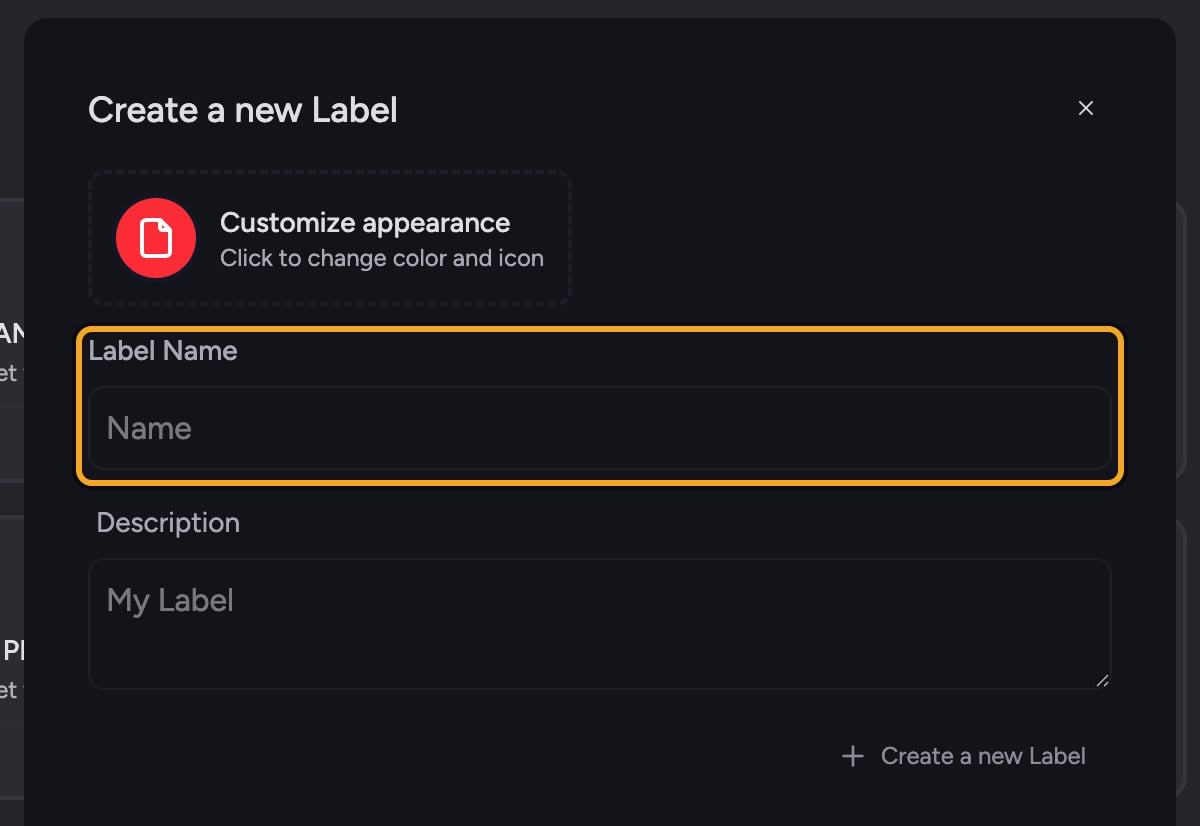 1. In the dialog, click the **Label Name** field and type a name (for example, **Q3 Planning**). The name is required.
2. Optionally, click the **Description** field below and add a short note about what the Label is for.
## Choose a color and icon
1. In the dialog, click the **Label Name** field and type a name (for example, **Q3 Planning**). The name is required.
2. Optionally, click the **Description** field below and add a short note about what the Label is for.
## Choose a color and icon
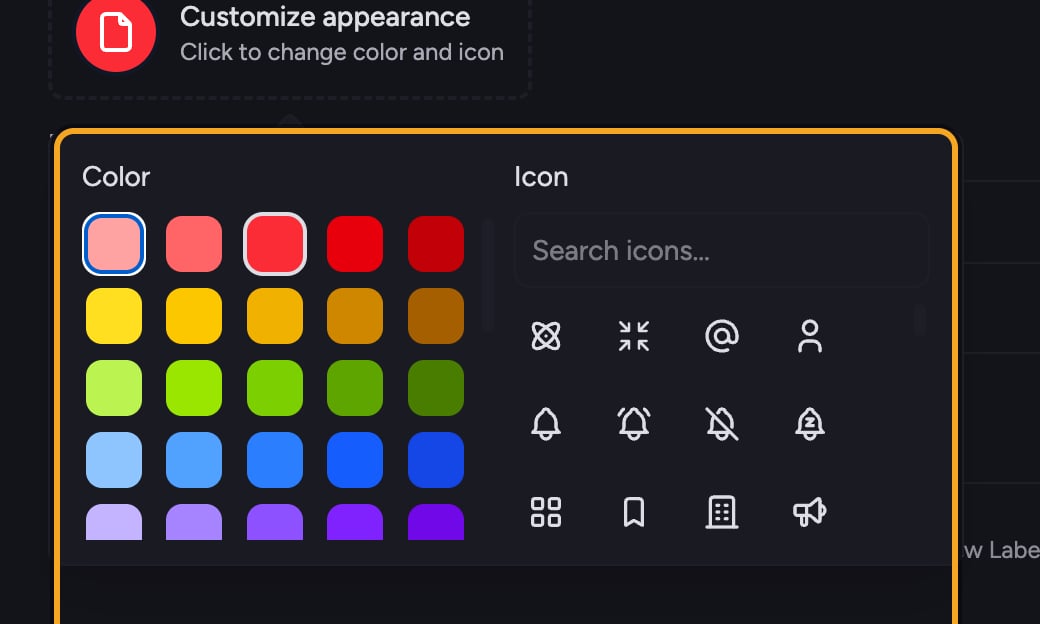 1. At the top of the dialog, click the appearance tile (the dashed-border box showing a colored circle and the text **Customize appearance** / **Click to change color and icon**). A picker opens with two columns: **Color** and **Icon**.
2. In the **Color** column, click any color swatch. The selected swatch gets a ring around it, and the preview circle updates immediately.
3. In the **Icon** column, type in the **Search icons...** field to narrow the list, then click an icon. The selected icon gets a ring around it.
4. Once you have picked both a color and an icon, the picker closes on its own and the preview tile shows your choices.
## Save the Label
1. Click the **Create a new Label** button at the bottom of the dialog.
2. The dialog closes and your new Label appears on the Labels page, ready to use.
🚀 **Pro-Tip:** Pick distinct colors for Labels you compare often, like a green **Approved** and a red **Needs Review**. The color and icon [show up on every file card](/help/labels/tagging-files-filtering-by-label), so a glance tells you the status without reading the name.
## Editing a Label later
On the Labels page, open a Label's menu and choose **Edit Label** to change its name, description, color, or icon at any time. Changes apply everywhere the Label is used.
## Frequently asked questions
Label names must be unique in your project. Chief won't create a second Label with a name you already have. Change the name in the **Label Name** field and click **Create a new Label** again.
The button stays disabled until the **Label Name** field has text. Type a name and it becomes active.
You choose from Chief's built-in palette of color swatches and its icon set. Use the **Search icons...** field to find an icon quickly by name.
No. A Label starts with a default color and icon, so you only need a name. Customizing the appearance is optional but makes Labels easier to scan.
1. At the top of the dialog, click the appearance tile (the dashed-border box showing a colored circle and the text **Customize appearance** / **Click to change color and icon**). A picker opens with two columns: **Color** and **Icon**.
2. In the **Color** column, click any color swatch. The selected swatch gets a ring around it, and the preview circle updates immediately.
3. In the **Icon** column, type in the **Search icons...** field to narrow the list, then click an icon. The selected icon gets a ring around it.
4. Once you have picked both a color and an icon, the picker closes on its own and the preview tile shows your choices.
## Save the Label
1. Click the **Create a new Label** button at the bottom of the dialog.
2. The dialog closes and your new Label appears on the Labels page, ready to use.
🚀 **Pro-Tip:** Pick distinct colors for Labels you compare often, like a green **Approved** and a red **Needs Review**. The color and icon [show up on every file card](/help/labels/tagging-files-filtering-by-label), so a glance tells you the status without reading the name.
## Editing a Label later
On the Labels page, open a Label's menu and choose **Edit Label** to change its name, description, color, or icon at any time. Changes apply everywhere the Label is used.
## Frequently asked questions
Label names must be unique in your project. Chief won't create a second Label with a name you already have. Change the name in the **Label Name** field and click **Create a new Label** again.
The button stays disabled until the **Label Name** field has text. Type a name and it becomes active.
You choose from Chief's built-in palette of color swatches and its icon set. Use the **Search icons...** field to find an icon quickly by name.
No. A Label starts with a default color and icon, so you only need a name. Customizing the appearance is optional but makes Labels easier to scan.