> ## Documentation Index
> Fetch the complete documentation index at: https://docs.chief.bot/llms.txt
> Use this file to discover all available pages before exploring further.
# Finding Live Session recordings in the Web App
> Open the Live Sessions page in the correct Project to find recordings, transcripts, and meeting recaps.
Find your recordings under **Live Sessions** in the Chief Web App. The list belongs to the Project you currently have open, so switch Projects if a session is missing.
## Open your Live Sessions
1. Open the Chief Web App and select the [Project where you stored the session](/help/meetings-live-sessions/starting-a-live-session).
2. Click **Live Sessions** in the [left navigation](/help/getting-started/the-chief-interface-a-quick-tour).
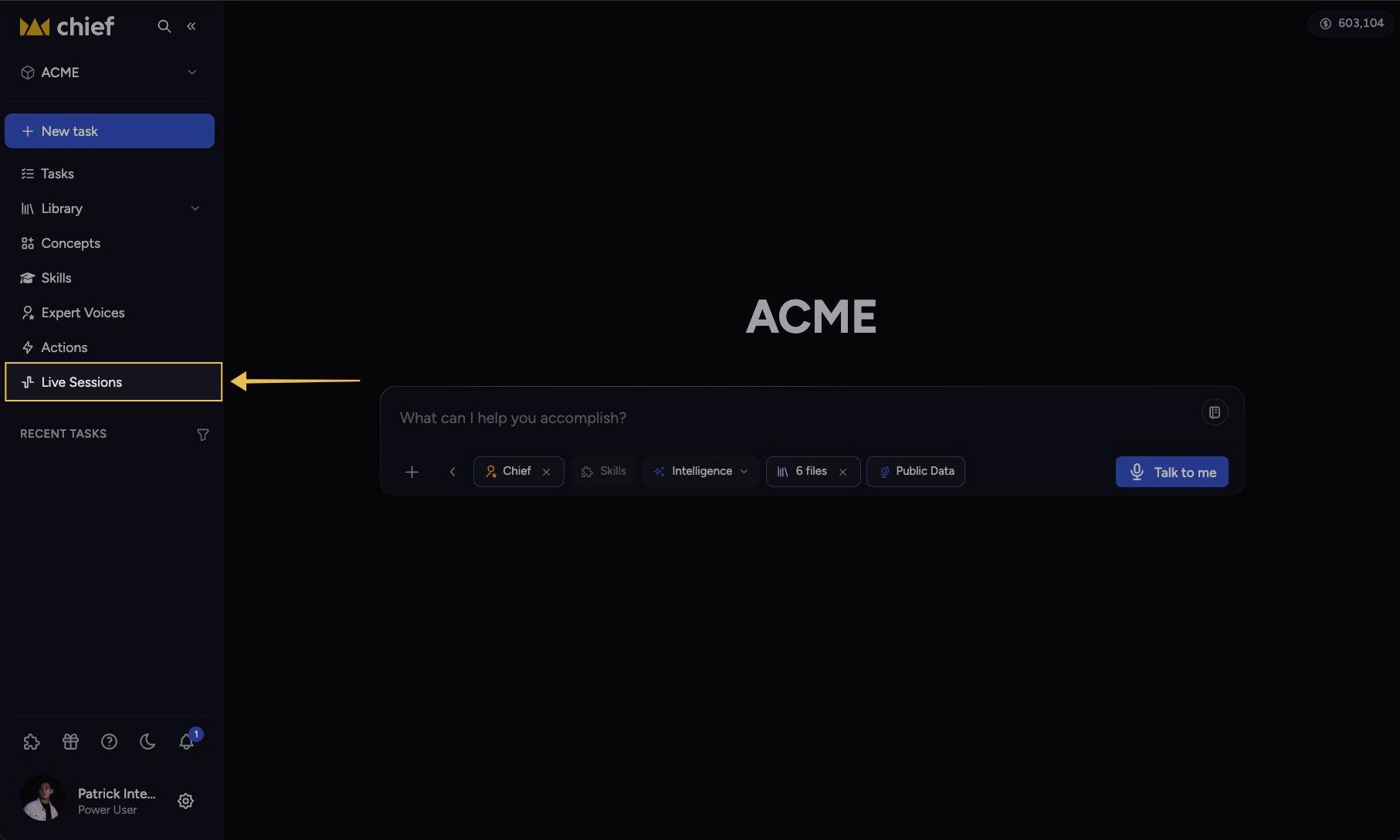 3. Select a session to open its transcript and recap.
The session detail page shows the [transcript](/help/meetings-live-sessions/how-transcription-works-speaker-attribution), [summary, decisions, and action items](/help/meetings-live-sessions/auto-generated-summaries-decisions-action-items-chat-suggestions), along with any screenshots captured during the meeting.
## Find a session that is still recording
A session appears in the Web App while the Live Sessions App is capturing it and shows a red **Live** badge. Open it to follow the transcript and recap as they build. Refresh the list if a newly started session has not appeared yet.
## Find a session from the Live Sessions App
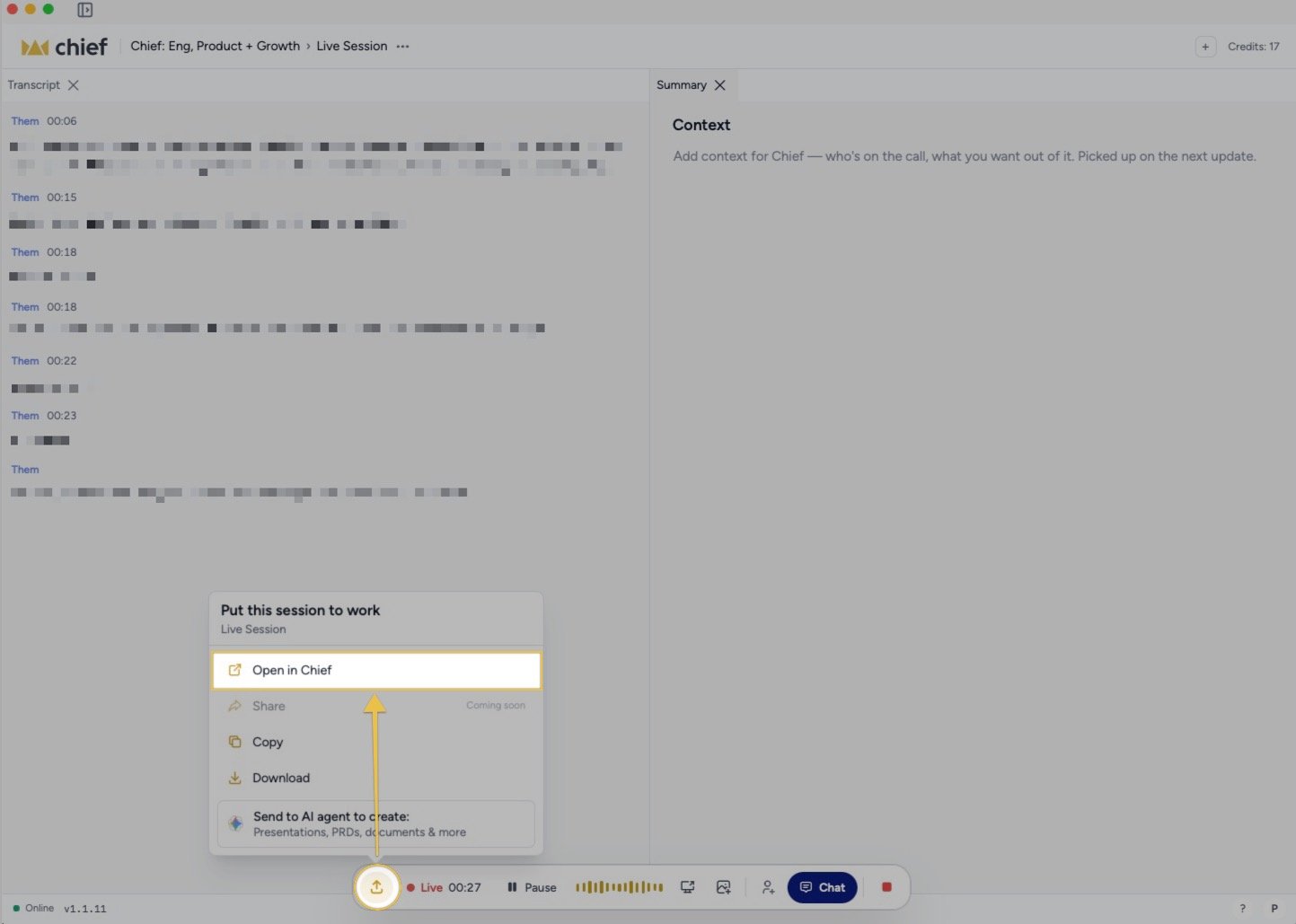
After the session ends, click **Put this session to work**, then click **Open in Chief**. The Live Sessions App opens the recording directly in the Web App when the session has a Project and its saved record is available.
3. Select a session to open its transcript and recap.
The session detail page shows the [transcript](/help/meetings-live-sessions/how-transcription-works-speaker-attribution), [summary, decisions, and action items](/help/meetings-live-sessions/auto-generated-summaries-decisions-action-items-chat-suggestions), along with any screenshots captured during the meeting.
## Find a session that is still recording
A session appears in the Web App while the Live Sessions App is capturing it and shows a red **Live** badge. Open it to follow the transcript and recap as they build. Refresh the list if a newly started session has not appeared yet.
## Find a session from the Live Sessions App
After the session ends, click **Put this session to work**, then click **Open in Chief**. The Live Sessions App opens the recording directly in the Web App when the session has a Project and its saved record is available.
 **Good to Know:** A [watch link](/help/meetings-live-sessions/sharing-joining-a-live-session) opens a read-only shared view. It does not add the session to your own Project's **Live Sessions** list.
## FAQ
First confirm you opened the same Project selected before recording. Then confirm the Live Sessions App was online and paired to the same Chief account. A session with no Project cannot open through the normal Project route.
**Live Sessions** stores the session record Chief produced: the transcript, recap, actions, decisions, and captured visual context. The page does not present a conventional audio or video player.
Yes, if you have access to its Project or they send you a watch link. A watch link opens the shared read-only view even without a Chief account.
**Good to Know:** A [watch link](/help/meetings-live-sessions/sharing-joining-a-live-session) opens a read-only shared view. It does not add the session to your own Project's **Live Sessions** list.
## FAQ
First confirm you opened the same Project selected before recording. Then confirm the Live Sessions App was online and paired to the same Chief account. A session with no Project cannot open through the normal Project route.
**Live Sessions** stores the session record Chief produced: the transcript, recap, actions, decisions, and captured visual context. The page does not present a conventional audio or video player.
Yes, if you have access to its Project or they send you a watch link. A watch link opens the shared read-only view even without a Chief account.