> ## Documentation Index
> Fetch the complete documentation index at: https://docs.chief.bot/llms.txt
> Use this file to discover all available pages before exploring further.
# Installing the Chief desktop app
> Install Chief on Mac or Windows to capture Live Sessions, then pair the desktop app with your web account.
## Why you need the desktop app
[Live Sessions](/help/meetings-live-sessions/what-are-live-sessions) are captured by the **Chief desktop app on Mac or Windows**. The app listens to your microphone and your computer's audio during a meeting; the web app is where the transcript and results show up afterward. You can't capture a meeting from the web app alone.
**Important:** Capture is available in the Mac and Windows desktop apps, not in a browser. Screen context and the macOS Accessibility permission are Mac-only.
## Download and install
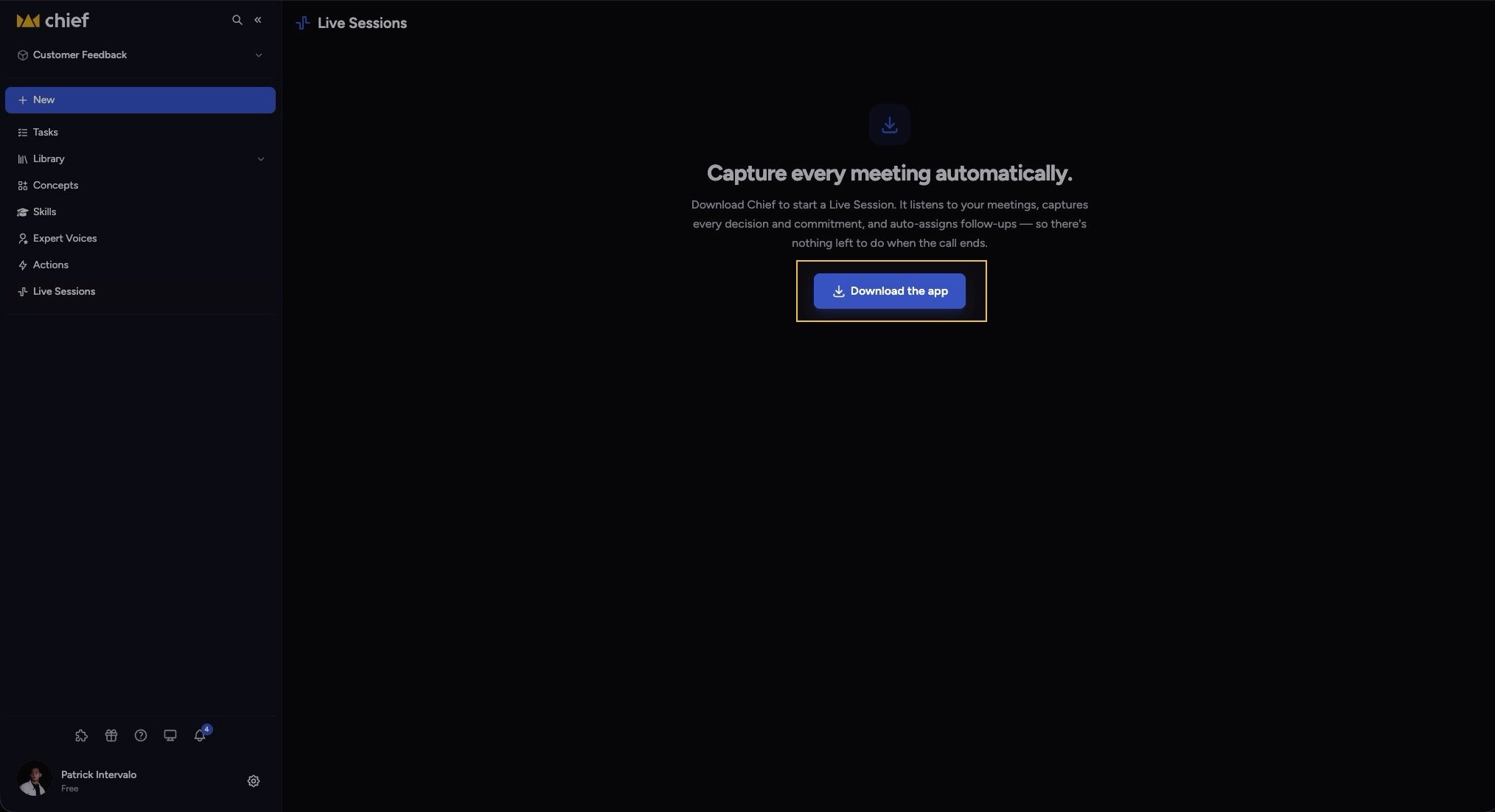 1. Open **Live Sessions** from the [left navigation](/help/getting-started/the-chief-interface-a-quick-tour).
2. Click **Download the app**.
3. Open the downloaded installer and follow the prompts for your operating system.
4. Open **Chief** from **Applications** on Mac or the Windows Start menu.
After installation, you can [choose a light or dark theme and adjust the app's zoom level](/help/meetings-live-sessions/changing-appearance-zoom) for your display.
**Good to know:** If you're already signed in to Chief, a ["Chief works best as a desktop app"](/help/getting-started/chief-on-web-desktop-browser-extension) prompt may appear in the web app with **Download for macOS** or **Download for Windows** — that's the same download.
## Pair the app with your account
1. Open **Live Sessions** from the [left navigation](/help/getting-started/the-chief-interface-a-quick-tour).
2. Click **Download the app**.
3. Open the downloaded installer and follow the prompts for your operating system.
4. Open **Chief** from **Applications** on Mac or the Windows Start menu.
After installation, you can [choose a light or dark theme and adjust the app's zoom level](/help/meetings-live-sessions/changing-appearance-zoom) for your display.
**Good to know:** If you're already signed in to Chief, a ["Chief works best as a desktop app"](/help/getting-started/chief-on-web-desktop-browser-extension) prompt may appear in the web app with **Download for macOS** or **Download for Windows** — that's the same download.
## Pair the app with your account
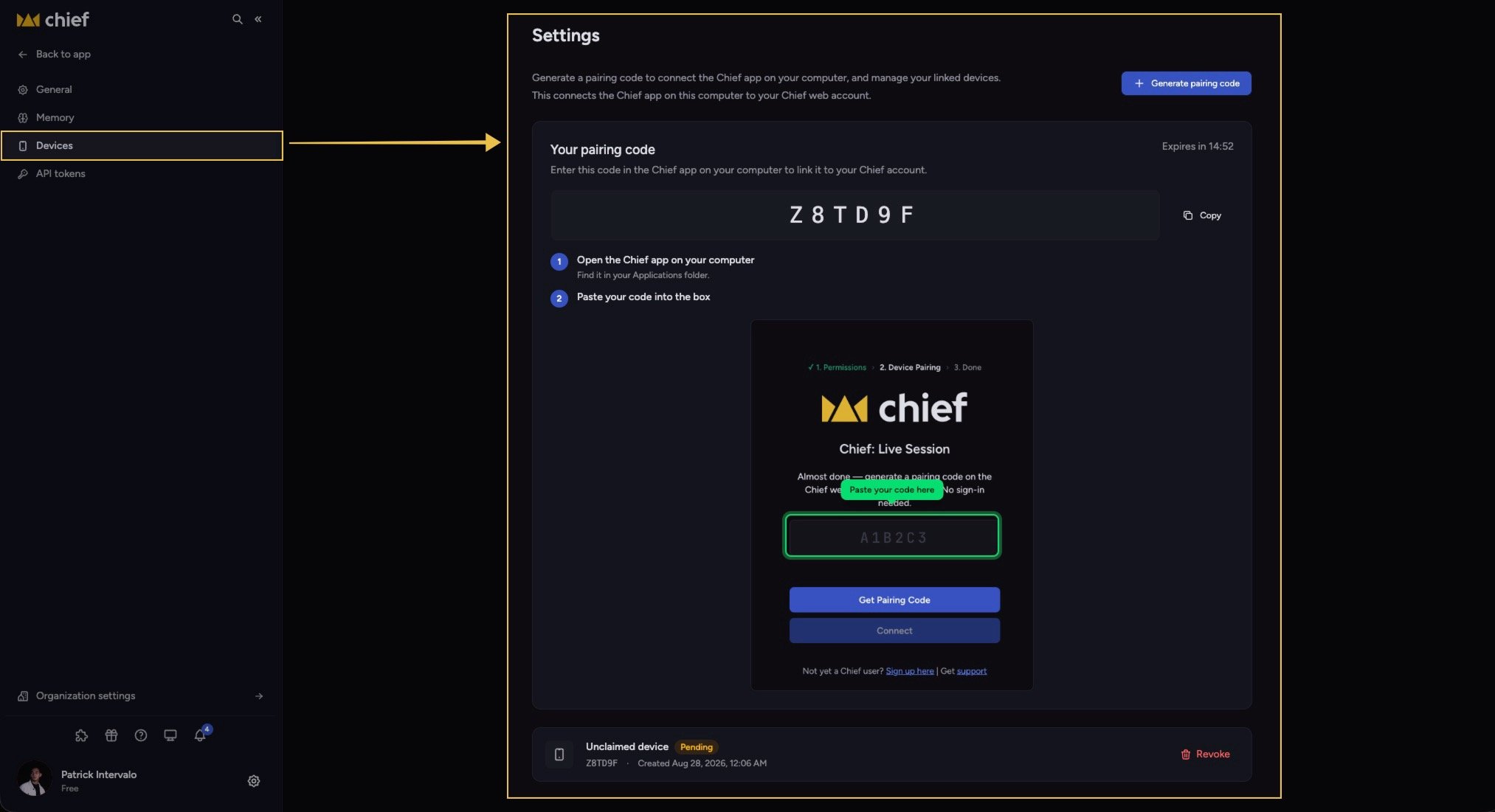 Once installed, link the app to your Chief web account so your sessions sync:
1. Open the **Chief** app on your Mac or Windows PC and start pairing.
2. The app opens a secure request in your browser. Sign in if needed.
3. Confirm the browser code matches the desktop app, then click **Connect this Mac** or **Connect this PC** within 15 minutes.
For the full walkthrough, see [Pairing & managing devices · Updating the app](/help/meetings-live-sessions/pairing-managing-devices-updating-the-app).
## FAQ
The app has to be paired with your account and granted microphone and system-audio permissions by your operating system. Pair it from **Settings** › **Devices**, then [check audio permissions for Chief](/help/troubleshooting/a-meeting-didnt-transcribe).
Yes. The same download area serves a Windows installer, and Windows supports Live Session capture, meeting detection, global shortcuts, screenshots, and automatic app updates.
On Mac, find Chief in **Applications**. On Windows, open it from the Start menu.
This documentation is built and hosted on [Mintlify](https://mintlify.com), a developer documentation platform.
Once installed, link the app to your Chief web account so your sessions sync:
1. Open the **Chief** app on your Mac or Windows PC and start pairing.
2. The app opens a secure request in your browser. Sign in if needed.
3. Confirm the browser code matches the desktop app, then click **Connect this Mac** or **Connect this PC** within 15 minutes.
For the full walkthrough, see [Pairing & managing devices · Updating the app](/help/meetings-live-sessions/pairing-managing-devices-updating-the-app).
## FAQ
The app has to be paired with your account and granted microphone and system-audio permissions by your operating system. Pair it from **Settings** › **Devices**, then [check audio permissions for Chief](/help/troubleshooting/a-meeting-didnt-transcribe).
Yes. The same download area serves a Windows installer, and Windows supports Live Session capture, meeting detection, global shortcuts, screenshots, and automatic app updates.
On Mac, find Chief in **Applications**. On Windows, open it from the Start menu.
This documentation is built and hosted on [Mintlify](https://mintlify.com), a developer documentation platform.