> ## Documentation Index
> Fetch the complete documentation index at: https://docs.chief.bot/llms.txt
> Use this file to discover all available pages before exploring further.
# Sharing and joining a Live Session
> Invite someone to participate in a Live Session or watch it read-only, then join by link or Session ID.
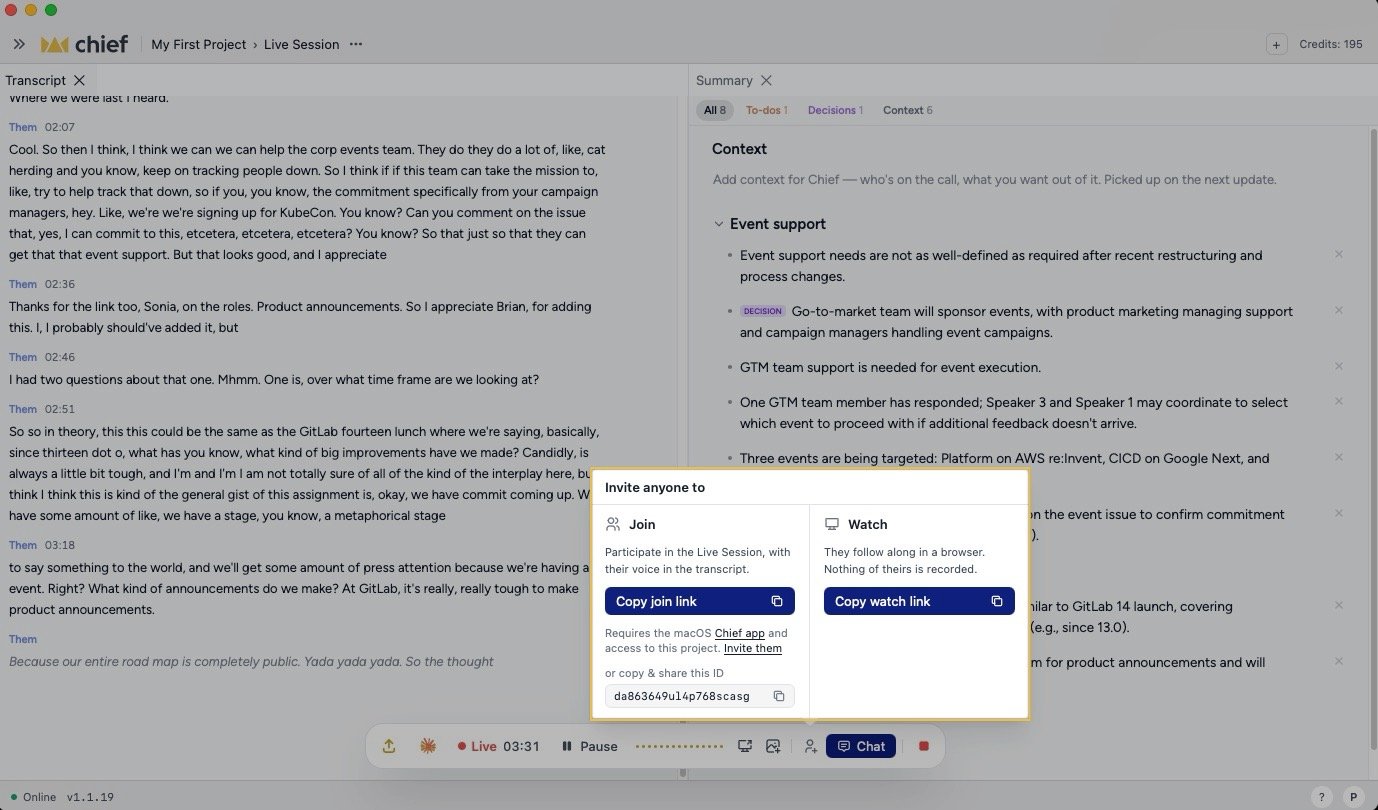
Share a [Live Session](/help/meetings-live-sessions/what-are-live-sessions) in one of two ways: invite someone to **Join** as a participant whose voice enters the transcript, or invite them to **Watch** a read-only view without recording anything from them.
 ## Share with a participant
1. While the Live Session is recording, click **Share** in the Live Sessions App.
2. Under **Join**, click **Copy join link** and send it to the participant.
3. If they already have the app open, you can instead copy the Session ID shown below the join link and send that.
Participants need the macOS [Chief Live Sessions App](/help/meetings-live-sessions/installing-the-chief-desktop-app-mac-required-for-capture) and access to the session's [Project](/help/projects-sharing-teams/inviting-members-email-domain-invite-link). Their voice becomes part of the transcript.
## Share with a watcher
1. While the Live Session is recording, click **Share**.
2. Under **Watch**, click **Copy watch link**. Chief creates the secret link the first time you copy it.
3. Send the link to the watcher.
Watchers follow the session in a browser. Their microphone, system audio, and screen context are not recorded. They do not need a Chief account or Project access.
**Important:** Anyone with the watch link can see the Live Session and its recap. Share it only with people who should see the meeting.
To stop public access, open **Share** and click **Turn off watch link**. This revokes the link without deleting the Live Session.
## Join with a Session ID
1. Open the Chief Live Sessions App.
2. Click **Join** in the session controls.
3. Paste the 20-character Session ID into **Link or session ID**.
4. Click **Join**.
Chief also accepts a Session ID written with the optional `session_` prefix. You still need access to the Project that owns the session.
## Join with a shared link
1. Open the Chief Live Sessions App and click **Join**.
2. Paste the join link or watch link into **Link or session ID**.
3. Click **Join**.
A join link connects you as a participant when you have Project access. A watch link first tries to connect you in the app; without Project access, Chief opens the read-only guest session instead. If the app cannot open it, click **Watch in the browser instead**.
You can also open a watch link directly in a browser. The view remains read-only and shows the live transcript and recap, including [screenshots added by the host](/help/meetings-live-sessions/adding-screenshots-images-to-a-transcript).
## FAQ
A participant joins through the macOS app, needs Project access, and has their voice included in the transcript. A watcher follows a read-only browser view, needs no account, and contributes nothing to the recording.
Paste the complete Chief join link, watch link, or 20-character Session ID. A watch link may also have been revoked by the host.
The app's participant and watcher controls are available while the session is recording. To share a completed session, open it in the [Chief Web App](/help/meetings-live-sessions/finding-live-session-recordings-in-the-web-app) and use its sharing controls.
No. The watch view is read-only. Ask the owner for Project access if you need to work with the meeting inside Chief.
## Share with a participant
1. While the Live Session is recording, click **Share** in the Live Sessions App.
2. Under **Join**, click **Copy join link** and send it to the participant.
3. If they already have the app open, you can instead copy the Session ID shown below the join link and send that.
Participants need the macOS [Chief Live Sessions App](/help/meetings-live-sessions/installing-the-chief-desktop-app-mac-required-for-capture) and access to the session's [Project](/help/projects-sharing-teams/inviting-members-email-domain-invite-link). Their voice becomes part of the transcript.
## Share with a watcher
1. While the Live Session is recording, click **Share**.
2. Under **Watch**, click **Copy watch link**. Chief creates the secret link the first time you copy it.
3. Send the link to the watcher.
Watchers follow the session in a browser. Their microphone, system audio, and screen context are not recorded. They do not need a Chief account or Project access.
**Important:** Anyone with the watch link can see the Live Session and its recap. Share it only with people who should see the meeting.
To stop public access, open **Share** and click **Turn off watch link**. This revokes the link without deleting the Live Session.
## Join with a Session ID
1. Open the Chief Live Sessions App.
2. Click **Join** in the session controls.
3. Paste the 20-character Session ID into **Link or session ID**.
4. Click **Join**.
Chief also accepts a Session ID written with the optional `session_` prefix. You still need access to the Project that owns the session.
## Join with a shared link
1. Open the Chief Live Sessions App and click **Join**.
2. Paste the join link or watch link into **Link or session ID**.
3. Click **Join**.
A join link connects you as a participant when you have Project access. A watch link first tries to connect you in the app; without Project access, Chief opens the read-only guest session instead. If the app cannot open it, click **Watch in the browser instead**.
You can also open a watch link directly in a browser. The view remains read-only and shows the live transcript and recap, including [screenshots added by the host](/help/meetings-live-sessions/adding-screenshots-images-to-a-transcript).
## FAQ
A participant joins through the macOS app, needs Project access, and has their voice included in the transcript. A watcher follows a read-only browser view, needs no account, and contributes nothing to the recording.
Paste the complete Chief join link, watch link, or 20-character Session ID. A watch link may also have been revoked by the host.
The app's participant and watcher controls are available while the session is recording. To share a completed session, open it in the [Chief Web App](/help/meetings-live-sessions/finding-live-session-recordings-in-the-web-app) and use its sharing controls.
No. The watch view is read-only. Ask the owner for Project access if you need to work with the meeting inside Chief.