> ## Documentation Index
> Fetch the complete documentation index at: https://docs.chief.bot/llms.txt
> Use this file to discover all available pages before exploring further.
# Creating & editing memories
> You can write memories yourself instead of waiting for Chief to capture them.
You can write memories yourself instead of waiting for [Chief to capture them](/help/memories/letting-chief-auto-capture-memories-from-chats). This is the fastest way to lock in a fact, preference, or instruction you want Chief to remember.
## Add a memory
1. Open the memory page for [the scope you want](/help/memories/personal-vs-project-vs-organization-memories): **Settings → Memory** for **Your Memories**, the project's **Memories** page for **Project Memories**, or the organization's **Memory** page for **Organization Memory**.
2. In the section header, click the **Add Memory** button (the one with the **+** icon). A text box appears.
3. Type your memory in the text box. The placeholder reads *"Enter a memory entry..."* Keep it to one clear fact, like *"Prefers concise answers with bullet points."*
4. Click **Save**. The memory appears in the list below. To back out instead, click **Cancel**.
🚀 **Pro-Tip:** One fact per memory. Short, single-idea memories are easier for Chief to match to the right moment than one long paragraph covering five topics.
## Edit a memory
 1. Find the memory in the list on its memory page.
2. On the memory card, click the **Edit** button (the pencil icon on the right). The card turns into an editable text box with the current text.
3. Change the wording.
4. Click **Save** to keep your change, or **Cancel** to discard it.
## Delete a memory
1. Find the memory in the list on its memory page.
2. On the memory card, click the **Edit** button (the pencil icon on the right). The card turns into an editable text box with the current text.
3. Change the wording.
4. Click **Save** to keep your change, or **Cancel** to discard it.
## Delete a memory
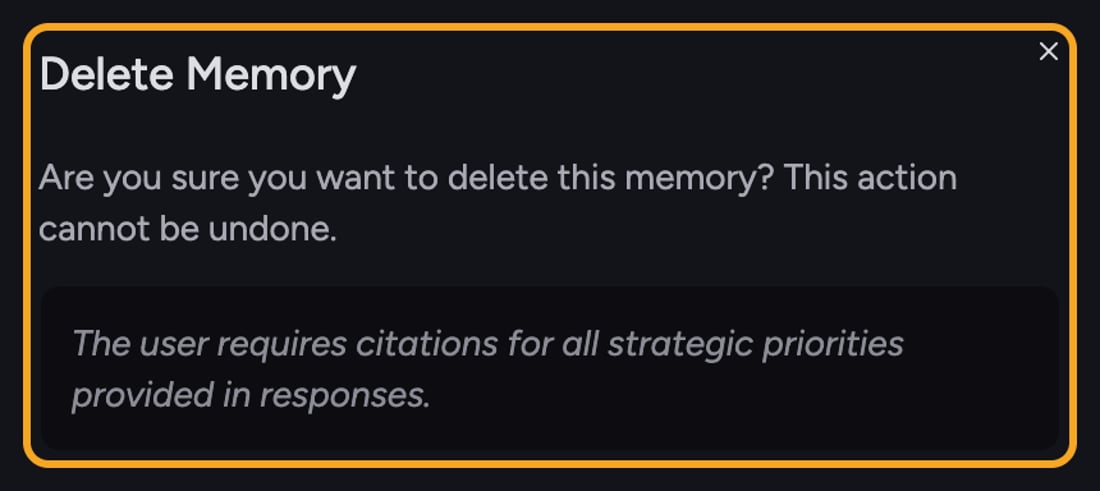 1. On the memory card, click the **Delete** button (the trash icon on the right).
2. A confirmation dialog titled **Delete Memory** appears, warning that this can't be undone.
3. Click **Delete** to remove it permanently.
⚠️ **Important:** Deleting is permanent — there's no undo. If you only want a memory out of the way for now, use [**Archive**](/help/memories/pinning-archiving-restoring-memories) instead. Archived memories can be restored later.
## FAQ
The **Add Memory** button only appears if you have permission to create memories in that scope. For **Project Memories** and **Organization Memory**, that depends on [your role](/help/projects-sharing-teams/roles-access-levels-owner-collaborator-reader) in the project or organization. You can still add memories in **Your Memories** under **Settings → Memory**.
You can only edit memories you're allowed to change. Owners can edit any memory in their scope; collaborators can edit the ones they created. If you didn't create that memory and aren't an owner, the edit, archive, and delete icons won't appear.
**Save** stays disabled until the text box has content. Type at least one non-blank character and it becomes clickable.
1. On the memory card, click the **Delete** button (the trash icon on the right).
2. A confirmation dialog titled **Delete Memory** appears, warning that this can't be undone.
3. Click **Delete** to remove it permanently.
⚠️ **Important:** Deleting is permanent — there's no undo. If you only want a memory out of the way for now, use [**Archive**](/help/memories/pinning-archiving-restoring-memories) instead. Archived memories can be restored later.
## FAQ
The **Add Memory** button only appears if you have permission to create memories in that scope. For **Project Memories** and **Organization Memory**, that depends on [your role](/help/projects-sharing-teams/roles-access-levels-owner-collaborator-reader) in the project or organization. You can still add memories in **Your Memories** under **Settings → Memory**.
You can only edit memories you're allowed to change. Owners can edit any memory in their scope; collaborators can edit the ones they created. If you didn't create that memory and aren't an owner, the edit, archive, and delete icons won't appear.
**Save** stays disabled until the text box has content. Type at least one non-blank character and it becomes clickable.