> ## Documentation Index
> Fetch the complete documentation index at: https://docs.chief.bot/llms.txt
> Use this file to discover all available pages before exploring further.
# Pinning, archiving & restoring memories
> Pinning and archiving help you keep your memory list focused.
Pinning and archiving help you keep your [memory](/help/memories/what-are-memories) list focused. Pin the few memories you want front and center, and archive the ones you don't need right now without losing them for good.
## Pin a memory
 1. Open the memory page and find the memory you want to highlight.
2. On the memory card, click the **Pin** button (the pin icon on the right). The icon fills in to show it's pinned, and the card gets a colored left edge.
3. Pinned memories move to the top of the list so they're easy to find.
To unpin, click the same pin button again — the icon returns to its outline state and the memory drops back into the normal order.
🚀 **Pro-Tip:** Pinning is for *your* organization of the list — it surfaces a memory at the top so you can find and review it quickly. Pin the handful of facts you reference most.
## Archive a memory
1. Open the memory page and find the memory you want to highlight.
2. On the memory card, click the **Pin** button (the pin icon on the right). The icon fills in to show it's pinned, and the card gets a colored left edge.
3. Pinned memories move to the top of the list so they're easy to find.
To unpin, click the same pin button again — the icon returns to its outline state and the memory drops back into the normal order.
🚀 **Pro-Tip:** Pinning is for *your* organization of the list — it surfaces a memory at the top so you can find and review it quickly. Pin the handful of facts you reference most.
## Archive a memory
 1. On the memory card, click the **Archive** button (the archive icon on the right).
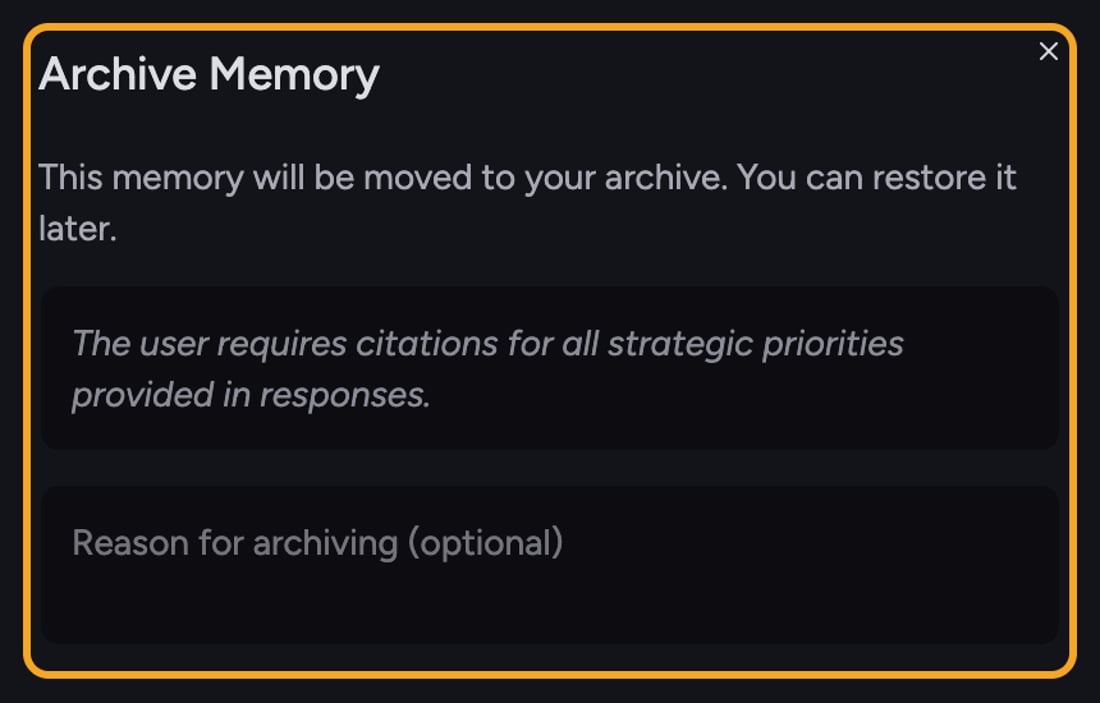
2. A dialog titled **Archive Memory** appears with the message *"This memory will be moved to your archive. You can restore it later."*
3. Optionally type a note in the **Reason for archiving (optional)** box.
4. Click **Archive**. The memory leaves your main list and moves to the archive.
## Restore an archived memory
1. On the memory page, find the **Archived Memories** section near the bottom and click it to expand.
2. Locate the memory you want back.
3. Click the **Restore** button (the refresh icon). The memory returns to your active list.
⚠️ **Important:** The archive also has a **Delete permanently** button (trash icon) next to **Restore**. That [removes the memory for good](/help/memories/creating-editing-memories) — there's no undo. Use **Restore** if you ever want the memory back.
## FAQ
No. Archiving moves the memory to the **Archived Memories** section, where it's kept until you restore it or delete it permanently. It just stops [cluttering your active list](/help/memories/memory-health-keeping-your-context-fresh).
Archived memories don't show in the main list. Scroll to the **Archived Memories** section at the bottom of the memory page and expand it — your archived memory is there, ready to **Restore**.
Those actions only appear on memories you're allowed to manage. For **Project Memories** and **Organization Memory**, that's [owners (any memory) and collaborators (their own)](/help/projects-sharing-teams/roles-access-levels-owner-collaborator-reader). If you can't act on a shared memory, you don't have edit rights for it.
1. On the memory card, click the **Archive** button (the archive icon on the right).
2. A dialog titled **Archive Memory** appears with the message *"This memory will be moved to your archive. You can restore it later."*
3. Optionally type a note in the **Reason for archiving (optional)** box.
4. Click **Archive**. The memory leaves your main list and moves to the archive.
## Restore an archived memory
1. On the memory page, find the **Archived Memories** section near the bottom and click it to expand.
2. Locate the memory you want back.
3. Click the **Restore** button (the refresh icon). The memory returns to your active list.
⚠️ **Important:** The archive also has a **Delete permanently** button (trash icon) next to **Restore**. That [removes the memory for good](/help/memories/creating-editing-memories) — there's no undo. Use **Restore** if you ever want the memory back.
## FAQ
No. Archiving moves the memory to the **Archived Memories** section, where it's kept until you restore it or delete it permanently. It just stops [cluttering your active list](/help/memories/memory-health-keeping-your-context-fresh).
Archived memories don't show in the main list. Scroll to the **Archived Memories** section at the bottom of the memory page and expand it — your archived memory is there, ready to **Restore**.
Those actions only appear on memories you're allowed to manage. For **Project Memories** and **Organization Memory**, that's [owners (any memory) and collaborators (their own)](/help/projects-sharing-teams/roles-access-levels-owner-collaborator-reader). If you can't act on a shared memory, you don't have edit rights for it.