> ## Documentation Index
> Fetch the complete documentation index at: https://docs.chief.bot/llms.txt
> Use this file to discover all available pages before exploring further.
# What are Memories?
> Memories let Chief remember the facts, preferences, and context that matter to you — so you stop re-explaining yourself in every chat.
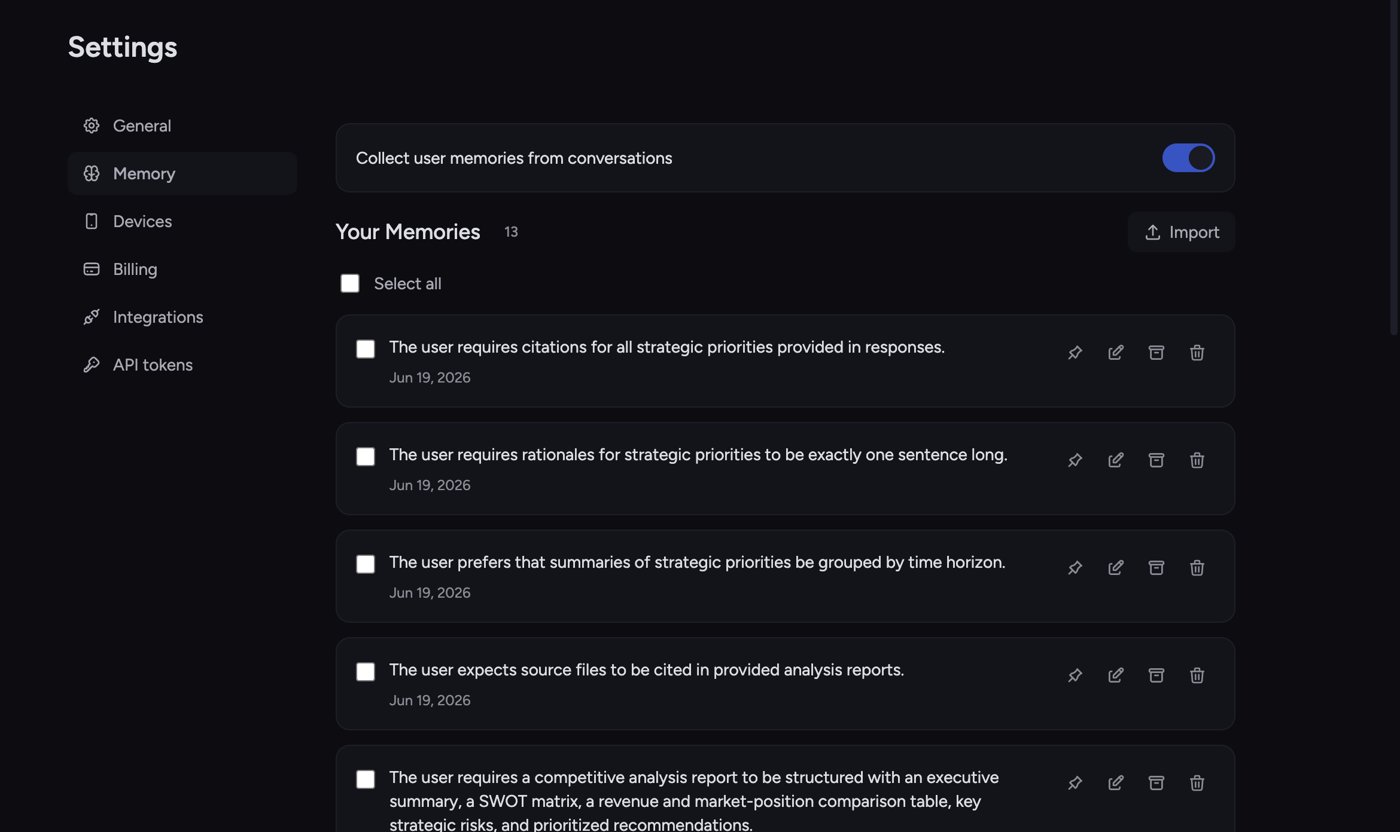 **Memories let Chief remember the facts, preferences, and context that matter to you — so you stop re-explaining yourself in every [chat](/help/chatting-with-chief/how-chats-work).** Tell Chief once that you write in British English, that your company ships on Tuesdays, or that your design team uses Figma, and Chief carries that forward into future answers automatically.
## Why Memories matter
Without Memories, every conversation starts from zero. You re-state your role, your tools, your tone, and your constraints each time. Memories fix that. Chief keeps a small, editable set of notes about you and your work, and pulls in the relevant ones when it answers — so its responses get more personal and more accurate the more you use it.
## A quick example
Say you tell Chief in one chat: *"I'm a product marketer at a B2B SaaS company, and I always want examples aimed at technical buyers."* Chief saves that as a memory. A week later, in a brand-new conversation, you ask it to draft a feature announcement. Without being reminded, Chief writes for technical buyers and skips consumer-style fluff — because it remembered.
## How Memories work
1. **Capture.** Memories are created two ways: [you add them yourself](/help/memories/creating-editing-memories), or [Chief auto-captures them](/help/memories/letting-chief-auto-capture-memories-from-chats) from your conversations when collection is turned on.
2. **Storage.** Each memory is a short, plain-text note. You can view, edit, [pin, archive](/help/memories/pinning-archiving-restoring-memories), or delete any of them.
3. **Use.** When you chat, Chief draws on the relevant memories for your current scope to personalize its response.
ℹ️ **Good to Know:** Memories come in three scopes — **Your Memories** (personal), **Project Memories**, and **Organization Memory**. Personal memories follow you everywhere; project and organization memories are shared with that project or organization. See [Personal vs. project vs. organization memories](/help/memories/personal-vs-project-vs-organization-memories) for the full breakdown.
## Where to find your Memories
* **Your Memories:** open **Settings → Memory**.
* **Project Memories:** open the **Memories** page inside a project.
* **[Organization Memory](/help/organization-administration/organization-memory-shared-across-all-projects):** open your organization's **Memory** page (owners and collaborators).
## Turning memories on or off for a single chat
**Memories let Chief remember the facts, preferences, and context that matter to you — so you stop re-explaining yourself in every [chat](/help/chatting-with-chief/how-chats-work).** Tell Chief once that you write in British English, that your company ships on Tuesdays, or that your design team uses Figma, and Chief carries that forward into future answers automatically.
## Why Memories matter
Without Memories, every conversation starts from zero. You re-state your role, your tools, your tone, and your constraints each time. Memories fix that. Chief keeps a small, editable set of notes about you and your work, and pulls in the relevant ones when it answers — so its responses get more personal and more accurate the more you use it.
## A quick example
Say you tell Chief in one chat: *"I'm a product marketer at a B2B SaaS company, and I always want examples aimed at technical buyers."* Chief saves that as a memory. A week later, in a brand-new conversation, you ask it to draft a feature announcement. Without being reminded, Chief writes for technical buyers and skips consumer-style fluff — because it remembered.
## How Memories work
1. **Capture.** Memories are created two ways: [you add them yourself](/help/memories/creating-editing-memories), or [Chief auto-captures them](/help/memories/letting-chief-auto-capture-memories-from-chats) from your conversations when collection is turned on.
2. **Storage.** Each memory is a short, plain-text note. You can view, edit, [pin, archive](/help/memories/pinning-archiving-restoring-memories), or delete any of them.
3. **Use.** When you chat, Chief draws on the relevant memories for your current scope to personalize its response.
ℹ️ **Good to Know:** Memories come in three scopes — **Your Memories** (personal), **Project Memories**, and **Organization Memory**. Personal memories follow you everywhere; project and organization memories are shared with that project or organization. See [Personal vs. project vs. organization memories](/help/memories/personal-vs-project-vs-organization-memories) for the full breakdown.
## Where to find your Memories
* **Your Memories:** open **Settings → Memory**.
* **Project Memories:** open the **Memories** page inside a project.
* **[Organization Memory](/help/organization-administration/organization-memory-shared-across-all-projects):** open your organization's **Memory** page (owners and collaborators).
## Turning memories on or off for a single chat
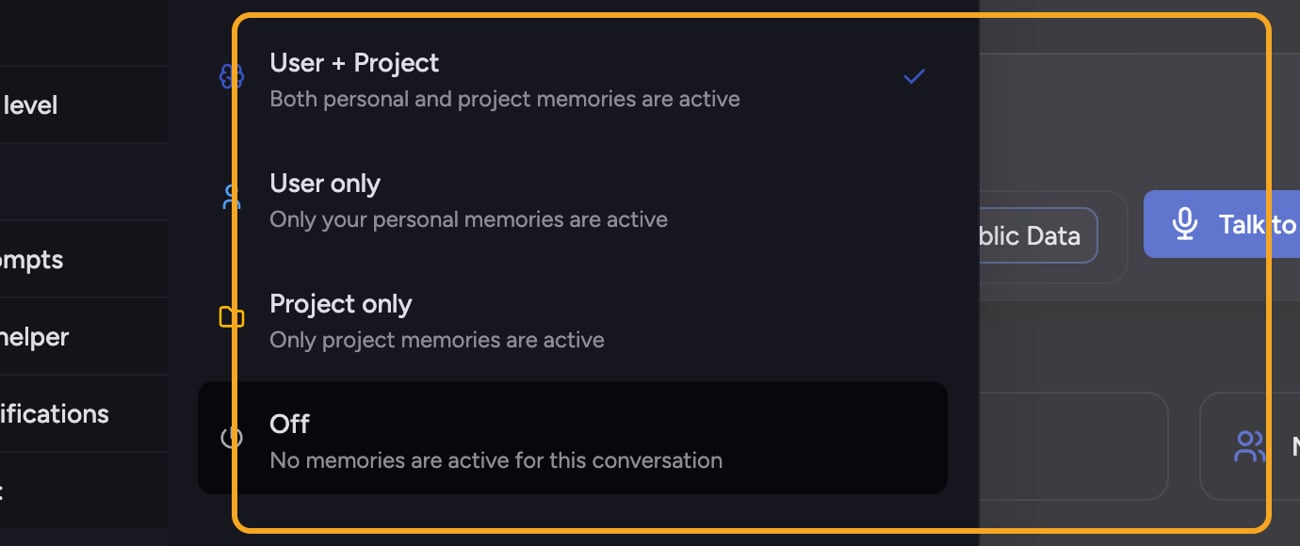 You don't have to use every memory in every conversation. In the [prompt bar](/help/the-prompt-bar-scope/the-prompt-bar-a-tour-of-your-chat-controls), open the **Memory** menu to choose which memories are active for that chat: **User + Project**, **User only**, **Project only**, or **Off**. This only affects the current conversation — it doesn't delete anything.
## FAQ
No. You can add memories yourself, but Chief can also auto-capture them from your chats when collection is enabled. You stay in control — every captured memory can be edited or deleted.
It depends on the memory mode for that chat. In **User + Project** mode both are active; in **Project only** mode your personal memories are not used. Set the mode in the prompt bar's **Memory** menu before you send.
Two common causes: the memory mode for that chat was set to **Off** or to a scope that excludes the memory, or the fact was never actually saved as a memory. Open **Settings → Memory** (or the relevant Project/Organization memory page) to confirm the memory exists, then check the **Memory** menu in the prompt bar.
You don't have to use every memory in every conversation. In the [prompt bar](/help/the-prompt-bar-scope/the-prompt-bar-a-tour-of-your-chat-controls), open the **Memory** menu to choose which memories are active for that chat: **User + Project**, **User only**, **Project only**, or **Off**. This only affects the current conversation — it doesn't delete anything.
## FAQ
No. You can add memories yourself, but Chief can also auto-capture them from your chats when collection is enabled. You stay in control — every captured memory can be edited or deleted.
It depends on the memory mode for that chat. In **User + Project** mode both are active; in **Project only** mode your personal memories are not used. Set the mode in the prompt bar's **Memory** menu before you send.
Two common causes: the memory mode for that chat was set to **Off** or to a scope that excludes the memory, or the fact was never actually saved as a memory. Open **Settings → Memory** (or the relevant Project/Organization memory page) to confirm the memory exists, then check the **Memory** menu in the prompt bar.