> ## Documentation Index
> Fetch the complete documentation index at: https://docs.chief.bot/llms.txt
> Use this file to discover all available pages before exploring further.
# Managing members & roles at the org level
> In Chief, who can do what is governed by roles on each Project, while broad company-wide access is governed by domain-based joining.
In Chief, who can do what is governed by [**roles on each Project**](/help/projects-sharing-teams/roles-access-levels-owner-collaborator-reader), while broad company-wide access is governed by [**domain-based**](/help/organization-administration/understanding-seats-domain-based-access) joining. Understanding the split helps you give the right people the right access.
## Roles are set per Project
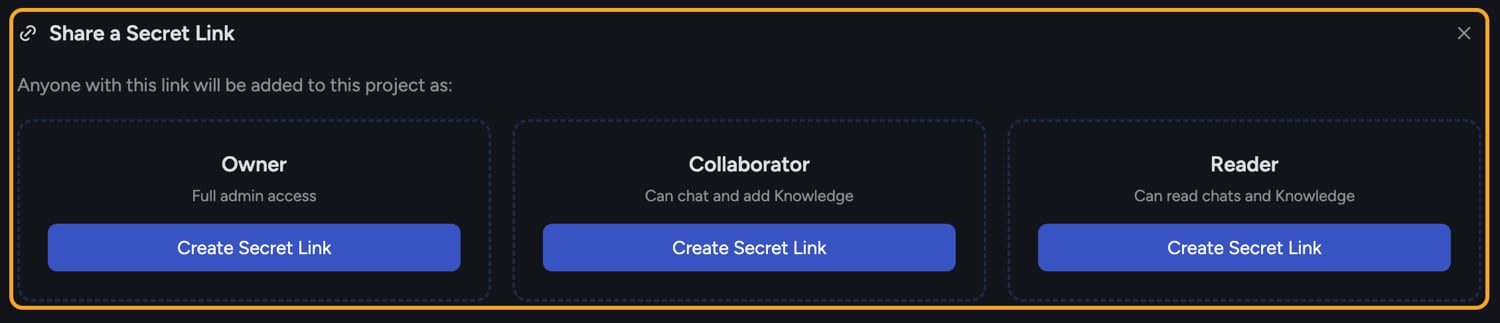 Each Project has its own members and roles. Open a Project's [**Share this Project** panel](/help/projects-sharing-teams/removing-members-managing-access) to see the **Current Members** list, where each person shows a role badge and how they joined (by **Email**, **Domain**, or **Link**). The three roles are:
* **Owner** — Full admin access (including sharing and settings).
* **Collaborator** — Can chat and add Knowledge.
* **Reader** — Can read chats and Knowledge.
## How people join
Each Project has its own members and roles. Open a Project's [**Share this Project** panel](/help/projects-sharing-teams/removing-members-managing-access) to see the **Current Members** list, where each person shows a role badge and how they joined (by **Email**, **Domain**, or **Link**). The three roles are:
* **Owner** — Full admin access (including sharing and settings).
* **Collaborator** — Can chat and add Knowledge.
* **Reader** — Can read chats and Knowledge.
## How people join
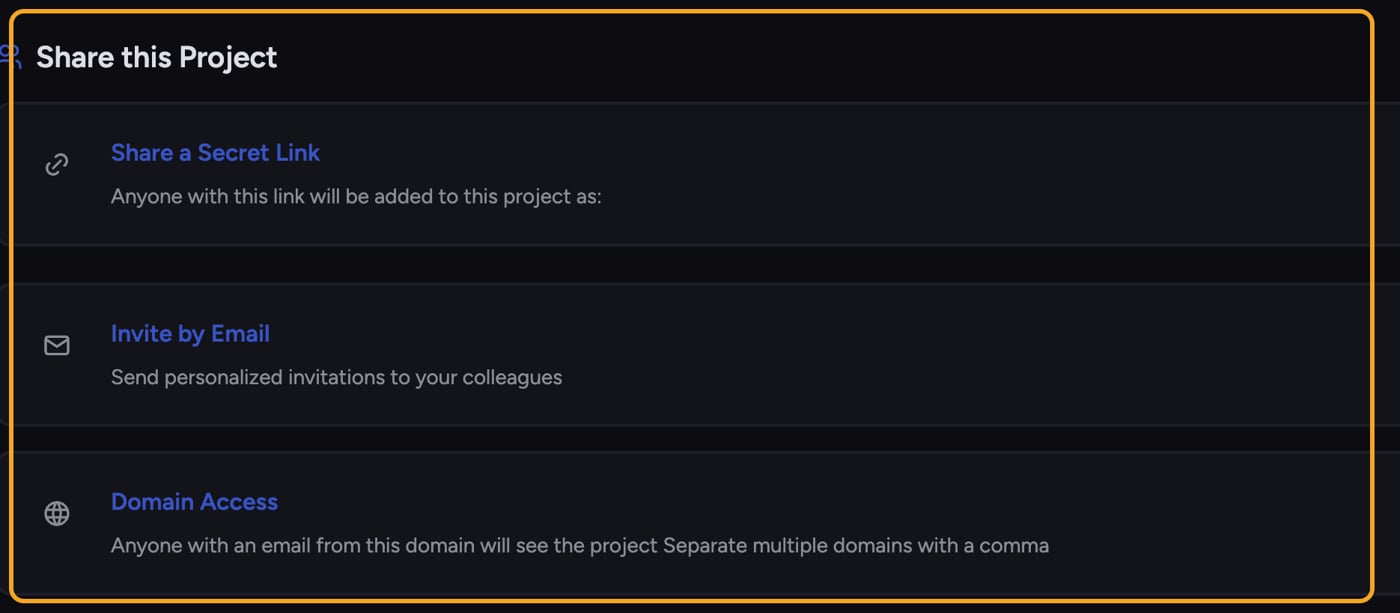 From a Project's **Share this Project** panel, an Owner can grant access three ways:
* **[Invite by Email](/help/projects-sharing-teams/inviting-members-email-domain-invite-link)** — Send a personalized invitation to specific colleagues at a chosen role.
* **Share a Secret Link** — Anyone who opens the link is added to the Project at the role you set on the link.
* **Domain Access** — Anyone with an email address from a domain you add automatically sees the Project. This is how you grant company-wide access.
ℹ️ **Good to Know:** Chief doesn't have a separate org-level members roster with seats to assign. Org-wide access comes from **domain-based** joining plus per-Project roles — not a per-seat license you allocate.
## Removing access
To cut off a whole domain, remove that domain under **Domain Access** — every user with that email domain loses access to the Project. To revoke a secret-link invite, delete that secret link; everyone who joined through it loses access. See **Removing members and managing access** for the exact steps.
## Frequently asked questions
They probably have access through more than one path — for example, both a domain grant and an email invite. Check the **Current Members** list to see how they joined, and remove each path that applies.
Membership lives on each Project, not in one central org roster. [Organization settings](/help/organization-administration/organization-settings-overview) cover General, Memory, and Integrations; to manage people, open the relevant Project's **Share this Project** panel.
The role you choose when creating the link — Owner, Collaborator, or Reader. Everyone who joins through that link gets that role.
From a Project's **Share this Project** panel, an Owner can grant access three ways:
* **[Invite by Email](/help/projects-sharing-teams/inviting-members-email-domain-invite-link)** — Send a personalized invitation to specific colleagues at a chosen role.
* **Share a Secret Link** — Anyone who opens the link is added to the Project at the role you set on the link.
* **Domain Access** — Anyone with an email address from a domain you add automatically sees the Project. This is how you grant company-wide access.
ℹ️ **Good to Know:** Chief doesn't have a separate org-level members roster with seats to assign. Org-wide access comes from **domain-based** joining plus per-Project roles — not a per-seat license you allocate.
## Removing access
To cut off a whole domain, remove that domain under **Domain Access** — every user with that email domain loses access to the Project. To revoke a secret-link invite, delete that secret link; everyone who joined through it loses access. See **Removing members and managing access** for the exact steps.
## Frequently asked questions
They probably have access through more than one path — for example, both a domain grant and an email invite. Check the **Current Members** list to see how they joined, and remove each path that applies.
Membership lives on each Project, not in one central org roster. [Organization settings](/help/organization-administration/organization-settings-overview) cover General, Memory, and Integrations; to manage people, open the relevant Project's **Share this Project** panel.
The role you choose when creating the link — Owner, Collaborator, or Reader. Everyone who joins through that link gets that role.