> ## Documentation Index
> Fetch the complete documentation index at: https://docs.chief.bot/llms.txt
> Use this file to discover all available pages before exploring further.
# Understanding seats & domain-based access
> If you're used to tools that bill by "seats" and ask you to assign one to each person, Chief works differently.
If you're used to tools that bill by "seats" and ask you to assign one to each person, Chief works differently. Access is **domain-based** and [**role-based**](/help/projects-sharing-teams/roles-access-levels-owner-collaborator-reader) at the Project level — you don't buy and allocate a fixed number of seats.
## Domain-based access
 The fastest way to give a whole team access is **Domain Access** on a Project. From the Project's [**Share this Project** panel](/help/projects-sharing-teams/inviting-members-email-domain-invite-link), add one or more email domains under **Domain Access**. Anyone whose email address is on a listed domain will automatically see the Project — no individual invite required. You can list several domains, separated by commas.
## Two other ways to grant access
The fastest way to give a whole team access is **Domain Access** on a Project. From the Project's [**Share this Project** panel](/help/projects-sharing-teams/inviting-members-email-domain-invite-link), add one or more email domains under **Domain Access**. Anyone whose email address is on a listed domain will automatically see the Project — no individual invite required. You can list several domains, separated by commas.
## Two other ways to grant access
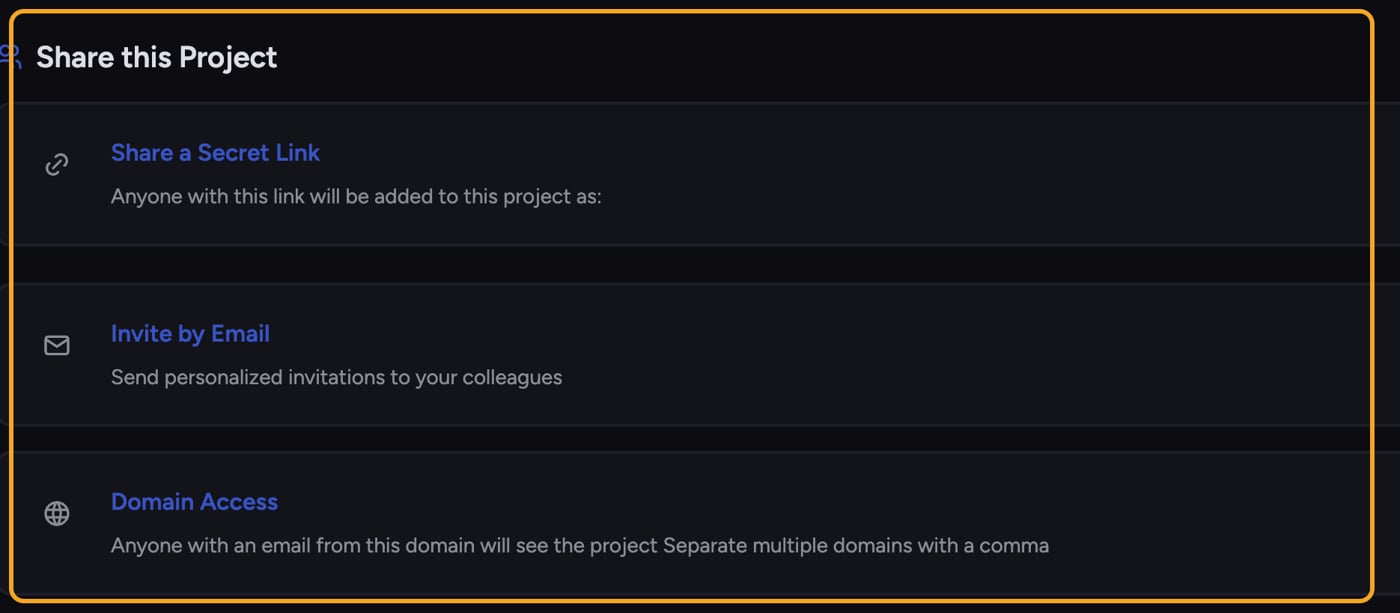 * **Invite by Email** — Send a personalized invite to specific people at a chosen role.
* **Share a Secret Link** — Anyone who opens the link joins the Project at the role set on the link.
Each member's role — **Owner**, **Collaborator**, or **Reader** — determines what they can do once they're in. The [**Current Members** list](/help/projects-sharing-teams/removing-members-managing-access) shows each person's role and whether they joined by Email, Domain, or Link.
ℹ️ **Good to Know:** There's no per-seat model to manage. You grant access by domain, email invite, or secret link, and control capability with roles. You don't assign or count seats.
## Removing domain access
1. Open the Project's **Share this Project** panel and find the domain under **Domain Access**.
2. Click the domain's remove (trash) control. A confirmation appears: **Remove domain access for @domain?**
3. Confirm with **Yes, Remove Domain**. Everyone with an email on that domain loses access to the Project.
## Frequently asked questions
Chief doesn't allocate per-seat licenses for Project access. You grant access by domain, email invite, or secret link. [Plan tiers](/help/plans-credits-billing/plans-overview-explore-pro-power-user-enterprise) can gate certain features (for example [the Google Workspace integration](/help/integrations/google-workspace-org-wide-setup-admin-guide)), but Project membership isn't counted as seats.
Check that their email address is exactly on the domain you added (watch for subdomains and typos), and that they're signed in with that address. If they signed up with a personal email instead of their company domain, they won't match.
Removing a domain only removes access granted through that domain. Anyone who also joined by email invite or secret link keeps that access. Check the **Current Members** list to see each person's join method.
* **Invite by Email** — Send a personalized invite to specific people at a chosen role.
* **Share a Secret Link** — Anyone who opens the link joins the Project at the role set on the link.
Each member's role — **Owner**, **Collaborator**, or **Reader** — determines what they can do once they're in. The [**Current Members** list](/help/projects-sharing-teams/removing-members-managing-access) shows each person's role and whether they joined by Email, Domain, or Link.
ℹ️ **Good to Know:** There's no per-seat model to manage. You grant access by domain, email invite, or secret link, and control capability with roles. You don't assign or count seats.
## Removing domain access
1. Open the Project's **Share this Project** panel and find the domain under **Domain Access**.
2. Click the domain's remove (trash) control. A confirmation appears: **Remove domain access for @domain?**
3. Confirm with **Yes, Remove Domain**. Everyone with an email on that domain loses access to the Project.
## Frequently asked questions
Chief doesn't allocate per-seat licenses for Project access. You grant access by domain, email invite, or secret link. [Plan tiers](/help/plans-credits-billing/plans-overview-explore-pro-power-user-enterprise) can gate certain features (for example [the Google Workspace integration](/help/integrations/google-workspace-org-wide-setup-admin-guide)), but Project membership isn't counted as seats.
Check that their email address is exactly on the domain you added (watch for subdomains and typos), and that they're signed in with that address. If they signed up with a personal email instead of their company domain, they won't match.
Removing a domain only removes access granted through that domain. Anyone who also joined by email invite or secret link keeps that access. Check the **Current Members** list to see each person's join method.