> ## Documentation Index
> Fetch the complete documentation index at: https://docs.chief.bot/llms.txt
> Use this file to discover all available pages before exploring further.
# Creating & configuring a project
> Use a new Project whenever you want to separate a body of work or collaborate with a specific group.
## Create a new Project
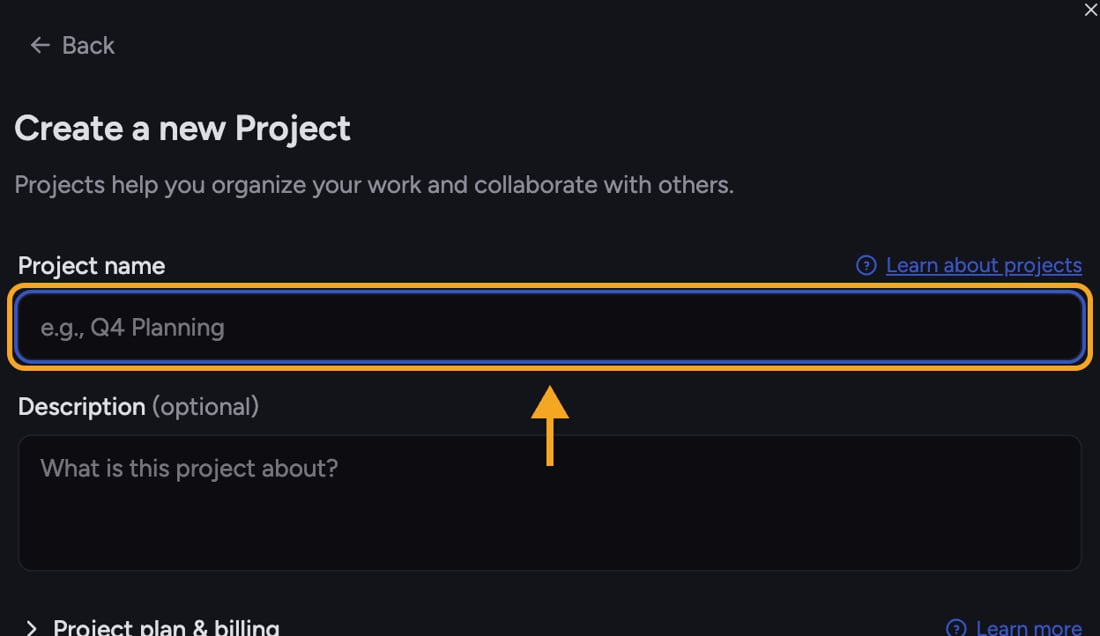 Use a new [Project](/help/projects-sharing-teams/what-is-a-project) whenever you want to separate a body of work or collaborate with a specific group.
1. At the top of the app, click the **project name** to open the [**Switch Projects** picker](/help/projects-sharing-teams/switching-bookmarking-discovering-projects).
2. Click the **+ New Project** button. The **Create a new Project** form appears.
3. In the **Project name** field, type a name (for example, "Q3 Campaign"). This field is required.
4. Optional: in the **Description** field, add a short note about what the Project is for.
5. Click the **Create project** button. Chief creates the Project and switches you into it.
⚠️ **Important:** You need to be signed in to create a Project. If you're using Chief as a guest, clicking **+ New Project** opens a sign-up prompt first — [create your account](/help/getting-started/creating-your-account-signing-in), then the Project.
## Set the plan & billing
Use a new [Project](/help/projects-sharing-teams/what-is-a-project) whenever you want to separate a body of work or collaborate with a specific group.
1. At the top of the app, click the **project name** to open the [**Switch Projects** picker](/help/projects-sharing-teams/switching-bookmarking-discovering-projects).
2. Click the **+ New Project** button. The **Create a new Project** form appears.
3. In the **Project name** field, type a name (for example, "Q3 Campaign"). This field is required.
4. Optional: in the **Description** field, add a short note about what the Project is for.
5. Click the **Create project** button. Chief creates the Project and switches you into it.
⚠️ **Important:** You need to be signed in to create a Project. If you're using Chief as a guest, clicking **+ New Project** opens a sign-up prompt first — [create your account](/help/getting-started/creating-your-account-signing-in), then the Project.
## Set the plan & billing
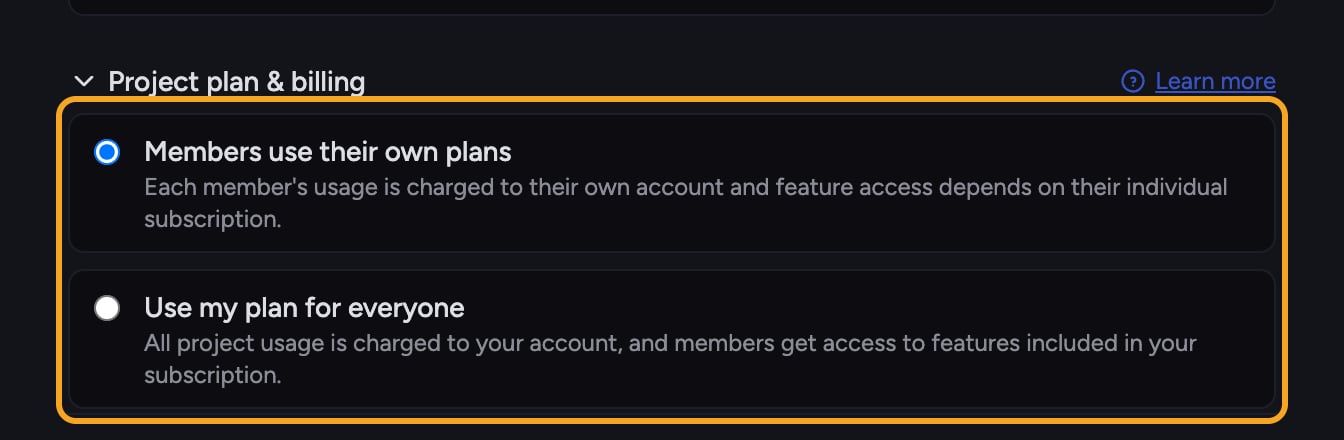 The create form includes a **Project plan & billing** section that controls which subscription funds the Project. It's collapsed by default — click the heading (with the chevron) to expand it, then choose one of two options:
* **Members use their own plans** (the default) — each member's usage is charged to their own account, and feature access depends on their [individual subscription](/help/plans-credits-billing/plans-overview-explore-pro-power-user-enterprise).
* **Use my plan for everyone** — all Project usage is charged to your account, and members get access to the features included in your subscription.
You don't have to expand this section — if you leave it alone, the Project is created with **Members use their own plans**. For a deeper look at this choice, see [**Choosing which plan funds a project**](/help/projects-sharing-teams/choosing-which-plan-funds-a-project-billing-source).
## Rename or edit a Project later
The create form includes a **Project plan & billing** section that controls which subscription funds the Project. It's collapsed by default — click the heading (with the chevron) to expand it, then choose one of two options:
* **Members use their own plans** (the default) — each member's usage is charged to their own account, and feature access depends on their [individual subscription](/help/plans-credits-billing/plans-overview-explore-pro-power-user-enterprise).
* **Use my plan for everyone** — all Project usage is charged to your account, and members get access to the features included in your subscription.
You don't have to expand this section — if you leave it alone, the Project is created with **Members use their own plans**. For a deeper look at this choice, see [**Choosing which plan funds a project**](/help/projects-sharing-teams/choosing-which-plan-funds-a-project-billing-source).
## Rename or edit a Project later
 To change a Project's name or description after it exists:
1. Click the **project name** at the top of the app to open the **Switch Projects** picker.
2. Find the Project's row and click its **Rename** (pencil) icon. The **Edit this Project** dialog opens.
3. Update the **Project name** and/or **Description** fields.
4. Click **Save**.
ℹ️ **Good to Know:** When you're already inside a Project, you can rename or [delete it](/help/projects-sharing-teams/deleting-a-project) from the **⋯** menu in the top-right — choose **Edit Project name** or **Delete Project**.
## Frequently asked questions
The **Project name** field is required. The button stays disabled until you've typed a name. Add a name and it becomes clickable.
The plan and billing choice is made when you create the Project. See **Choosing which plan funds a project** for how the two options behave and what to do if you need to change funding later.
Creating a Project requires an account. Finish signing up and Chief will return you to the create form.
To change a Project's name or description after it exists:
1. Click the **project name** at the top of the app to open the **Switch Projects** picker.
2. Find the Project's row and click its **Rename** (pencil) icon. The **Edit this Project** dialog opens.
3. Update the **Project name** and/or **Description** fields.
4. Click **Save**.
ℹ️ **Good to Know:** When you're already inside a Project, you can rename or [delete it](/help/projects-sharing-teams/deleting-a-project) from the **⋯** menu in the top-right — choose **Edit Project name** or **Delete Project**.
## Frequently asked questions
The **Project name** field is required. The button stays disabled until you've typed a name. Add a name and it becomes clickable.
The plan and billing choice is made when you create the Project. See **Choosing which plan funds a project** for how the two options behave and what to do if you need to change funding later.
Creating a Project requires an account. Finish signing up and Chief will return you to the create form.