> ## Documentation Index
> Fetch the complete documentation index at: https://docs.chief.bot/llms.txt
> Use this file to discover all available pages before exploring further.
# Inviting members (email, domain, invite link)
> All three invite methods live in the same place.
## Open the Share this Project window
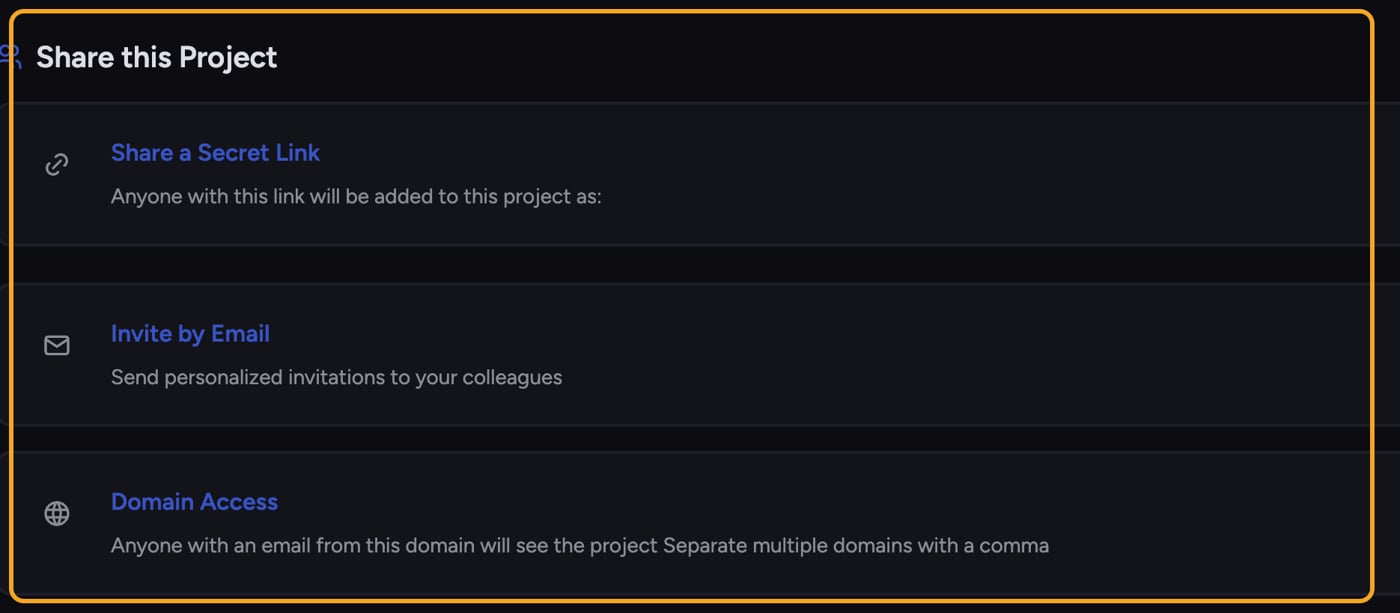 All three invite methods live in the same place.
1. Open the [**Switch Projects** picker](/help/projects-sharing-teams/switching-bookmarking-discovering-projects) by clicking the project name at the top of the app.
2. On the Project's card, click the **Share Project** action (or **Invite others to this project**). The **Share this Project** window opens.
⚠️ **Important:** Only members who can manage the Project can invite people. If you open the window and see a permission message instead of the invite options, ask an Owner to send the invite or grant you [the right role](/help/projects-sharing-teams/roles-access-levels-owner-collaborator-reader).
## Invite by email
All three invite methods live in the same place.
1. Open the [**Switch Projects** picker](/help/projects-sharing-teams/switching-bookmarking-discovering-projects) by clicking the project name at the top of the app.
2. On the Project's card, click the **Share Project** action (or **Invite others to this project**). The **Share this Project** window opens.
⚠️ **Important:** Only members who can manage the Project can invite people. If you open the window and see a permission message instead of the invite options, ask an Owner to send the invite or grant you [the right role](/help/projects-sharing-teams/roles-access-levels-owner-collaborator-reader).
## Invite by email
 Best when you know exactly who you want to add.
1. In the **Share this Project** window, open the **Invite by Email** section.
2. In the email field, type one or more addresses, pressing Enter or comma between them.
3. Use the **role dropdown** next to the field to set the role for these invitees (**Owner**, **Collaborator**, or **Reader**). It defaults to your own role (the role you hold in the Project).
4. Click **Add**. Chief sends each person an invitation.
## Invite by domain
Best for letting everyone at your company join without naming each person.
1. Open the **Domain Access** section.
2. Type a domain (for example, **acme.com**) in the field. Separate multiple domains with a comma.
3. Set the role with the dropdown.
4. Click **Add**.
[Anyone with an email from that domain](/help/organization-administration/understanding-seats-domain-based-access) will then be able to see the Project.
## Share a secret link
Best when you know exactly who you want to add.
1. In the **Share this Project** window, open the **Invite by Email** section.
2. In the email field, type one or more addresses, pressing Enter or comma between them.
3. Use the **role dropdown** next to the field to set the role for these invitees (**Owner**, **Collaborator**, or **Reader**). It defaults to your own role (the role you hold in the Project).
4. Click **Add**. Chief sends each person an invitation.
## Invite by domain
Best for letting everyone at your company join without naming each person.
1. Open the **Domain Access** section.
2. Type a domain (for example, **acme.com**) in the field. Separate multiple domains with a comma.
3. Set the role with the dropdown.
4. Click **Add**.
[Anyone with an email from that domain](/help/organization-administration/understanding-seats-domain-based-access) will then be able to see the Project.
## Share a secret link
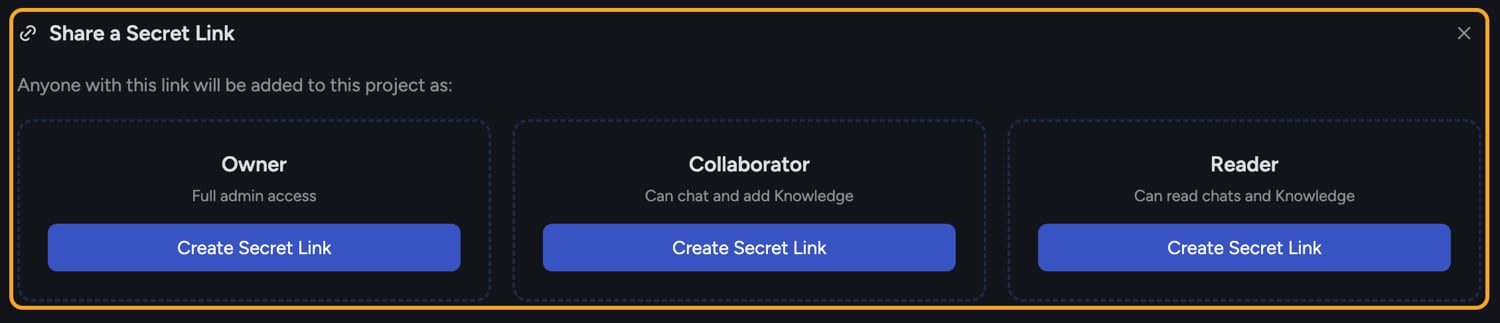 Best for a quick, open invite you can paste into a chat or doc.
1. Open the **Share a Secret Link** section.
2. Choose the role the link should grant. The section shows what each role can do — Owner is **Full admin access**, Collaborator **Can chat and add Knowledge**, Reader **Can read chats and Knowledge**.
3. Click **Create Secret Link**.
4. Click **Copy Link** and share it.
⚠️ **Important:** A secret link adds *anyone who opens it* at the role you chose. If you set it to Owner, every person who follows the link becomes an Owner with full admin rights. For wide sharing, prefer Collaborator or Reader.
## What happens for the person you invite
When someone opens an invite, Chief adds them to the Project and takes them to its home. If they aren't signed in yet, they're sent to [sign up](/help/getting-started/creating-your-account-signing-in) first, then added automatically once their account exists.
## Frequently asked questions
The entry has to be a valid email address (for email invites) or a valid domain like acme.com (for domain access). Fix the format and the **Add** button activates.
The link may have [been deleted](/help/projects-sharing-teams/removing-members-managing-access), or the invitation is no longer valid. Create a fresh secret link, or invite that person directly by email.
Yes for email and domain invites — after adding entries, each one has its own role dropdown you can change before or after sending.
Best for a quick, open invite you can paste into a chat or doc.
1. Open the **Share a Secret Link** section.
2. Choose the role the link should grant. The section shows what each role can do — Owner is **Full admin access**, Collaborator **Can chat and add Knowledge**, Reader **Can read chats and Knowledge**.
3. Click **Create Secret Link**.
4. Click **Copy Link** and share it.
⚠️ **Important:** A secret link adds *anyone who opens it* at the role you chose. If you set it to Owner, every person who follows the link becomes an Owner with full admin rights. For wide sharing, prefer Collaborator or Reader.
## What happens for the person you invite
When someone opens an invite, Chief adds them to the Project and takes them to its home. If they aren't signed in yet, they're sent to [sign up](/help/getting-started/creating-your-account-signing-in) first, then added automatically once their account exists.
## Frequently asked questions
The entry has to be a valid email address (for email invites) or a valid domain like acme.com (for domain access). Fix the format and the **Add** button activates.
The link may have [been deleted](/help/projects-sharing-teams/removing-members-managing-access), or the invitation is no longer valid. Create a fresh secret link, or invite that person directly by email.
Yes for email and domain invites — after adding entries, each one has its own role dropdown you can change before or after sending.