> ## Documentation Index
> Fetch the complete documentation index at: https://docs.chief.bot/llms.txt
> Use this file to discover all available pages before exploring further.
# Removing members & managing access
> Access to a Project is controlled by the invitations that granted it.
## How access is managed
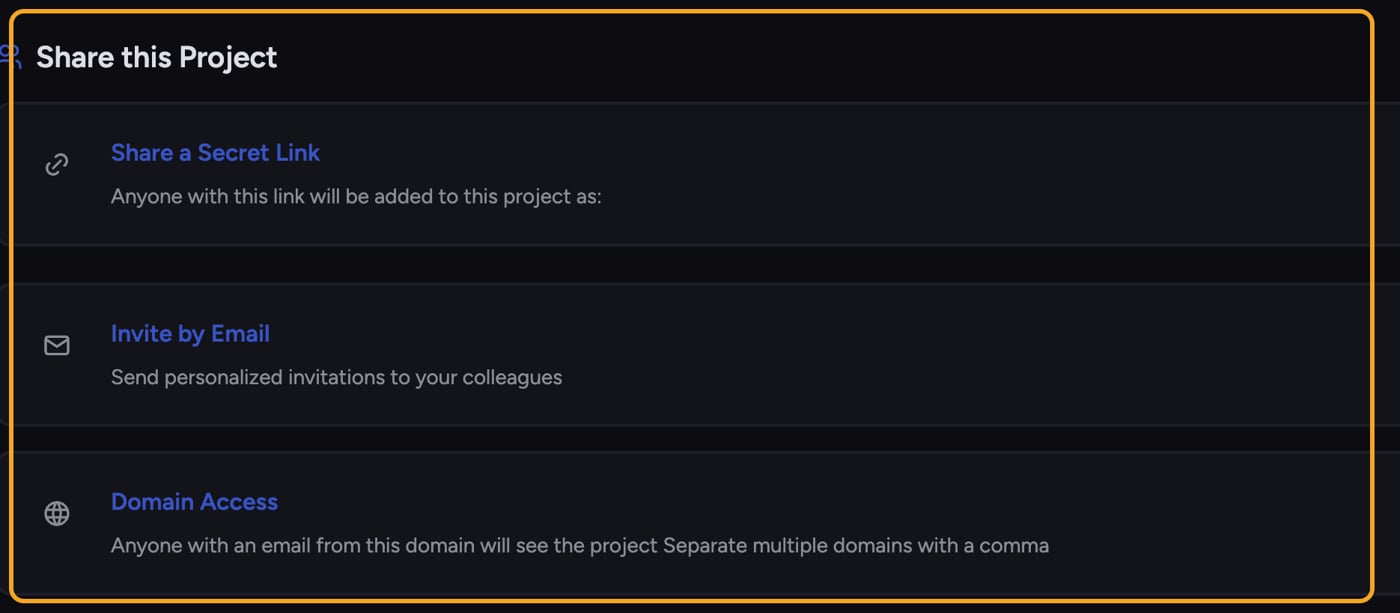 Access to a Project is controlled by the [**invitations**](/help/projects-sharing-teams/inviting-members-email-domain-invite-link) that granted it. You revoke access by removing the invite — the email invite, the domain rule, or the secret link — rather than picking a name from a roster. Open the **Share this Project** window to manage them.
1. Open the [**Switch Projects** picker](/help/projects-sharing-teams/switching-bookmarking-discovering-projects) by clicking the project name at the top of the app.
2. On the Project's card, click **Share Project**. The **Share this Project** window opens with three sections: **Share a Secret Link**, **Invite by Email**, and **Domain Access**.
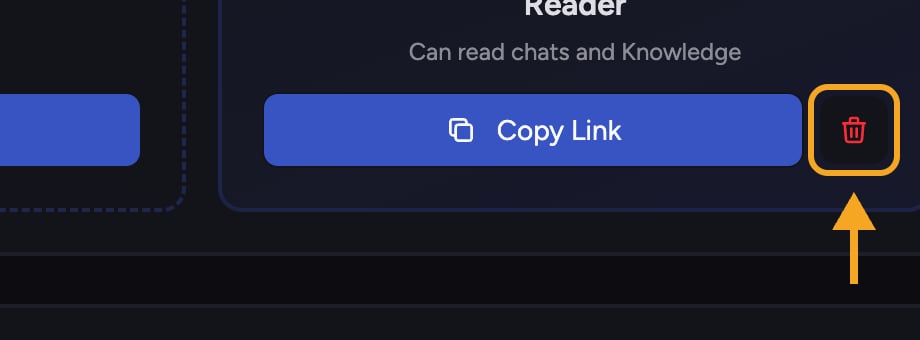
ℹ️ **Good to Know:** The **Current Members** list (who has joined, with [their role](/help/projects-sharing-teams/roles-access-levels-owner-collaborator-reader) and join method) is read-only. To change who has access, remove the invite that granted it. Every email invite, domain rule, and secret link has its own delete (trash) control next to it — the example under **Delete a secret link** below shows what it looks like.
Access to a Project is controlled by the [**invitations**](/help/projects-sharing-teams/inviting-members-email-domain-invite-link) that granted it. You revoke access by removing the invite — the email invite, the domain rule, or the secret link — rather than picking a name from a roster. Open the **Share this Project** window to manage them.
1. Open the [**Switch Projects** picker](/help/projects-sharing-teams/switching-bookmarking-discovering-projects) by clicking the project name at the top of the app.
2. On the Project's card, click **Share Project**. The **Share this Project** window opens with three sections: **Share a Secret Link**, **Invite by Email**, and **Domain Access**.
ℹ️ **Good to Know:** The **Current Members** list (who has joined, with [their role](/help/projects-sharing-teams/roles-access-levels-owner-collaborator-reader) and join method) is read-only. To change who has access, remove the invite that granted it. Every email invite, domain rule, and secret link has its own delete (trash) control next to it — the example under **Delete a secret link** below shows what it looks like.
 ## Remove an email invite
1. In the **Share this Project** window, expand **Invite by Email** and find the invite.
2. Click the **trash** icon next to that invite.
3. The invite is removed and that address no longer has standing access through it.
## Remove a domain rule
1. Expand **Domain Access** and find the domain you want to revoke.
2. Click its **trash** icon.
3. People are no longer granted access just for having an email at that domain.
## Delete a secret link
1. Expand **Share a Secret Link** and find the active link (it shows a **Copy Link** button).
2. Click the red **Delete link** (trash) icon next to it.
3. In the **Delete this secret link?** dialog, click **Yes, Delete Link**. The link stops working immediately, so no one new can join through it.
⚠️ **Important:** Removing an invite revokes the path that granted access. Someone who already joined through a different invite (for example, a [domain rule](/help/organization-administration/understanding-seats-domain-based-access) *and* a direct email invite) may still have access through the other one. Check every invite type if you need to fully cut someone off.
## Frequently asked questions
The members list is read-only. Access is managed through invitations — remove the email invite, domain rule, or secret link that granted the access in the **Share this Project** window.
Deleting a link stops new people from joining, but it doesn't eject those who already joined. They keep the role they were granted until that access is removed.
This is usually a temporary issue or a permissions limit — only members who can manage the Project can remove invites. Refresh and try again, and confirm you have the right role (an Owner can always manage access).
## Remove an email invite
1. In the **Share this Project** window, expand **Invite by Email** and find the invite.
2. Click the **trash** icon next to that invite.
3. The invite is removed and that address no longer has standing access through it.
## Remove a domain rule
1. Expand **Domain Access** and find the domain you want to revoke.
2. Click its **trash** icon.
3. People are no longer granted access just for having an email at that domain.
## Delete a secret link
1. Expand **Share a Secret Link** and find the active link (it shows a **Copy Link** button).
2. Click the red **Delete link** (trash) icon next to it.
3. In the **Delete this secret link?** dialog, click **Yes, Delete Link**. The link stops working immediately, so no one new can join through it.
⚠️ **Important:** Removing an invite revokes the path that granted access. Someone who already joined through a different invite (for example, a [domain rule](/help/organization-administration/understanding-seats-domain-based-access) *and* a direct email invite) may still have access through the other one. Check every invite type if you need to fully cut someone off.
## Frequently asked questions
The members list is read-only. Access is managed through invitations — remove the email invite, domain rule, or secret link that granted the access in the **Share this Project** window.
Deleting a link stops new people from joining, but it doesn't eject those who already joined. They keep the role they were granted until that access is removed.
This is usually a temporary issue or a permissions limit — only members who can manage the Project can remove invites. Refresh and try again, and confirm you have the right role (an Owner can always manage access).