> ## Documentation Index
> Fetch the complete documentation index at: https://docs.chief.bot/llms.txt
> Use this file to discover all available pages before exploring further.
# Switching, bookmarking & discovering projects
> Chief works inside one active Project at a time.
## Switch to another Project
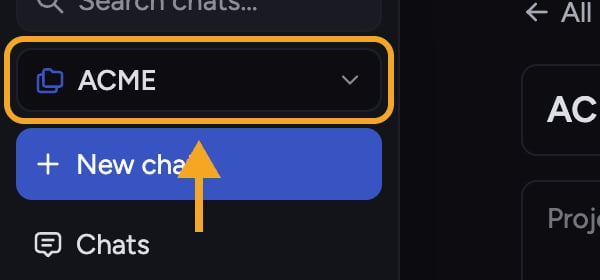 Chief works inside one active [Project](/help/projects-sharing-teams/what-is-a-project) at a time. To move to a different one:
1. At the top of the app, click the **project name**. The **Switch Projects** picker opens.
2. Click **All projects** to see every Project you're a member of, then click the one you want. Chief switches your active context to it and closes the picker.
Clicking the Project you're already in takes you to that Project's home instead of switching.
ℹ️ **Good to Know:** Switching Projects doesn't stop a chat that's still generating — it [keeps running in the background](/help/chatting-with-chief/running-chats-in-the-background-browser-notifications), and the finished answer will be waiting when you come back to that Project.
## Find a Project (search and sort)
Chief works inside one active [Project](/help/projects-sharing-teams/what-is-a-project) at a time. To move to a different one:
1. At the top of the app, click the **project name**. The **Switch Projects** picker opens.
2. Click **All projects** to see every Project you're a member of, then click the one you want. Chief switches your active context to it and closes the picker.
Clicking the Project you're already in takes you to that Project's home instead of switching.
ℹ️ **Good to Know:** Switching Projects doesn't stop a chat that's still generating — it [keeps running in the background](/help/chatting-with-chief/running-chats-in-the-background-browser-notifications), and the finished answer will be waiting when you come back to that Project.
## Find a Project (search and sort)
 The picker is built for discovery when your list gets long:
1. Open the **Switch Projects** picker and click **All projects**.
2. In the **search box** at the top ("Search for a project to switch to..."), type part of a Project's name. The list filters as you type.
3. To reorder instead, use the **Sort by** control and choose **Recent** or **A→Z** (alphabetical).
If your search doesn't match any existing Project, the picker offers to [create a new one](/help/projects-sharing-teams/creating-configuring-a-project) with that name — a quick path from "I can't find it" to "let's make it."
## Bookmark a Project
The picker is built for discovery when your list gets long:
1. Open the **Switch Projects** picker and click **All projects**.
2. In the **search box** at the top ("Search for a project to switch to..."), type part of a Project's name. The list filters as you type.
3. To reorder instead, use the **Sort by** control and choose **Recent** or **A→Z** (alphabetical).
If your search doesn't match any existing Project, the picker offers to [create a new one](/help/projects-sharing-teams/creating-configuring-a-project) with that name — a quick path from "I can't find it" to "let's make it."
## Bookmark a Project
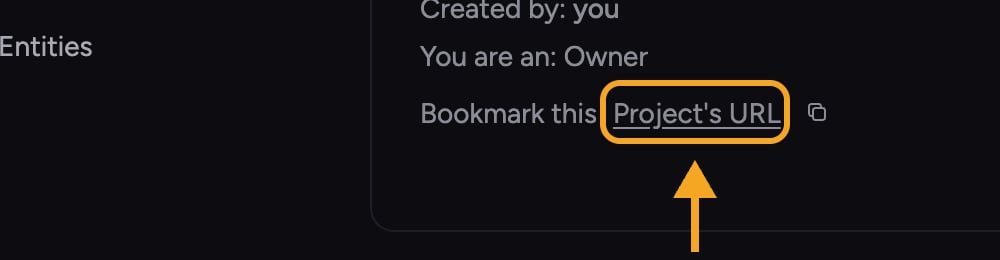 Every Project has its own web address, so you can bookmark it and jump straight back later. Two ways:
* **Bookmark the page in your browser** — open the Project and save the current page; the address bar holds the Project's URL.
* **Copy the link from the Project** — open the Project's **General** settings tab (from the Project home, click the **Members** quick link, then the **General** tab). In the header, next to **Bookmark this**, click **Project's URL** (or the copy icon beside it) to copy the link to your clipboard.
⚠️ **Important:** A bookmarked URL only opens the Project for people who are already members. Sharing the link with someone who hasn't been invited won't give them access — to add people, use [an invite](/help/projects-sharing-teams/inviting-members-email-domain-invite-link) instead.
## Frequently asked questions
Search matches Projects you're a member of. If there's no match, you may be searching for a Project you were never added to, or the name differs from what you typed. The picker will offer to create a new Project with that name.
No. Sort order is a personal view preference in your picker. It doesn't change the Projects themselves or how anyone else sees them.
The URL isn't an invite. Add them through email, domain, or a secret link so they become a member — then the URL will work for them.
Every Project has its own web address, so you can bookmark it and jump straight back later. Two ways:
* **Bookmark the page in your browser** — open the Project and save the current page; the address bar holds the Project's URL.
* **Copy the link from the Project** — open the Project's **General** settings tab (from the Project home, click the **Members** quick link, then the **General** tab). In the header, next to **Bookmark this**, click **Project's URL** (or the copy icon beside it) to copy the link to your clipboard.
⚠️ **Important:** A bookmarked URL only opens the Project for people who are already members. Sharing the link with someone who hasn't been invited won't give them access — to add people, use [an invite](/help/projects-sharing-teams/inviting-members-email-domain-invite-link) instead.
## Frequently asked questions
Search matches Projects you're a member of. If there's no match, you may be searching for a Project you were never added to, or the name differs from what you typed. The picker will offer to create a new Project with that name.
No. Sort order is a personal view preference in your picker. It doesn't change the Projects themselves or how anyone else sees them.
The URL isn't an invite. Add them through email, domain, or a secret link so they become a member — then the URL will work for them.