> ## Documentation Index
> Fetch the complete documentation index at: https://docs.chief.bot/llms.txt
> Use this file to discover all available pages before exploring further.
# Searching prompts & the prompt library
> Chief has two prompt searches: one for the Prompt Launchpad (the shared gallery) and one for your Saved Prompts (your personal library).
## Two searches, two places
Chief has two prompt searches: one for the [**Prompt Launchpad**](/help/prompts-the-launchpad/what-is-the-launchpad) (the shared gallery) and one for your [**Saved Prompts**](/help/prompts-the-launchpad/saving-your-own-prompt-templates) (your personal library). They work a little differently, so here's how to get the most out of each.
## Search the Launchpad
 1. Open the **Prompt Launchpad** and find the search box on the right of the count row (magnifying-glass icon, placeholder **Search prompts...**).
2. Type at least **3 characters**. Results update as you type and the search runs across every category, not just the one you're viewing.
3. Click any matching card to [load it into the prompt bar](/help/prompts-the-launchpad/using-featured-prompts).
Launchpad search matches a prompt's title, description, author, and category tags. It's also **smart about word forms** — searching *summary* also finds prompts about *summarize*. When you use several words, results must match all of them.
🚀 **Pro-Tip:** When you search at the top level, Chief shows matching **category pills** below the results. Click one to jump straight into that category — a fast way to go from a keyword to a whole topic.
## Search your Saved Prompts
1. Open the **Prompt Launchpad** and find the search box on the right of the count row (magnifying-glass icon, placeholder **Search prompts...**).
2. Type at least **3 characters**. Results update as you type and the search runs across every category, not just the one you're viewing.
3. Click any matching card to [load it into the prompt bar](/help/prompts-the-launchpad/using-featured-prompts).
Launchpad search matches a prompt's title, description, author, and category tags. It's also **smart about word forms** — searching *summary* also finds prompts about *summarize*. When you use several words, results must match all of them.
🚀 **Pro-Tip:** When you search at the top level, Chief shows matching **category pills** below the results. Click one to jump straight into that category — a fast way to go from a keyword to a whole topic.
## Search your Saved Prompts
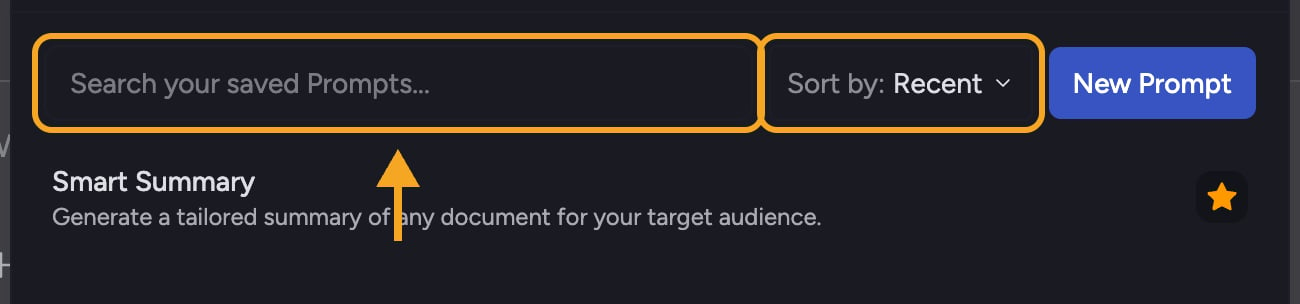 1. Open the **Saved Prompts** panel.
2. Type in the search box at the top (placeholder **Search your saved Prompts...**). The list filters as you type.
3. Use the **Sort by** dropdown to order results by **Recent** or **A→Z**. Starred prompts always rise to the top.
## Frequently asked questions
Launchpad search needs at least **3 characters** before it filters, so one or two letters won't change the results. Keep typing.
No. If you're inside a category, Chief offers a link to expand the search to **all prompts**. There's also a link to more advanced search tips. Try a broader or simpler term too.
The two searches cover different sets. Saved Prompts only searches prompts you've created or added. To search the full gallery, use the search inside the **Prompt Launchpad** instead.
1. Open the **Saved Prompts** panel.
2. Type in the search box at the top (placeholder **Search your saved Prompts...**). The list filters as you type.
3. Use the **Sort by** dropdown to order results by **Recent** or **A→Z**. Starred prompts always rise to the top.
## Frequently asked questions
Launchpad search needs at least **3 characters** before it filters, so one or two letters won't change the results. Keep typing.
No. If you're inside a category, Chief offers a link to expand the search to **all prompts**. There's also a link to more advanced search tips. Try a broader or simpler term too.
The two searches cover different sets. Saved Prompts only searches prompts you've created or added. To search the full gallery, use the search inside the **Prompt Launchpad** instead.